Spring

 13 nov- 22 nov

spring framework tutorial

This spring tutorial provides in-depth concepts of Spring Framework with simplified examples. It was developed by Rod Johnson in 2003. Spring framework makes the easy development of JavaEE application.

It is helpful for beginners and experienced persons.

Spring Framework

Spring is a lightweight framework. It can be thought of as a framework of frameworks because it provides support to various frameworks such as Struts, Hibernate, Tapestry, EJB, JSF etc. The framework, in broader sense, can be defined as a structure where we find solution of the various technical problems.

The Spring framework comprises several modules such as IOC, AOP, DAO, Context, ORM, WEB MVC etc. We will learn these modules in next page. Let’s understand the IOC and Dependency Injection first.

Advantages of Spring Framework

There are many advantages of Spring Framework. They are as follows:

1) Predefined Templates

Spring framework provides templates for JDBC, Hibernate, JPA etc. technologies. So there is no need to write too much code. It hides the basic steps of these technologies.

Let’s take the example of JdbcTemplate, you don’t need to write the code for exception handling, creating connection, creating statement, committing transaction, closing connection etc. You need to write the code of executing query only. Thus, it save a lot of JDBC code.


2) Loose Coupling

The Spring applications are loosely coupled because of dependency injection.


3) Easy to test

The Dependency Injection makes easier to test the application. The EJB or Struts application require server to run the application but Spring framework doesn’t require server.


4) Lightweight

Spring framework is lightweight because of its POJO implementation. The Spring Framework doesn’t force the programmer to inherit any class or implement any interface. That is why it is said non-invasive.


5) Fast Development

The Dependency Injection feature of Spring Framework and it support to various frameworks makes the easy development of JavaEE application.


6) Powerful abstraction

It provides powerful abstraction to JavaEE specifications such as JMS, JDBC, JPA and JTA.


7) Declarative support

It provides declarative support for caching, validation, transactions and formatting.

Spring mvc

Spring MVC tutorial provides an elegant solution to use MVC in spring framework by the help of DispatcherServlet.

In Spring Web MVC, DispatcherServlet class works as the front controller. It is responsible to manage the flow of the spring mvc application.

The @Controller annotation is used to mark the class as the controller in Spring 3.

The @RequestMapping annotation is used to map the request url. It is applied on the method.

nderstanding the flow of Spring Web MVC
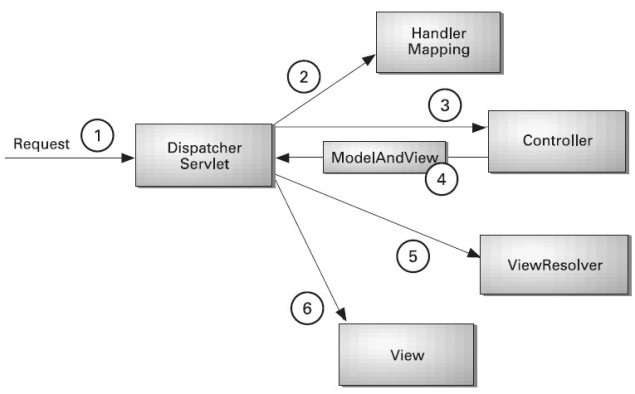
Spring MVC example

As displayed in the figure, all the incoming request is intercepted by the DispatcherServlet that works as the front controller. The DispatcherServlet gets entry of handler mapping from the xml file and forwards the request to the controller. The controller returns an object of ModelAndView. The DispatcherServlet checks the entry of view resolver in the xml file and invokes the specified view component.


Spring MVC Form Example

Here, we will learn how to handle a form data in spring MVC without using database. Here, we will use @Controler, @RequestMapping and @ModelAttribute annotations.

To display the input form, we are going to use <form:form> tag of spring framework. Let’s see a simple example to store form data in a model object and display data of a list.


Required Jar files

To run this example, you need to load:

  • Spring Core jar files
  • Spring Web jar files

download all the jar files for spring including core, web, aop, mvc, j2ee, remoting, oxm, jdbc, orm etc.


index.jsp

  1. <a href=“empform”>Add Employee</a>
  2. <a href=“viewemp”>View Employees</a>

Emp.java

package com.javatpoint.beans;

public class Emp {

private int id;

private String name;

private float salary;

private String designation;

public Emp() {}

public Emp(int id, String name, float salary, String designation) {

super();

this.id = id;

this.name = name;

this.salary = salary;

this.designation = designation;

}

public int getId() {

return id;

}

public void setId(int id) {

this.id = id;

}

public String getName() {

return name;

}

public void setName(String name) {

this.name = name;

}

public float getSalary() {

return salary;

}

public void setSalary(float salary) {

this.salary = salary;

}

public String getDesignation() {

return designation;

}

public void setDesignation(String designation) {

this.designation = designation;

}

}

er.java

package com.javatpoint.controllers;

import java.util.ArrayList;

import java.util.List;

import org.springframework.stereotype.Controller;

import org.springframework.web.bind.annotation.ModelAttribute;

import org.springframework.web.bind.annotation.RequestMapping;

import org.springframework.web.bind.annotation.RequestMethod;

import org.springframework.web.servlet.ModelAndView;

import com.javatpoint.beans.Emp;

@Controller

public class EmpController {

@RequestMapping(“/empform”)

public ModelAndView showform(){

//command is a reserved request attribute name, now use <form> tag to show object data

return new ModelAndView(“empform”,“command”,new Emp());

}

@RequestMapping(value=“/save”,method = RequestMethod.POST)

public ModelAndView save(@ModelAttribute(“emp”) Emp emp){

//write code to save emp object

//here, we are displaying emp object to prove emp has data

System.out.println(emp.getName()+” “+emp.getSalary()+” “+emp.getDesignation());

//return new ModelAndView(“empform”,”command”,emp);//will display object data

return new ModelAndView(“redirect:/viewemp”);//will redirect to viewemp request mapping

}

@RequestMapping(“/viewemp”)

public ModelAndView viewemp(){

//write the code to get all employees from DAO

//here, we are writing manual code of list for easy understanding

List<Emp> list=new ArrayList<Emp>();

list.add(new Emp(1,“rahul”,35000f,“S.Engineer”));

list.add(new Emp(2,“aditya”,25000f,“IT Manager”));

list.add(new Emp(3,“sachin”,55000f,“Care Taker”));

return new ModelAndView(“viewemp”,“list”,list);

}

}


web.xml

<?xml version=“1.0” encoding=“UTF-8”?>

<web-app version=“2.5”

xmlns=http://java.sun.com/xml/ns/javaee&#8221;

xmlns:xsi=http://www.w3.org/2001/XMLSchema-instance&#8221;

xsi:schemaLocation=”http://java.sun.com/xml/ns/javaee 

http://java.sun.com/xml/ns/javaee/web-app_2_5.xsd”>

<servlet>

<servlet-name>spring</servlet-name>

<servlet-class>org.springframework.web.servlet.DispatcherServlet</servlet-class>

<load-on-startup>1</load-on-startup>

</servlet>

<servlet-mapping>

<servlet-name>spring</servlet-name>

<url-pattern>/</url-pattern>

</servlet-mapping>

</web-app>


spring-servlet.xml

<?xml version=“1.0” encoding=“UTF-8”?>

<beans xmlns=http://www.springframework.org/schema/beans&#8221;

xmlns:xsi=http://www.w3.org/2001/XMLSchema-instance&#8221;

xmlns:p=http://www.springframework.org/schema/p&#8221;

xmlns:context=http://www.springframework.org/schema/context&#8221;

xsi:schemaLocation=”http://www.springframework.org/schema/beans  

http://www.springframework.org/schema/beans/spring-beans-3.0.xsd  

http://www.springframework.org/schema/context  

http://www.springframework.org/schema/context/spring-context-3.0.xsd”>  


<context:component-scan base-package=“com.javatpoint.controllers”></context:component-scan>


<bean class=“org.springframework.web.servlet.view.InternalResourceViewResolver”>

<property name=“prefix” value=“/WEB-INF/jsp/”></property>

<property name=“suffix” value=“.jsp”></property>

</bean>


</beans>


empform.jsp

<%@ taglib uri=http://www.springframework.org/tags/form&#8221; prefix=“form”%>

<%@ taglib uri=http://java.sun.com/jsp/jstl/core&#8221; prefix=“c”%>


<form:form method=“post” action=“save”>

<table >

<tr>

<td>Name : </td>

<td><form:input path=“name”  /></td>

</tr>

<tr>

<td>Salary :</td>

<td><form:input path=“salary” /></td>

</tr>

<tr>

<td>Designation :</td>

<td><form:input path=“designation” /></td>

</tr>

<tr>

<td colspan=“2”><input type=“submit” value=“Save” /></td>

</tr>

</table>

</form:form>


viewemp.jsp

<%@ taglib uri=http://www.springframework.org/tags/form&#8221; prefix=“form”%>

<%@ taglib uri=http://java.sun.com/jsp/jstl/core&#8221; prefix=“c”%>


<table border=“2” width=“70%” cellpadding=“2”>

<tr><th>Id</th><th>Name</th><th>Salary</th><th>Designation</th></tr>

<c:forEach var=“emp” items=“${list}”>

<tr>

<td>${emp.id}</td>

<td>${emp.name}</td>

<td>${emp.salary}</td>

<td>${emp.designation}</td>

</tr>

</c:forEach>

</table>


Output

spring mvc form output1 spring mvc form output2 spring mvc form output3 spring mvc form output4

Spring MVC CRUD Example

CRUD (Create, Read, Update and Delete) application is the most important application for creating any project. It provides an idea to develop a large project. In spring MVC, we can develop a simple CRUD application.

Here, we are using JdbcTemplate for database interaction.


Required Jar files

To run this example, you need to load:

  • Spring Core jar files
  • Spring Web jar files
  • ojdbc14.jar file for oracle

download all the jar files for spring including core, web, aop, mvc, j2ee, remoting, oxm, jdbc, orm etc.


Create table

Here, we are using emp99 table of oracle 10g database which has 4 fields: id, name, salary and designation. Here, id is auto incremented which is generated by sequence.

spring crud table

Spring MVC CRUD Example

index.jsp

<a href=“empform”>Add Employee</a>

<a href=“viewemp”>View Employees</a>


Emp.java

package com.javatpoint.beans;


public class Emp {

private int id;

private String name;

private float salary;

private String designation;


public int getId() {

return id;

}

public void setId(int id) {

this.id = id;

}

public String getName() {

return name;

}

public void setName(String name) {

this.name = name;

}

public float getSalary() {

return salary;

}

public void setSalary(float salary) {

this.salary = salary;

}

public String getDesignation() {

return designation;

}

public void setDesignation(String designation) {

this.designation = designation;

}


}


EmpDao.java

package com.javatpoint.dao;

import java.sql.ResultSet;

import java.sql.SQLException;

import java.util.List;

import org.springframework.jdbc.core.BeanPropertyRowMapper;

import org.springframework.jdbc.core.JdbcTemplate;

import org.springframework.jdbc.core.RowMapper;

import com.javatpoint.beans.Emp;


public class EmpDao {

JdbcTemplate template;


public void setTemplate(JdbcTemplate template) {

this.template = template;

}

public int save(Emp p){

String sql=”insert into Emp99(name,salary,designation)

values(‘”+p.getName()+”‘,“+p.getSalary()+”,‘”+p.getDesignation()+”‘)”;

return template.update(sql);

}

public int update(Emp p){

String sql=“update Emp99 set name='”+p.getName()+“‘, salary=”+p.getSalary()+”,

designation=‘”+p.getDesignation()+”‘ where id=“+p.getId()+”“;

return template.update(sql);

}

public int delete(int id){

String sql=“delete from Emp99 where id=”+id+“”;

return template.update(sql);

}

public Emp getEmpById(int id){

String sql=“select * from Emp99 where id=?”;

return template.queryForObject(sql, new Object[]{id},new BeanPropertyRowMapper<Emp>(Emp.class));

}

public List<Emp> getEmployees(){

return template.query(“select * from Emp99”,new RowMapper<Emp>(){

public Emp mapRow(ResultSet rs, int row) throws SQLException {

Emp e=new Emp();

e.setId(rs.getInt(1));

e.setName(rs.getString(2));

e.setSalary(rs.getFloat(3));

e.setDesignation(rs.getString(4));

return e;

}

});

}

  1. }

EmpController.java

package com.javatpoint.controllers;

import java.util.ArrayList;

import java.util.List;

import org.springframework.beans.factory.annotation.Autowired;

import org.springframework.stereotype.Controller;

import org.springframework.web.bind.annotation.ModelAttribute;

import org.springframework.web.bind.annotation.PathVariable;

import org.springframework.web.bind.annotation.RequestMapping;

import org.springframework.web.bind.annotation.RequestMethod;

import org.springframework.web.servlet.ModelAndView;

import com.javatpoint.beans.Emp;

import com.javatpoint.dao.EmpDao;

@Controller

public class EmpController {

@Autowired

EmpDao dao;//will inject dao from xml file

/*It displays a form to input data, here “command” is a reserved request attribute

     *which is used to display object data into form

     */

@RequestMapping(“/empform”)

public ModelAndView showform(){

return new ModelAndView(“empform”,“command”,new Emp());

}

/*It saves object into database. The @ModelAttribute puts request data

     *  into model object. You need to mention RequestMethod.POST method 

     *  because default request is GET*/

@RequestMapping(value=“/save”,method = RequestMethod.POST)

public ModelAndView save(@ModelAttribute(“emp”) Emp emp){

dao.save(emp);

return new ModelAndView(“redirect:/viewemp”);//will redirect to viewemp request mapping

}

/* It provides list of employees in model object */

@RequestMapping(“/viewemp”)

public ModelAndView viewemp(){

List<Emp> list=dao.getEmployees();

return new ModelAndView(“viewemp”,“list”,list);

}

/* It displays object data into form for the given id. 

     * The @PathVariable puts URL data into variable.*/

@RequestMapping(value=“/editemp/{id}”)

public ModelAndView edit(@PathVariable int id){

Emp emp=dao.getEmpById(id);

return new ModelAndView(“empeditform”,“command”,emp);

}

/* It updates model object. */

@RequestMapping(value=“/editsave”,method = RequestMethod.POST)

public ModelAndView editsave(@ModelAttribute(“emp”) Emp emp){

dao.update(emp);

return new ModelAndView(“redirect:/viewemp”);

}

/* It deletes record for the given id in URL and redirects to /viewemp */

@RequestMapping(value=“/deleteemp/{id}”,method = RequestMethod.GET)

public ModelAndView delete(@PathVariable int id){

dao.delete(id);

return new ModelAndView(“redirect:/viewemp”);

}

}


web.xml

<?xml version=“1.0” encoding=“UTF-8”?>

<web-app version=“2.5”

xmlns=http://java.sun.com/xml/ns/javaee&#8221;

xmlns:xsi=http://www.w3.org/2001/XMLSchema-instance&#8221;

xsi:schemaLocation=”http://java.sun.com/xml/ns/javaee 

http://java.sun.com/xml/ns/javaee/web-app_2_5.xsd”>

<servlet>

<servlet-name>spring</servlet-name>

<servlet-class>org.springframework.web.servlet.DispatcherServlet</servlet-class>

<load-on-startup>1</load-on-startup>

</servlet>

<servlet-mapping>

<servlet-name>spring</servlet-name>

<url-pattern>/</url-pattern>

</servlet-mapping>

</web-app>


spring-servlet.xml

<?xml version=“1.0” encoding=“UTF-8”?>

<beans xmlns=http://www.springframework.org/schema/beans&#8221;

xmlns:xsi=http://www.w3.org/2001/XMLSchema-instance&#8221;

xmlns:p=http://www.springframework.org/schema/p&#8221;

xmlns:context=http://www.springframework.org/schema/context&#8221;

xsi:schemaLocation=”http://www.springframework.org/schema/beans  

http://www.springframework.org/schema/beans/spring-beans-3.0.xsd  

http://www.springframework.org/schema/context  

http://www.springframework.org/schema/context/spring-context-3.0.xsd”>  


<context:component-scan base-package=“com.javatpoint.controllers”></context:component-scan>


<bean class=“org.springframework.web.servlet.view.InternalResourceViewResolver”>

<property name=“prefix” value=“/WEB-INF/jsp/”></property>

<property name=“suffix” value=“.jsp”></property>

</bean>


<bean id=“ds” class=“org.springframework.jdbc.datasource.DriverManagerDataSource”>

<property name=“driverClassName” value=“oracle.jdbc.driver.OracleDriver”></property>

<property name=“url” value=“jdbc:oracle:thin:@localhost:1521:xe”></property>

<property name=“username” value=“system”></property>

<property name=“password” value=“oracle”></property>

</bean>


<bean id=“jt” class=“org.springframework.jdbc.core.JdbcTemplate”>

<property name=“dataSource” ref=“ds”></property>

</bean>


<bean id=“dao” class=“com.javatpoint.dao.EmpDao”>

<property name=“template” ref=“jt”></property>

</bean>

</beans>


empform.jsp

<%@ taglib uri=http://www.springframework.org/tags/form&#8221; prefix=“form”%>

<%@ taglib uri=http://java.sun.com/jsp/jstl/core&#8221; prefix=“c”%>


<h1>Add New Employee</h1>

<form:form method=“post” action=“save”>

<table >

<tr>

<td>Name : </td>

<td><form:input path=“name”  /></td>

</tr>

<tr>

<td>Salary :</td>

<td><form:input path=“salary” /></td>

</tr>

<tr>

<td>Designation :</td>

<td><form:input path=“designation” /></td>

</tr>

<tr>

<td> </td>

<td><input type=“submit” value=“Save” /></td>

</tr>

</table>

</form:form>


empeditform.jsp

Here “/SpringMVCCRUDSimple” is the project name, change this if you have different project name. For live application, you can provide full URL.

<%@ taglib uri=http://www.springframework.org/tags/form&#8221; prefix=“form”%>

<%@ taglib uri=http://java.sun.com/jsp/jstl/core&#8221; prefix=“c”%>


<h1>Edit Employee</h1>

<form:form method=“POST” action=“/SpringMVCCRUDSimple/editsave”>

<table >

<tr>

<td></td>

<td><form:hidden  path=“id” /></td>

</tr>

<tr>

<td>Name : </td>

<td><form:input path=“name”  /></td>

</tr>

<tr>

<td>Salary :</td>

<td><form:input path=“salary” /></td>

</tr>

<tr>

<td>Designation :</td>

<td><form:input path=“designation” /></td>

</tr>


<tr>

<td> </td>

<td><input type=“submit” value=“Edit Save” /></td>

</tr>

</table>

</form:form>


viewemp.jsp

   <%@ taglib uri=http://www.springframework.org/tags/form&#8221; prefix=“form”%>

<%@ taglib uri=http://java.sun.com/jsp/jstl/core&#8221; prefix=“c”%>


<h1>Employees List</h1>

<table border=“2” width=“70%” cellpadding=“2”>

<tr><th>Id</th><th>Name</th><th>Salary</th><th>Designation</th><th>Edit</th><th>Delete</th></tr>

<c:forEach var=“emp” items=“${list}”>

<tr>

<td>${emp.id}</td>

<td>${emp.name}</td>

<td>${emp.salary}</td>

<td>${emp.designation}</td>

<td><a href=“editemp/${emp.id}”>Edit</a></td>

<td><a href=“deleteemp/${emp.id}”>Delete</a></td>

</tr>

</c:forEach>

</table>

<br/>

<a href=“empform”>Add New Employee</a>


Output

spring mvc crud output1

Click on “Add New Employee” link, you will see following form.

spring mvc crud output2

Fill data and click on save button. You will see employees list.

spring mvc crud output3

Now click on “edit” link, a form will appear with the data.

spring mvc crud output4

Now change the data of the form and click on “edit save” button.

spring mvc crud output5

Now click on “delete” link, you will see employees list with deleted record.

spring mvc crud output6

Spring MVC CRUD Example

index.jsp

<a href=“empform”>Add Employee</a>

<a href=“viewemp”>View Employees</a>


Emp.java

package com.javatpoint.beans;


public class Emp {

private int id;

private String name;

private float salary;

private String designation;


public int getId() {

return id;

}

public void setId(int id) {

this.id = id;

}

public String getName() {

return name;

}

public void setName(String name) {

this.name = name;

}

public float getSalary() {

return salary;

}

public void setSalary(float salary) {

this.salary = salary;

}

public String getDesignation() {

return designation;

}

public void setDesignation(String designation) {

this.designation = designation;

}


}


EmpDao.java

package com.javatpoint.dao;

import java.sql.ResultSet;

import java.sql.SQLException;

import java.util.List;

import org.springframework.jdbc.core.BeanPropertyRowMapper;

import org.springframework.jdbc.core.JdbcTemplate;

import org.springframework.jdbc.core.RowMapper;

import com.javatpoint.beans.Emp;


public class EmpDao {

JdbcTemplate template;


public void setTemplate(JdbcTemplate template) {

this.template = template;

}

public int save(Emp p){

String sql=”insert into Emp99(name,salary,designation)

values(‘”+p.getName()+”‘,“+p.getSalary()+”,‘”+p.getDesignation()+”‘)”;

return template.update(sql);

}

public int update(Emp p){

String sql=“update Emp99 set name='”+p.getName()+“‘, salary=”+p.getSalary()+”,

designation=‘”+p.getDesignation()+”‘ where id=“+p.getId()+”“;

return template.update(sql);

}

public int delete(int id){

String sql=“delete from Emp99 where id=”+id+“”;

return template.update(sql);

}

public Emp getEmpById(int id){

String sql=“select * from Emp99 where id=?”;

return template.queryForObject(sql, new Object[]{id},new BeanPropertyRowMapper<Emp>(Emp.class));

}

public List<Emp> getEmployees(){

return template.query(“select * from Emp99”,new RowMapper<Emp>(){

public Emp mapRow(ResultSet rs, int row) throws SQLException {

Emp e=new Emp();

e.setId(rs.getInt(1));

e.setName(rs.getString(2));

e.setSalary(rs.getFloat(3));

e.setDesignation(rs.getString(4));

return e;

}

});

}

}


EmpController.java

package com.javatpoint.controllers;

import java.util.ArrayList;

import java.util.List;

import org.springframework.beans.factory.annotation.Autowired;

import org.springframework.stereotype.Controller;

import org.springframework.web.bind.annotation.ModelAttribute;

import org.springframework.web.bind.annotation.PathVariable;

import org.springframework.web.bind.annotation.RequestMapping;

import org.springframework.web.bind.annotation.RequestMethod;

import org.springframework.web.servlet.ModelAndView;

import com.javatpoint.beans.Emp;

import com.javatpoint.dao.EmpDao;

@Controller

public class EmpController {

@Autowired

EmpDao dao;//will inject dao from xml file


/*It displays a form to input data, here “command” is a reserved request attribute

     *which is used to display object data into form

     */

@RequestMapping(“/empform”)

public ModelAndView showform(){

return new ModelAndView(“empform”,“command”,new Emp());

}

/*It saves object into database. The @ModelAttribute puts request data

     *  into model object. You need to mention RequestMethod.POST method 

     *  because default request is GET*/

@RequestMapping(value=“/save”,method = RequestMethod.POST)

public ModelAndView save(@ModelAttribute(“emp”) Emp emp){

dao.save(emp);

return new ModelAndView(“redirect:/viewemp”);//will redirect to viewemp request mapping

}

/* It provides list of employees in model object */

@RequestMapping(“/viewemp”)

public ModelAndView viewemp(){

List<Emp> list=dao.getEmployees();

return new ModelAndView(“viewemp”,“list”,list);

}

/* It displays object data into form for the given id. 

     * The @PathVariable puts URL data into variable.*/

@RequestMapping(value=“/editemp/{id}”)

public ModelAndView edit(@PathVariable int id){

Emp emp=dao.getEmpById(id);

return new ModelAndView(“empeditform”,“command”,emp);

}

/* It updates model object. */

@RequestMapping(value=“/editsave”,method = RequestMethod.POST)

public ModelAndView editsave(@ModelAttribute(“emp”) Emp emp){

dao.update(emp);

return new ModelAndView(“redirect:/viewemp”);

}

/* It deletes record for the given id in URL and redirects to /viewemp */

@RequestMapping(value=“/deleteemp/{id}”,method = RequestMethod.GET)

public ModelAndView delete(@PathVariable int id){

dao.delete(id);

return new ModelAndView(“redirect:/viewemp”);

}


}


web.xml

<?xml version=“1.0” encoding=“UTF-8”?>

<web-app version=“2.5”

xmlns=http://java.sun.com/xml/ns/javaee&#8221;

xmlns:xsi=http://www.w3.org/2001/XMLSchema-instance&#8221;

xsi:schemaLocation=”http://java.sun.com/xml/ns/javaee 

http://java.sun.com/xml/ns/javaee/web-app_2_5.xsd”>

<servlet>

<servlet-name>spring</servlet-name>

<servlet-class>org.springframework.web.servlet.DispatcherServlet</servlet-class>

<load-on-startup>1</load-on-startup>

</servlet>

<servlet-mapping>

<servlet-name>spring</servlet-name>

<url-pattern>/</url-pattern>

</servlet-mapping>

</web-app>


spring-servlet.xml

<?xml version=“1.0” encoding=“UTF-8”?>

<beans xmlns=http://www.springframework.org/schema/beans&#8221;

xmlns:xsi=http://www.w3.org/2001/XMLSchema-instance&#8221;

xmlns:p=http://www.springframework.org/schema/p&#8221;

xmlns:context=http://www.springframework.org/schema/context&#8221;

xsi:schemaLocation=”http://www.springframework.org/schema/beans  

http://www.springframework.org/schema/beans/spring-beans-3.0.xsd  

http://www.springframework.org/schema/context  

http://www.springframework.org/schema/context/spring-context-3.0.xsd”>  


<context:component-scan base-package=“com.javatpoint.controllers”></context:component-scan>


<bean class=“org.springframework.web.servlet.view.InternalResourceViewResolver”>

<property name=“prefix” value=“/WEB-INF/jsp/”></property>

<property name=“suffix” value=“.jsp”></property>

</bean>


<bean id=“ds” class=“org.springframework.jdbc.datasource.DriverManagerDataSource”>

<property name=“driverClassName” value=“oracle.jdbc.driver.OracleDriver”></property>

<property name=“url” value=“jdbc:oracle:thin:@localhost:1521:xe”></property>

<property name=“username” value=“system”></property>

<property name=“password” value=“oracle”></property>

</bean>


<bean id=“jt” class=“org.springframework.jdbc.core.JdbcTemplate”>

<property name=“dataSource” ref=“ds”></property>

</bean>


<bean id=“dao” class=“com.javatpoint.dao.EmpDao”>

<property name=“template” ref=“jt”></property>

</bean>

</beans>


empform.jsp

<%@ taglib uri=http://www.springframework.org/tags/form&#8221; prefix=“form”%>

<%@ taglib uri=http://java.sun.com/jsp/jstl/core&#8221; prefix=“c”%>


<h1>Add New Employee</h1>

<form:form method=“post” action=“save”>

<table >

<tr>

<td>Name : </td>

<td><form:input path=“name”  /></td>

</tr>

<tr>

<td>Salary :</td>

<td><form:input path=“salary” /></td>

</tr>

<tr>

<td>Designation :</td>

<td><form:input path=“designation” /></td>

</tr>

<tr>

<td> </td>

<td><input type=“submit” value=“Save” /></td>

</tr>

</table>

</form:form>


empeditform.jsp

Here “/SpringMVCCRUDSimple” is the project name, change this if you have different project name. For live application, you can provide full URL.

<%@ taglib uri=http://www.springframework.org/tags/form&#8221; prefix=“form”%>

<%@ taglib uri=http://java.sun.com/jsp/jstl/core&#8221; prefix=“c”%>


<h1>Edit Employee</h1>

<form:form method=“POST” action=“/SpringMVCCRUDSimple/editsave”>

<table >

<tr>

<td></td>

<td><form:hidden  path=“id” /></td>

</tr>

<tr>

<td>Name : </td>

<td><form:input path=“name”  /></td>

</tr>

<tr>

<td>Salary :</td>

<td><form:input path=“salary” /></td>

</tr>

<tr>

<td>Designation :</td>

<td><form:input path=“designation” /></td>

</tr>


<tr>

<td> </td>

<td><input type=“submit” value=“Edit Save” /></td>

</tr>

</table>

</form:form>


viewemp.jsp

<%@ taglib uri=http://www.springframework.org/tags/form&#8221; prefix=“form”%>

<%@ taglib uri=http://java.sun.com/jsp/jstl/core&#8221; prefix=“c”%>


<h1>Employees List</h1>

<table border=“2” width=“70%” cellpadding=“2”>

<tr><th>Id</th><th>Name</th><th>Salary</th><th>Designation</th><th>Edit</th><th>Delete</th></tr>

<c:forEach var=“emp” items=“${list}”>

<tr>

<td>${emp.id}</td>

<td>${emp.name}</td>

<td>${emp.salary}</td>

<td>${emp.designation}</td>

<td><a href=“editemp/${emp.id}”>Edit</a></td>

<td><a href=“deleteemp/${emp.id}”>Delete</a></td>

</tr>

</c:forEach>

</table>

<br/>

<a href=“empform”>Add New Employee</a>


Output

spring mvc crud output1

Click on “Add New Employee” link, you will see following form.

spring mvc crud output2

Fill data and click on save button. You will see employees list.

spring mvc crud output3

Now click on “edit” link, a form will appear with the data.

spring mvc crud output4

Now change the data of the form and click on “edit save” button.

spring mvc crud output5

Now click on “delete” link, you will see employees list with deleted record.

spring mvc crud output6

SERVLET

5 nov- 11nov

Example:-

price.jsp

<form action=”Price_Demo”>
ID<input type=”text” name=”t1″>
<br>
Name<input type=”text” name=”t2″>
<br>
Price<input type=”text” name=”t3″>
<br>
<input type=”submit” />
</form>

student.jsp

<form action=”deb.com”>
RollNo<input type=”text” name=”t1″>
<br>
Name<input type=”text” name=”t2″>
<br>
<input type=”submit” />
</form>

Demo.jsp

<form action=”First”>

<input type=”submit” />

</form>

<a href=”First”>VISIT</a>

Output:-

262728.PNG


Session servlet

Example:-

login.jsp

<form action=”data.abc”>

Username: <input type=”text” name=”t1″>
<br><br>

<input type=”submit” value=”Submit” >

</form>

employee.jsp

<form action=”emp”>

Name: <input type=”text” name=”name” >
<br><br>

Designation: <input type=”text” name=”des” >
<br><br>

Salary: <input type=”text” name=”salary” >
<br><br>

<input type=”submit” value=”SUBMIT” >

</form>

product.jsp

<form action=”myproduct”>

Id: <input type=”text” name=”id” >
<br><br>

Name: <input type=”text” name=”name” >
<br><br>

Price: <input type=”text” name=”price” >
<br><br>

<input type=”submit” value=”SUBMIT” >

</form>


conn.java

package mypack;

import java.sql.*;

public class conn {
Connection c;
public Statement s;
public conn()
{
try
{
Class.forName(“com.mysql.jdbc.Driver”);
c=DriverManager.getConnection(“jdbc:mysql:///servlet”,”root”,”root”);
s=c.createStatement();
}
catch(Exception e)
{
e.printStackTrace();
}
}
}

Output:-

Capture29.PNG


Capture30


Capture31.PNG


Capture32.PNG


employee.jsp

Capture33.PNG


Capture34.PNG


product.jsp

Capture35.PNG


Capture36

Struts

Example:-


JSON

4 nov – 11nov

JSON.parse()

A common use of JSON is to exchange data to/from a web server.

When receiving data from a web server, the data is always a string.

Parse the data with JSON.parse(), and the data becomes a JavaScript object.

Example – Parsing JSON

Imagine we received this text from a web server:

‘{ “name”:”aman”, “age”:22, “city”:”New York”}’

Use the JavaScript function JSON.parse() to convert text into a JavaScript object:

var obj = JSON.parse(‘{ “name”:”aman”, “age”:22, “city”:”New York”}’);

Make sure the text is written in JSON format, or else you will get a syntax error.

Use the JavaScript object in your page:

Example

<!DOCTYPE html>
<html>
<body>

<h2>Create Object from JSON String</h2>

<p id=”demo”></p>

var obj = JSON.parse(‘{ “name”:”aman”, “age”:22, “city”:”New York”}’);
document.getElementById(“demo”).innerHTML = obj.name + “, ” + obj.age;

</body>
</html>

Output:-

Create Object from JSON String

aman, 22

JSON From the Server

You can request JSON from the server by using an AJAX request

As long as the response from the server is written in JSON format, you can parse the string into a JavaScript object.

Example

Use the XMLHttpRequest to get data from the server:

<!DOCTYPE html>
<html>
<body>

<h2>Use the XMLHttpRequest to get the content of a file.</h2>
<p>The content is written in JSON format, and can easily be converted into a JavaScript object.</p>

<p id=”demo”></p>

var xmlhttp = new XMLHttpRequest();
xmlhttp.onreadystatechange = function() {
if (this.readyState == 4 && this.status == 200) {
var myObj = JSON.parse(this.responseText);
document.getElementById(“demo”).innerHTML = myObj.name;
}
};
xmlhttp.open(“GET”, “json_demo.txt”, true);
xmlhttp.send();

<p>Take a look at <a href=”json_demo.txt” target=”_blank”>json_demo.txt</a></p>

</body>
</html>

Output:-

Use the XMLHttpRequest to get the content of a file.

The content is written in JSON format, and can easily be converted into a JavaScript object.

John

Take a look at json_demo.txt

Array as JSON

When using the JSON.parse() on a JSON derived from an array, the method will return a JavaScript array, instead of a JavaScript object.

Example

The JSON returned from the server is an array:

<!DOCTYPE html>
<html>
<body>

<h2>Content as Array.</h2>
<p>Content written as an JSON array will be converted into a JavaScript array.</p>

<p id=”demo”></p>

var xmlhttp = new XMLHttpRequest();
xmlhttp.onreadystatechange = function() {
if (this.readyState == 4 && this.status == 200) {
var myArr = JSON.parse(this.responseText);
document.getElementById(“demo”).innerHTML = myArr[0];
}
};
xmlhttp.open(“GET”, “json_demo_array.txt”, true);
xmlhttp.send();

<p>Take a look at <a href=”json_demo_array.txt” target=”_blank”>json_demo_array.txt</a></p>

</body>
</html>

Output:-

Content as Array.

Content written as an JSON array will be converted into a JavaScript array.

Ford

Take a look at json_demo_array.txt

Exceptions

Parsing Dates

Date objects are not allowed in JSON.

If you need to include a date, write it as a string.

You can convert it back into a date object later:

Example

Convert a string into a date:

<!DOCTYPE html>
<html>
<body>

<h2>Convert a string into a date object.</h2>

<p id=”demo”></p>

var text = ‘{ “name”:”aman”, “birth”:”1986-12-14″, “city”:”New York”}’;
var obj = JSON.parse(text);
obj.birth = new Date(obj.birth);

document.getElementById(“demo”).innerHTML = obj.name + “, ” + obj.birth;

</body>
</html>

Output:-

Convert a string into a date object.

aman, Sun Dec 14 1986 05:30:00 GMT+0530 (India Standard Time)

Parsing Functions

Functions are not allowed in JSON.

If you need to include a function, write it as a string.

You can convert it back into a function later:

Example

Convert a string into a function:

<!DOCTYPE html>
<html>
<body>

<h2>Convert a string into a function.</h2>

<p id=”demo”></p>

var text = ‘{ “name”:”aman”, “age”:”function() {return 22;}”, “city”:”New York”}’;
var obj = JSON.parse(text);
obj.age = eval(“(” + obj.age + “)”);

document.getElementById(“demo”).innerHTML = obj.name + “, ” + obj.age();

</body>
</html>

Output:-

Convert a string into a function.

aman, 22

JSON.stringify()

A common use of JSON is to exchange data to/from a web server.

When sending data to a web server, the data has to be a string.

Convert a JavaScript object into a string with JSON.stringify().

Stringify a JavaScript Object

Imagine we have this object in JavaScript:

var obj = { “name”:”aman”, “age”:22, “city”:”New York”};

Use the JavaScript function JSON.stringify() to convert it into a string.

var myJSON = JSON.stringify(obj);

The result will be a string following the JSON notation.

myJSON is now a string, and ready to be sent to a server:

Example

<!DOCTYPE html>
<html>
<body>

<h2>Create JSON string from a JavaScript object.</h2>

<p id=”demo”></p>

var obj = { “name”:”aman”, “age”:22, “city”:”New York”};
var myJSON = JSON.stringify(obj);
document.getElementById(“demo”).innerHTML = myJSON;

</body>
</html>


Output:-

Create JSON string from a JavaScript object.

{“name”:”aman”,”age”:22,”city”:”New York”}

Stringify a JavaScript Array

It is also possible to stringify JavaScript arrays:

Imagine we have this array in JavaScript:

var arr = [ “aman”, “raman”, “Sally”, “Jane” ];

Use the JavaScript function JSON.stringify() to convert it into a string.

var myJSON = JSON.stringify(arr);

The result will be a string following the JSON notation.

myJSON is now a string, and ready to be sent to a server:

Example

<!DOCTYPE html>
<html>
<body>

<h2>Create JSON string from a JavaScript array.</h2>

<p id=”demo”></p>

var arr = [ “aman”, “raman”, “Sally”, “Jane” ];
var myJSON = JSON.stringify(arr);
document.getElementById(“demo”).innerHTML = myJSON;

</body>
</html>

Output:-

Create JSON string from a JavaScript array.

[“aman”,”raman”,”Sally”,”Jane”]

Exceptions

Stringify Dates

In JSON, date objects are not allowed. The JSON.stringify() function will convert any dates into strings.

Example

<!DOCTYPE html>
<html>
<body>

<h2>JSON.stringify will convert any date objects into strings.</h2>

<p id=”demo”></p>

var obj = { “name”:”aman”, “today”:new Date(), “city”:”New York”};
var myJSON = JSON.stringify(obj);
document.getElementById(“demo”).innerHTML = myJSON;

</body>
</html>

Output:-

JSON.stringify will convert any date objects into strings.

{“name”:”aman”,”today”:”2017-12-06T05:52:33.853Z”,”city”:”New York”}

Stringify Functions

In JSON, functions are not allowed as object values.

The JSON.stringify() function will remove any functions from a JavaScript object, both the key and the value:

Example

<!DOCTYPE html>
<html>
<body>

<h2>JSON.stringify will remove any functions from an object.</h2>

<p id=”demo”></p>

var obj = { “name”:”aman”, “age”:function () {return 22;}, “city”:”New York”};
var myJSON = JSON.stringify(obj);
document.getElementById(“demo”).innerHTML = myJSON;

</body>
</html>

Output:-

JSON.stringify will remove any functions from an object.

{“name”:”aman”,”city”:”New York”}

This can be omitted if you convert your functions into strings before running the JSON.stringify() function.

Example

<!DOCTYPE html>
<html>
<body>

<h2>JSON.stringify will remove any functions from an object.</h2>

<p>Convert the functions into strings to keep them in the JSON object.</p>

<p id=”demo”></p>

var obj = { “name”:”aman”, “age”:function () {return 22;}, “city”:”New York”};
obj.age = obj.age.toString();
var myJSON = JSON.stringify(obj);
document.getElementById(“demo”).innerHTML = myJSON;

</body>
</html>

Output:-

JSON.stringify will remove any functions from an object.

Convert the functions into strings to keep them in the JSON object.

{“name”:”aman”,”age”:”function () {return 22;}”,”city”:”New York”}


You should avoid using functions in JSON, the functions will lose their scope, and you would have to use eval() to convert them back into functions.

JSON HTML

JSON can very easily be translated into JavaScript.

JavaScript can be used to make HTML in your web pages.

HTML Table

Make an HTML table with data received as JSON:

Example

<!DOCTYPE html>
<html>
<body>

<h2>Make a table based on JSON data.</h2>

<p id=”demo”></p>

var obj, dbParam, xmlhttp, myObj, x, txt = “”;
obj = { “table”:”customers”, “limit”:20 };
dbParam = JSON.stringify(obj);
xmlhttp = new XMLHttpRequest();
xmlhttp.onreadystatechange = function() {
if (this.readyState == 4 && this.status == 200) {
myObj = JSON.parse(this.responseText);
txt += ”

” for (x in myObj) { txt += “”;
}
txt += ”

” + myObj[x].name + “


document.getElementById(“demo”).innerHTML = txt;
}
};
xmlhttp.open(“POST”, “json_demo_db_post.php”, true);
xmlhttp.setRequestHeader(“Content-type”, “application/x-www-form-urlencoded”);
xmlhttp.send(“x=” + dbParam);

</body>
</html>

Output:-

Make a table based on JSON data.

Alfreds Futterkiste
Ana Trujillo Emparedados y helados
Antonio Moreno Taqueria
Around the Horn
Berglunds snabbkop
Blauer See Delikatessen
Blondel pere et fils
Bolido Comidas preparadas
Bon app’
Bottom-Dollar Marketse
B’s Beverages
Cactus Comidas para llevar
Centro comercial Moctezuma
Chop-suey Chinese
Comercio Mineiro
Consolidated Holdings
Drachenblut Delikatessend
Du monde entier
Eastern Connection
Ernst Handel


Dynamic HTML Table

Make the HTML table based on the value of a drop down menu:
Choose an option:
Customers
Products
Suppliers

 Example

<!DOCTYPE html>
<html>
<body>

<h2>Make a table based on the value of a drop down menu.</h2>

<select id=”myselect” onchange=”change_myselect(this.value)”>
<option value=””>Choose an option:</option>
<option value=”customers”>Customers</option>
<option value=”products”>Products</option>
<option value=”suppliers”>Suppliers</option>
</select>


<p id=”demo”></p>

function change_myselect(sel) {
var obj, dbParam, xmlhttp, myObj, x, txt = “”;
obj = { “table”:sel, “limit”:20 };
dbParam = JSON.stringify(obj);
xmlhttp = new XMLHttpRequest();
xmlhttp.onreadystatechange = function() {
if (this.readyState == 4 && this.status == 200) {
myObj = JSON.parse(this.responseText);
txt += ”

” for (x in myObj) { txt += “”;
}
txt += ”

” + myObj[x].name + “


document.getElementById(“demo”).innerHTML = txt;
}
};
xmlhttp.open(“POST”, “json_demo_db_post.php”, true);
xmlhttp.setRequestHeader(“Content-type”, “application/x-www-form-urlencoded”);
xmlhttp.send(“x=” + dbParam);
}

</body>
</html>

Output:-

Make a table based on the value of a drop down menu.

Choose an option:
Customers
Products
Suppliers

HTML Drop Down List

Make an HTML drop down list with data received as JSON:

Example

<!DOCTYPE html>
<html>
<body>

<h2>Make a drop down list based on JSON data.</h2>

<p id=”demo”></p>

var obj, dbParam, xmlhttp, myObj, x, txt = “”;
obj = { “table”:”customers”, “limit”:20 };
dbParam = JSON.stringify(obj);
xmlhttp = new XMLHttpRequest();
xmlhttp.onreadystatechange = function() {
if (this.readyState == 4 && this.status == 200) {
myObj = JSON.parse(this.responseText);
txt += “”
for (x in myObj) {
txt += “” + myObj[x].name;
}
txt += “”
document.getElementById(“demo”).innerHTML = txt;
}
};
xmlhttp.open(“POST”, “json_demo_db_post.php”, true);
xmlhttp.setRequestHeader(“Content-type”, “application/x-www-form-urlencoded”);
xmlhttp.send(“x=” + dbParam);

</body>
</html>

Output:-

Make a drop down list based on JSON data.

Alfreds Futterkiste
Ana Trujillo Emparedados y helados
Antonio Moreno Taqueria
Around the Horn
Berglunds snabbkop
Blauer See Delikatessen
Blondel pere et fils
Bolido Comidas preparadas
Bon app’
Bottom-Dollar Marketse
B’s Beverages
Cactus Comidas para llevar
Centro comercial Moctezuma
Chop-suey Chinese
Comercio Mineiro
Consolidated Holdings
Drachenblut Delikatessend
Du monde entier
Eastern Connection
Ernst Handel

JSONP

JSONP is a method for sending JSON data without worrying about cross-domain issues.

JSONP does not use the XMLHttpRequest object.

JSONP uses the <script> tag instead.

JSONP Intro

JSONP stands for JSON with Padding.

Requesting a file from another domain can cause problems, due to cross-domain policy.

Requesting an external script from another domain does not have this problem.

JSONP uses this advantage, and request files using the script tag instead of the XMLHttpRequest object.

<script src=”demo_jsonp.php”>

The Server File

The file on the server wraps the result inside a function call:

Example

<?php

$myJSON = ‘{ “name”:”John”, “age”:30, “city”:”New York” }’;

echo “myFunc(“.$myJSON.”);”;

?>

Output:-

myFunc({ “name”:”John”, “age”:30, “city”:”New York” });


JSON

23 oct- 28 oct

JSON – Introduction

JSON: JavaScript Object Notation.

JSON is a syntax for storing and exchanging data.

JSON is text, written with JavaScript object notation.


Exchanging Data

When exchanging data between a browser and a server, the data can only be text.

JSON is text, and we can convert any JavaScript object into JSON, and send JSON to the server.

We can also convert any JSON received from the server into JavaScript objects.

This way we can work with the data as JavaScript objects, with no complicated parsing and translations.

Sending Data

If you have data stored in a JavaScript object, you can convert the object into JSON, and send it to a server:

Example

<!DOCTYPE html>
<html>
<body>

<h2>Convert a JavaScript object into a JSON string, and send it to the server.</h2>

var myObj = { “name”:”John”, “age”:31, “city”:”New York” };
var myJSON = JSON.stringify(myObj);
window.location = “demo_json.php?x=” + myJSON;

</body>
</html>

Output:-

demo_json.php:

John from New York is 31

Receiving Data

If you receive data in JSON format, you can convert it into a JavaScript object:

Example

<!DOCTYPE html>
<html>
<body>

<h2>Convert a string written in JSON format, into a JavaScript object.</h2>

<p id=”demo”></p>

var myJSON = ‘{ “name”:”John”, “age”:31, “city”:”New York” }’;
var myObj = JSON.parse(myJSON);
document.getElementById(“demo”).innerHTML = myObj.name;

</body>
</html>

Output:-

Convert a string written in JSON format, into a JavaScript object.

John

What is JSON?

  • JSON stands for JavaScript Object Notation
  • JSON is a lightweight data-interchange format
  • JSON is “self-describing” and easy to understand
  • JSON is language independent *

*
JSON uses JavaScript syntax, but the JSON format is text only.
Text can be read and used as a data format by any programming language.

Why use JSON?

Since the JSON format is text only, it can easily be sent to and from a server, and used as a data format by any programming language.

JavaScript has a built in function to convert a string, written in JSON format, into native JavaScript objects:

JSON.parse()

So, if you receive data from a server, in JSON format, you can use it like any other JavaScript object.

JSON Syntax

The JSON syntax is a subset of the JavaScript syntax.

JSON Syntax Rules

JSON syntax is derived from JavaScript object notation syntax:

  • Data is in name/value pairs
  • Data is separated by commas
  • Curly braces hold objects
  • Square brackets hold arrays

SON Data – A Name and a Value

JSON data is written as name/value pairs.

A name/value pair consists of a field name (in double quotes), followed by a colon, followed by a value:

Example

“name”:”John”

JSON names require double quotes. JavaScript names don’t.


JSON – Evaluates to JavaScript Objects

The JSON format is almost identical to JavaScript objects.

In JSON, keys must be strings, written with double quotes:

JSON

{ “name”:”John” }

In JavaScript, keys can be strings, numbers, or identifier names:

JavaScript

{ name:”John” }

JSON Values

In JSON, values must be one of the following data types:

  • a string
  • a number
  • an object (JSON object)
  • an array
  • a boolean
  • null

In JavaScript values can be all of the above, plus any other valid JavaScript expression, including:

  • a function
  • a date
  • undefined

In JSON, string values must be written with double quotes:

JSON

{ “name”:”John” }

In JavaScript, you can write string values with double or single quotes:

JavaScript

{ name:’John’ }

JSON Uses JavaScript Syntax

Because JSON syntax is derived from JavaScript object notation, very little extra software is needed to work with JSON within JavaScript.

With JavaScript you can create an object and assign data to it, like this:

Example

var person = { “name”:”John”, “age”:31, “city”:”New York” };

You can access a JavaScript object like this:

Example

<!DOCTYPE html>
<html>
<body>

<p>Access a JavaScript object:</p>

<p id=”demo”></p>

var myObj, x;
myObj = { “name”:”John”, “age”:30, “city”:”New York” };
x = myObj.name;
document.getElementById(“demo”).innerHTML = x;

</body>
</html>

Output:-

Access a JavaScript object:

John

JSON vs XML

Both JSON and XML can be used to receive data from a web server.

The following JSON and XML examples both defines an employees object, with an array of 3 employees:

JSON Example

{“employees”:[
{ “firstName”:”aman”, “lastName”:”Doe” },
{ “firstName”:”raman”, “lastName”:”Smith” },
{ “firstName”:”Peter”, “lastName”:”Jones” }
]

XML Example

<employees>
<employee>
<firstName>aman</firstName> <lastName>Doe</lastName>
</employee>
<employee>
<firstName>raman</firstName> <lastName>Smith</lastName>
</employee>
<employee>
<firstName>Peter</firstName> <lastName>Jones</lastName>
</employee>
</employees>

 JSON is Like XML Because

  • Both JSON and XML are “self describing” (human readable)
  • Both JSON and XML are hierarchical (values within values)
  • Both JSON and XML can be parsed and used by lots of programming languages
  • Both JSON and XML can be fetched with an XMLHttpRequest

JSON is Unlike XML Because

  • JSON doesn’t use end tag
  • JSON is shorter
  • JSON is quicker to read and write
  • JSON can use arrays

The biggest difference is:

XML has to be parsed with an XML parser. JSON can be parsed by a standard JavaScript function.

Why JSON is Better Than XML

XML is much more difficult to parse than JSON.
JSON is parsed into a ready-to-use JavaScript object.

For AJAX applications, JSON is faster and easier than XML:

Using XML

  • Fetch an XML document
  • Use the XML DOM to loop through the document
  • Extract values and store in variables

Using JSON

  • Fetch a JSON string
  • JSON.Parse the JSON string

JSON Data Types

Valid Data Types

In JSON, values must be one of the following data types:

  • a string
  • a number
  • an object (JSON object)
  • an array
  • a boolean
  • null

JSON values cannot be one of the following data types:

  • a function
  • a date
  • undefined

JSON Strings

Strings in JSON must be written in double quotes.

Example

{ “name”:”aman” }

SON Numbers

Numbers in JSON must be an integer or a floating point.

Example

{ “age”:22 }

JSON Objects

Values in JSON can be objects.

Example

{
“employee”:{ “name”:”aman”, “age”:22, “city”:”New York” }
}

Objects as values in JSON must follow the same rules as JSON objects.

JSON Arrays

Values in JSON can be arrays.

Example

{
“employees”:[ “aman”, “raman”, “Peter” ]
}

JSON Booleans

Values in JSON can be true/false.

Example

{ “sale”:true }

JSON null

Values in JSON can be null.

Example

{ “middlename”:null }

JSON Objects

Object Syntax

Example

{ “name”:”aman”, “age”:22, “car”:null }

JSON objects are surrounded by curly braces {}.

JSON objects are written in key/value pairs.

Keys must be strings, and values must be a valid JSON data type (string, number, object, array, boolean or null).

Keys and values are separated by a colon.

Each key/value pair is separated by a comma.

Accessing Object Values

You can access the object values by using dot (.) notation:

Example

<!DOCTYPE html>
<html>
<body>

<p>Access a JSON object using dot notation:</p>

<p id=”demo”></p>

var myObj, x;
myObj = { “name”:”aman”, “age”:22, “car”:null };
x = myObj.name;
document.getElementById(“demo”).innerHTML = x;

</body>
</html>

Output:-

Access a JSON object using dot notation:

aman

You can also access the object values by using bracket ([]) notation:

<!DOCTYPE html>
<html>
<body>

<p>Access a JSON object using bracket notation:</p>

<p id=”demo”></p>

var myObj, x;
myObj = { “name”:”aman”, “age”:22, “car”:null };
x = myObj[“name”];
document.getElementById(“demo”).innerHTML = x;

</body>
</html>

Output:-

Access a JSON object using bracket notation:

aman

Looping an Object

You can loop through object properties by using the for-in loop:

Example

<!DOCTYPE html>
<html>
<body>

<p>How to loop through all properties in a JSON object.</p>

<p id=”demo”></p>

var myObj = { “name”:”aman”, “age”:22, “car”:null };
for (x in myObj) {
document.getElementById(“demo”).innerHTML += x + ”
“;
}

</body>
</html>

Output:-

How to loop through all properties in a JSON object.

name
age
car

In a for-in loop, use the bracket notation to access the property values:

Example

<!DOCTYPE html>
<html>
<body>

<p>Use bracket notation to access the property values.</p>

<p id=”demo”></p>

var myObj = { “name”:”aman”, “age”:22, “car”:null };
for (x in myObj) {
document.getElementById(“demo”).innerHTML += myObj[x] + ”
“;
}

</body>
</html>

Output:-

Use bracket notation to access the property values.

aman
22
null

Nested JSON Objects

Values in a JSON object can be another JSON object.

Example

myObj = {
“name”:”aman”,
“age”:22,
“cars”: {
“car1″:”Ford”,
“car2″:”BMW”,
“car3″:”Fiat”
}
}

You can access nested JSON objects by using the dot notation or bracket notation:

Example

<!DOCTYPE html>
<html>
<body>

<p>How to access nested JSON objects.</p>

<p id=”demo”></p>

var myObj = {
“name”:”aman”,
“age”:22,
“cars”: {
“car1″:”Ford”,
“car2″:”BMW”,
“car3″:”Fiat”
}
}
document.getElementById(“demo”).innerHTML += myObj.cars.car2 + ”
“;
//or:
document.getElementById(“demo”).innerHTML += myObj.cars[“car2”];

</body>
</html>

Output:-

How to access nested JSON objects.

BMW
BMW


Delete Object Properties

Use the delete keyword to delete properties from a JSON object:

Example

<!DOCTYPE html>
<html>
<body>

<p>How to delete properties of a JSON object.</p>

<p id=”demo”></p>

var myObj, i, x = “”;
myObj = {
“name”:”aman”,
“age”:22,
“cars”: {
“car1″:”Ford”,
“car2″:”BMW”,
“car3″:”Fiat”
}
}
delete myObj.cars.car2;

for (i in myObj.cars) {
x += myObj.cars[i] + ”
“;
}

document.getElementById(“demo”).innerHTML = x;

</body>
</html>

Output:-

How to delete properties of a JSON object.

Ford
Fiat

JSON Arrays

Arrays as JSON Objects

Example

[ “Ford”, “BMW”, “Fiat” ]

Arrays in JSON are almost the same as arrays in JavaScript.

In JSON, array values must be of type string, number, object, array, boolean or null.

In JavaScript, array values can be all of the above, plus any other valid JavaScript expression, including functions, dates, and undefined.

Arrays in JSON Objects

Arrays can be values of an object property:

Example

{
“name”:”aman”,
“age”:22,
“cars”:[ “Ford”, “BMW”, “Fiat” ]
} 

Accessing Array Values

You access the array values by using the index number:

Example

<!DOCTYPE html>
<html>
<body>

<p>Access an array value of a JSON object.</p>

<p id=”demo”></p>

var myObj, x;
myObj = {
“name”:”aman”,
“age”:22,
“cars”:[ “Ford”, “BMW”, “Fiat” ]
};
x = myObj.cars[0];
document.getElementById(“demo”).innerHTML = x;

</body>
</html>

Output:-

Access an array value of a JSON object.

Ford 

Looping Through an Array

You can access array values by using a for-in loop:

Example

<!DOCTYPE html>
<html>
<body>

<p>Looping through an array using a for in loop:</p>

<p id=”demo”></p>

var myObj, i, x = “”;
myObj = {
“name”:”aman”,
“age”:22,
“cars”:[ “Ford”, “BMW”, “Fiat” ]
};

for (i in myObj.cars) {
x += myObj.cars[i] + ”
“;
}

document.getElementById(“demo”).innerHTML = x;

</body>
</html>

Output:-

Looping through an array using a for in loop:

Ford
BMW
Fiat

Nested Arrays in JSON Objects

Values in an array can also be another array, or even another JSON object:

Example

myObj = {
“name”:”aman”,
“age”:22,
“cars”: [
{ “name”:”Ford”, “models”:[ “Fiesta”, “Focus”, “Mustang” ] },
{ “name”:”BMW”, “models”:[ “320”, “X3”, “X5” ] },
{ “name”:”Fiat”, “models”:[ “500”, “Panda” ] }
]
}

To access arrays inside arrays, use a for-in loop for each array:

Example

<!DOCTYPE html>
<html>
<body>

<p>Looping through arrays inside arrays.</p>

<p id=”demo”></p>

var myObj, i, j, x = “”;
myObj = {
“name”:”aman”,
“age”:22,
“cars”: [
{ “name”:”Ford”, “models”:[ “Fiesta”, “Focus”, “Mustang” ] },
{ “name”:”BMW”, “models”:[ “320”, “X3”, “X5” ] },
{ “name”:”Fiat”, “models”:[ “500”, “Panda” ] }
]
}

for (i in myObj.cars) {
x += ”

” + myObj.cars[i].name + “

“;
for (j in myObj.cars[i].models) {
x += myObj.cars[i].models[j] + ”
“;
}
}

document.getElementById(“demo”).innerHTML = x;

</body>
</html>

Output:-

Looping through arrays inside arrays.

Ford

Fiesta
Focus
Mustang

BMW

320
X3
X5

Fiat

500
Panda

Delete Array Items

Use the delete keyword to delete items from an array:

Example

<!DOCTYPE html>
<html>
<body>

<p>How to delete properties of an array.</p>

<p id=”demo”></p>

var myObj, i, x = “”;
myObj = {
“name”:”aman”,
“age”:22,
“cars”: [“Ford”,”BMW”,”Fiat”]
}
delete myObj.cars[1];

for (i in myObj.cars) {
x += myObj.cars[i] + ”
“;
}

document.getElementById(“demo”).innerHTML = x;

</body>
</html>

Output:-

How to delete properties of an array.

Ford
Fiat


AJAX

9 oct-14 oct

AJAX Introduction

JAX is a developer’s dream, because you can:

  • Read data from a web server – after the page has loaded
  • Update a web page without reloading the page
  • Send data to a web server – in the background

AJAX Example

<!DOCTYPE html>
<html>
<body>

The XMLHttpRequest Object

Change Content

function loadDoc() {
var xhttp = new XMLHttpRequest();
xhttp.onreadystatechange = function() {
if (this.readyState == 4 && this.status == 200) {
document.getElementById(“demo”).innerHTML =
this.responseText;
}
};
xhttp.open(“GET”, “ajax_info.txt”, true);
xhttp.send();
}

</body>
</html>

Output:-

The XMLHttpRequest Object

Change Content

AJAX Example Explained

HTML Page

<!DOCTYPE html>
<html>
<body>

Let AJAX change this text

Change Content

</body>
</html>

The HTML page contains a

section and a .

The

section is used to display information from a server.

The calls a function (if it is clicked).

The function requests data from a web server and displays it:

Function loadDoc()

function loadDoc() {
var xhttp = new XMLHttpRequest();
xhttp.onreadystatechange = function() {
if (this.readyState == 4 && this.status == 200) {
document.getElementById(“demo”).innerHTML = this.responseText;
}
};
xhttp.open(“GET”, “ajax_info.txt”, true);
xhttp.send();
}

What is AJAX?

AJAX = Asynchronous JavaScript And XML.

AJAX is not a programming language.

AJAX just uses a combination of:

  • A browser built-in XMLHttpRequest object (to request data from a web server)
  • JavaScript and HTML DOM (to display or use the data)

AJAX is a misleading name. AJAX applications might use XML to transport data, but it is equally common to transport data as plain text or JSON text.

AJAX allows web pages to be updated asynchronously by exchanging data with a web server behind the scenes. This means that it is possible to update parts of a web page, without reloading the whole page.


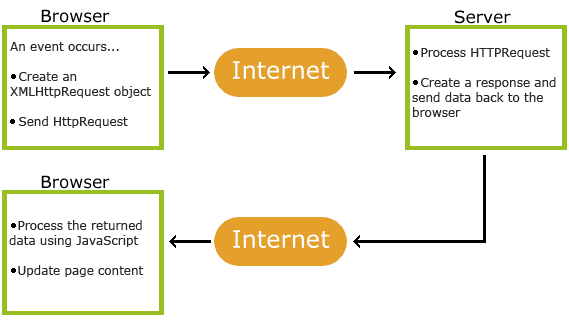
How AJAX Works

AJAX

  • 1. An event occurs in a web page (the page is loaded, a button is clicked)
  • 2. An XMLHttpRequest object is created by JavaScript
  • 3. The XMLHttpRequest object sends a request to a web server
  • 4. The server processes the request
  • 5. The server sends a response back to the web page
  • 6. The response is read by JavaScript
  • 7. Proper action (like page update) is performed by JavaScript

AJAX – The XMLHttpRequest Object

The keystone of AJAX is the XMLHttpRequest object.


The XMLHttpRequest Object

All modern browsers support the XMLHttpRequest object.

The XMLHttpRequest object can be used to exchange data with a web server behind the scenes. This means that it is possible to update parts of a web page, without reloading the whole page.

Create an XMLHttpRequest Object

All modern browsers (Chrome, Firefox, IE7+, Edge, Safari, Opera) have a built-in XMLHttpRequest object.

Syntax for creating an XMLHttpRequest object:

variable = new XMLHttpRequest();

Example

The XMLHttpRequest Object

Let AJAX change this text.

Change Content

function loadDoc() {
var xhttp = new XMLHttpRequest();
xhttp.onreadystatechange = function() {
if (this.readyState == 4 && this.status == 200) {
document.getElementById(“demo”).innerHTML = this.responseText;
}
};
xhttp.open(“GET”, “ajax_info.txt”, true);
xhttp.send();
}

Output:-

The XMLHttpRequest Object

Let AJAX change this text.

Change Content

GET or POST?

GET is simpler and faster than POST, and can be used in most cases.

However, always use POST requests when:

  • A cached file is not an option (update a file or database on the server).
  • Sending a large amount of data to the server (POST has no size limitations).
  • Sending user input (which can contain unknown characters), POST is more robust and secure than GET.

GET Requests

A simple GET request:

Example

The XMLHttpRequest Object

Request data

function loadDoc() {
var xhttp = new XMLHttpRequest();
xhttp.onreadystatechange = function() {
if (this.readyState == 4 && this.status == 200) {
document.getElementById(“demo”).innerHTML = this.responseText;
}
};
xhttp.open(“GET”, “demo_get.asp”, true);
xhttp.send();
}

Output:-

The XMLHttpRequest Object

Request data

POST Requests

A simple POST request:

Example

The XMLHttpRequest Object

Request data

function loadDoc() {
var xhttp = new XMLHttpRequest();
xhttp.onreadystatechange = function() {
if (this.readyState == 4 && this.status == 200) {
document.getElementById(“demo”).innerHTML = this.responseText;
}
};
xhttp.open(“POST”, “demo_post.asp”, true);
xhttp.send();
}

Output:-

The XMLHttpRequest Object

Request data

AJAX Database Example

AJAX can be used for interactive communication with a database.

AJAX Database Example

The following example will demonstrate how a web page can fetch information from a database with AJAX:

Example

table,th,td {
border : 1px solid black;
border-collapse: collapse;
}
th,td {
padding: 5px;
}

The XMLHttpRequest Object

Select a customer:
Alfreds Futterkiste
North/South
Wolski Zajazd


Customer info will be listed here…

function showCustomer(str) {
var xhttp;
if (str == “”) {
document.getElementById(“txtHint”).innerHTML = “”;
return;
}
xhttp = new XMLHttpRequest();
xhttp.onreadystatechange = function() {
if (this.readyState == 4 && this.status == 200) {
document.getElementById(“txtHint”).innerHTML = this.responseText;
}
};
xhttp.open(“GET”, “getcustomer.asp?q=”+str, true);
xhttp.send();
}

</body>
</html>

Output:-

The XMLHttpRequest Object

Select a customer:
Alfreds Futterkiste
North/South
Wolski Zajazd

Customer info will be listed here…

Example Explained – The showCustomer() Function

When a user selects a customer in the dropdown list above, a function called “showCustomer()” is executed. The function is triggered by the “onchange” event:

showCustomer

function showCustomer(str) {
var xhttp;
if (str == “”) {
document.getElementById(“txtHint”).innerHTML = “”;
return;
}
xhttp = new XMLHttpRequest();
xhttp.onreadystatechange = function() {
if (this.readyState == 4 && this.status == 200) {
document.getElementById(“txtHint”).innerHTML = this.responseText;
}
};
xhttp.open(“GET”, “getcustomer.asp?q=”+str, true);
xhttp.send();
}

The showCustomer() function does the following:

  • Check if a customer is selected
  • Create an XMLHttpRequest object
  • Create the function to be executed when the server response is ready
  • Send the request off to a file on the server
  • Notice that a parameter (q) is added to the URL (with the content of the dropdown list)

The AJAX Server Page

The page on the server called by the JavaScript above is an ASP file called “getcustomer.asp”.

The server file could easily be rewritten in PHP, or some other server languages.

The source code in “getcustomer.asp” runs a query against a database, and returns the result in an HTML table:

<%
response.expires=-1
sql=”SELECT * FROM CUSTOMERS WHERE CUSTOMERID=”
sql=sql & “‘” & request.querystring(“q”) & “‘”

set conn=Server.CreateObject(“ADODB.Connection”)
conn.Provider=”Microsoft.Jet.OLEDB.4.0″
conn.Open(Server.Mappath(“/datafolder/northwind.mdb”))
set rs=Server.CreateObject(“ADODB.recordset”)
rs.Open sql,conn

response.write(“<table>”)
do until rs.EOF
for each x in rs.Fields
response.write(“<tr><td><b>” & x.name & “</b></td>”)
response.write(“<td>” & x.value & “</td></tr>”)
next
rs.MoveNext
loop
response.write(“</table>”)
%>

XML Applications

Display XML Data in an HTML Table

This example loops through each <CD> element, and displays the values of the <ARTIST> and the <TITLE> elements in an HTML table:

Example

<html>
<head>
<style>
table, th, td {
border: 1px solid black;
border-collapse:collapse;
}
th, td {
padding: 5px;
}
</style>
</head>
<body>

<table id=”demo”></table>

function loadXMLDoc() {
var xmlhttp = new XMLHttpRequest();
xmlhttp.onreadystatechange = function() {
if (this.readyState == 4 && this.status == 200) {
myFunction(this);
}
};
xmlhttp.open(“GET”, “cd_catalog.xml”, true);
xmlhttp.send();
}
function myFunction(xml) {
var i;
var xmlDoc = xml.responseXML;
var table=”
ArtistTitle

“;
var x = xmlDoc.getElementsByTagName(“CD”);
for (i = 0; i” +
x[i].getElementsByTagName(“ARTIST”)[0].childNodes[0].nodeValue +
“” +
x[i].getElementsByTagName(“TITLE”)[0].childNodes[0].nodeValue +

“;
}
document.getElementById(“demo”).innerHTML = table;
}

</body>
</html>

Output:-

Get my CD collection

Display the First CD in an HTML div Element

This example uses a function to display the first CD element in an HTML element with id=”showCD”:

Example

displayCD(0);

function displayCD(i) {
var xmlhttp = new XMLHttpRequest();
xmlhttp.onreadystatechange = function() {
if (this.readyState == 4 && this.status == 200) {
myFunction(this, i);
}
};
xmlhttp.open(“GET”, “cd_catalog.xml”, true);
xmlhttp.send();
}

function myFunction(xml, i) {
var xmlDoc = xml.responseXML;
x = xmlDoc.getElementsByTagName(“CD”);
document.getElementById(“showCD”).innerHTML =
“Artist: ” +
x[i].getElementsByTagName(“ARTIST”)[0].childNodes[0].nodeValue +
“<br>Title: ” +
x[i].getElementsByTagName(“TITLE”)[0].childNodes[0].nodeValue +
“<br>Year: ” +
x[i].getElementsByTagName(“YEAR”)[0].childNodes[0].nodeValue;
}

Output:-

Artist: Bob Dylan
Title: Empire Burlesque
Year: 1985

Navigate Between the CDs

To navigate between the CDs, in the example above, add a next() and previous() function:

Example

function next() {
// display the next CD, unless you are on the last CD
if (i < x.length-1) {
i++;
displayCD(i);
}
}

function previous() {
// display the previous CD, unless you are on the first CD
if (i > 0) {
i–;
displayCD(i);
}
}

Output:-

Artist: Bob Dylan
Title: Empire Burlesque
Year: 1985

STRUTS 2

2 0ct-7oct

Struts 2 autocompleter example

In Struts 2, the <sx:autocompleter> tag is a combo box that will automatic prompt drop down suggestion lists while user typing on the text box.

This feature is implemented by dojo library, So, make sure you include “struts2-dojo-plugin.jar” as dependency library, put “struts-dojo-tags” tag on top of the page and output its header information via <sx:head />.

For example,

<%@ taglib prefix="sx" uri="/struts-dojo-tags" %>
<html>
<head>
<sx:head />
</head>
<body>
<sx:autocompleter label="What's your lucky number?"
name="yourLuckyNumber" autoComplete="false"
list="{'1','12','13','14'}" />

Resulting the following HTML

<html>
<head>
<script language="JavaScript" type="text/javascript">
    // Dojo configuration
    djConfig = {
        isDebug: false,
        bindEncoding: "UTF-8"
          ,baseRelativePath: "/Struts2Example/struts/dojo/"
          ,baseScriptUri: "/Struts2Example/struts/dojo/"
         ,parseWidgets : false

    };
</script>
<script language="JavaScript" type="text/javascript"
        src="/Struts2Example/struts/dojo/struts_dojo.js"></script>

<script language="JavaScript" type="text/javascript"
        src="/Struts2Example/struts/ajax/dojoRequire.js"></script>

<link rel="stylesheet" href="/Struts2Example/struts/xhtml/styles.css"
type="text/css"/>

<script language="JavaScript" src="/Struts2Example/struts/utils.js"
type="text/javascript"></script>

<script language="JavaScript" src="/Struts2Example/struts/xhtml/validation.js"
type="text/javascript"></script>

<script language="JavaScript" src="/Struts2Example/struts/css_xhtml/validation.js"
type="text/javascript"></script>
</head>
...
<tr>
<td class="tdLabel">
<label for="resultAction_yourLuckyNumber" class="label">
What's your lucky number?:</label></td>
<td>
<select dojoType="struts:ComboBox" id="resultAction_yourLuckyNumber"
autoComplete="false" name="yourLuckyNumber"
keyName="yourLuckyNumberKey" visibleDownArrow="true" >
    <option value="1">1</option>
    <option value="12">12</option>
    <option value="13">13</option>
    <option value="14">14</option>
</select>
</td>
</tr>
<script language="JavaScript" type="text/javascript">
djConfig.searchIds.push("resultAction_yourLuckyNumber");</script>

Struts 2 <s:autocompleter> example

A complete example of the <s:autocompleter> tag, generate the drop down suggestion lists while user typing on the corresponding text box.

1. pom.xml

Download the Struts 2 dojo dependency libraries.

pom.xml

//...
    <!-- Struts 2 -->
    <dependency>
      <groupId>org.apache.struts</groupId>
	  <artifactId>struts2-core</artifactId>
	  <version>2.1.8</version>
    </dependency>

    <!-- Struts 2 Dojo Ajax Tags -->
    <dependency>
      <groupId>org.apache.struts</groupId>
	  <artifactId>struts2-dojo-plugin</artifactId>
	  <version>2.1.8</version>
    </dependency>
//...

2. Action class

Action class to generate a list of the web frameworks options to the “autocompleter” component.

AutoCompleterAction.java

package com.mkyong.common.action;

import java.util.ArrayList;
import java.util.List;

import com.opensymphony.xwork2.ActionSupport;

public class AutoCompleterAction extends ActionSupport{

	private List<String> webframeworks = new ArrayList<String>();

	private String yourFavWebFramework;
	private String yourLuckyNumber;

	public AutoCompleterAction(){
		webframeworks.add("Spring MVC");
		webframeworks.add("Struts 1.x");
		webframeworks.add("Struts 2.x");
		webframeworks.add("JavaServer Faces (JSF)");
		webframeworks.add("Google Web Toolkit (GWT)");
		webframeworks.add("Apache Wicket");
		webframeworks.add("Apache Click");
		webframeworks.add("Apache Cocoon");
		webframeworks.add("JBoss Seam");
		webframeworks.add("Stripes");
		webframeworks.add("Apache Tapestry");
		webframeworks.add("Others");
	}

	public String getYourLuckyNumber() {
		return yourLuckyNumber;
	}

	public void setYourLuckyNumber(String yourLuckyNumber) {
		this.yourLuckyNumber = yourLuckyNumber;
	}

	public String getYourFavWebFramework() {
		return yourFavWebFramework;
	}

	public void setYourFavWebFramework(String yourFavWebFramework) {
		this.yourFavWebFramework = yourFavWebFramework;
	}

	public List<String> getWebframeworks() {
		return webframeworks;
	}

	public void setWebframeworks(List<String> webframeworks) {
		this.webframeworks = webframeworks;
	}

	public String display() {
		return NONE;
	}

}

3. Result Page

Render the “autocompleter” component via “<s:autocompleter>” tag, and generate the auto drop down suggestion lists via Java list and OGNL.

autocompleter.jsp

<%@ taglib prefix="s" uri="/struts-tags" %>
<%@ taglib prefix="sx" uri="/struts-dojo-tags" %>

<html>
<head>
<sx:head />
</head>

<body>
<h1>Struts 2 autocompleter example</h1>

<s:form action="resultAction" namespace="/" method="POST" >

<sx:autocompleter label="What's your lucky number?"
name="yourLuckyNumber" autoComplete="false"
list="{'1','12','13','14','21','22','23','24',
'31','32','33','34','41','42','43','44'}" />

<sx:autocompleter label="What's your favorite web framework?"
list="webframeworks" name="yourFavWebFramework" />

<s:submit value="submit" name="submit" />

</s:form>

</body>
</html>

result.jsp

<%@ taglib prefix="s" uri="/struts-tags" %>
<html>

<body>
<h1>Struts 2 autocompleter example</h1>

<h2>
   Lucky Number : <s:property value="yourLuckyNumber"/>
</h2>

<h2>
   Web Appication Frameworks : <s:property value="yourFavWebFramework"/>
</h2>

</body>
</html>

3. struts.xml

Link it all ~

<?xml version="1.0" encoding="UTF-8" ?>
<!DOCTYPE struts PUBLIC
"-//Apache Software Foundation//DTD Struts Configuration 2.0//EN"
"http://struts.apache.org/dtds/struts-2.0.dtd">

<struts>

 <constant name="struts.devMode" value="true" />

<package name="default" namespace="/" extends="struts-default">

  <action name="autoCompleterAction"
	class="com.mkyong.common.action.AutoCompleterAction"
        method="display">
	<result name="none">pages/autocompleter.jsp</result>
  </action>

  <action name="resultAction"
        class="com.mkyong.common.action.AutoCompleterAction" >
	<result name="success">pages/result.jsp</result>
  </action>
</package>

</struts>

4. Demo

http://localhost:8080/Struts2Example/autoCompleterAction.action

Struts 2 AutoCompleter example

Struts 2 AutoCompleter example

Struts 2 and JSON example

This is an Action class which will be converted into JSON format.

package com.mkyong.common.action;

import java.util.ArrayList;
import java.util.HashMap;
import java.util.List;
import java.util.Map;

import com.opensymphony.xwork2.Action;

public class JSONDataAction{

	private String string1 = "A";
	private String[] stringarray1 = {"A1","B1"};
	private int number1 = 123456789;
	private int[] numberarray1 = {1,2,3,4,5,6,7,8,9};
	private List<String> lists = new ArrayList<String>();
	private Map<String, String> maps = new HashMap<String, String>();

	//no getter method, will not include in the JSON
	private String string2 = "B";

	public JSONDataAction(){
		lists.add("list1");
		lists.add("list2");
		lists.add("list3");
		lists.add("list4");
		lists.add("list5");

		maps.put("key1", "value1");
		maps.put("key2", "value2");
		maps.put("key3", "value3");
		maps.put("key4", "value4");
		maps.put("key5", "value5");
	}

	public String execute() {
               return Action.SUCCESS;
        }

	public String getString1() {
		return string1;
	}

	public void setString1(String string1) {
		this.string1 = string1;
	}

	public String[] getStringarray1() {
		return stringarray1;
	}

	public void setStringarray1(String[] stringarray1) {
		this.stringarray1 = stringarray1;
	}

	public int getNumber1() {
		return number1;
	}

	public void setNumber1(int number1) {
		this.number1 = number1;
	}

	public int[] getNumberarray1() {
		return numberarray1;
	}

	public void setNumberarray1(int[] numberarray1) {
		this.numberarray1 = numberarray1;
	}

	public List<String> getLists() {
		return lists;
	}

	public void setLists(List<String> lists) {
		this.lists = lists;
	}

	public Map<String, String> getMaps() {
		return maps;
	}

	public void setMaps(Map<String, String> maps) {
		this.maps = maps;
	}

}

struts.xml

To output the JSON data, you need to declared a package which extends the “json-default“, and result type as “json“.

<?xml version="1.0" encoding="UTF-8" ?>
<!DOCTYPE struts PUBLIC
"-//Apache Software Foundation//DTD Struts Configuration 2.0//EN"
"http://struts.apache.org/dtds/struts-2.0.dtd">

<struts>

   <constant name="struts.devMode" value="true" />

   <package name="default" namespace="/" extends="json-default">
      <action name="getJSONResult"
           class="com.mkyong.common.action.JSONDataAction">
       	   <result type="json" />
      </action>
    </package>

</struts>

Demo

Access the action URL, the JSONDataAction’s properties will be converted into JSON format.
http://localhost:8080/Struts2Example/getJSONResult.action

Struts 2 JSON example

JSON format…

{
   "lists":["list1","list2","list3","list4","list5"],
   "maps":
   {
     "key4":"value4","key3":"value3","key5":"value5","key2":"value2","key1":"value1"
   },
   "number1":123456789,
   "numberarray1":[1,2,3,4,5,6,7,8,9],
   "string1":"A",
   "stringarray1":["A1","B1"]
}


STRUTS

25 sep-30sep

Struts 2 – Exception Handling

Struts provides an easier way to handle uncaught exception and redirect users to a dedicated error page. You can easily configure Struts to have different error pages for different exceptions.

Struts makes the exception handling easy by the use of the “exception” interceptor. The “exception” interceptor is included as part of the default stack, so you don’t have to do anything extra to configure it. It is available out-of-the-box ready for you to use.

Let us see a simple Hello World example with some modification in HelloWorldAction.java file. Here, we deliberately introduced a NullPointer Exception in our HelloWorldAction action code.

package com.tutorialspoint.struts2;

import com.opensymphony.xwork2.ActionSupport;

public class HelloWorldAction extends ActionSupport{
   private String name;

   public String execute(){
      String x = null;
      x = x.substring(0);
      return SUCCESS;
   }
   
   public String getName() {
      return name;
   }

   public void setName(String name) {
      this.name = name;
   }
}

Let us keep the content of HelloWorld.jsp as follows −

<%@ page contentType = "text/html; charset = UTF-8" %>
<%@ taglib prefix = "s" uri = "/struts-tags" %>

<html>
   <head>
      <title>Hello World</title>
   </head>
   
   <body>
      Hello World, <s:property value = "name"/>
   </body>
</html>

Following is the content of index.jsp −

<%@ page language = "java" contentType = "text/html; charset = ISO-8859-1"
   pageEncoding = "ISO-8859-1"%>
<%@ taglib prefix = "s" uri = "/struts-tags"%>
<!DOCTYPE html PUBLIC "-//W3C//DTD HTML 4.01 Transitional//EN" 
   "http://www.w3.org/TR/html4/loose.dtd">

<html>
   <head>
      <title>Hello World</title>
   </head>
   
   <body>
      <h1>Hello World From Struts2</h1>
      <form action = "hello">
         <label for = "name">Please enter your name</label><br/>
         <input type = "text" name = "name"/>
         <input type = "submit" value = "Say Hello"/>
      </form>
   </body>
</html>

Your struts.xml should look like −

<?xml version = "1.0" Encoding = "UTF-8"?>
<!DOCTYPE struts PUBLIC
   "-//Apache Software Foundation//DTD Struts Configuration 2.0//EN"
   "http://struts.apache.org/dtds/struts-2.0.dtd">
<struts>
   <constant name = "struts.devMode" value = "true" />
   <package name = "helloworld" extends = "struts-default">
     
      <action name = "hello" 
         class = "com.tutorialspoint.struts2.HelloWorldAction" 
         method = "execute">
         <result name = "success">/HelloWorld.jsp</result>
      </action>

   </package>
</struts>

Now right click on the project name and click Export > WAR File to create a War file. Then deploy this WAR in the Tomcat’s webapps directory. Finally, start Tomcat server and try to access URL http://localhost:8080/HelloWorldStruts2/index.jsp. This will produce the following screen −

Hello World Input

Enter a value “Struts2” and submit the page. You should see the following page −

Exception Output

As shown in the above example, the default exception interceptor does a great job of handling the exception.

The Action Tag

This tag enables developers to call actions directly from a JSP page by specifying the action name and an optional namespace. The body content of the tag is used to render the results from the Action. Any result processor defined for this action in struts.xml will be ignored, unless the executeResult parameter is specified.

Tag to execute the action


<br />
<s:action name = "actionTagAction" executeresult = "true" />
<br />
To invokes special method  in action class


<br />
<s:action name = "actionTagAction!specialMethod" executeresult = "true" />

The Include Tag

These include will be used to include a JSP file in another JSP page.

<-- First Syntax -->
<s:include value = "myJsp.jsp" />

<-- Second Syntax -->
<s:include value = "myJsp.jsp">
   <s:param name = "param1" value = "value2" />
   <s:param name = "param2" value = "value2" />
</s:include>

<-- Third Syntax -->
<s:include value = "myJsp.jsp">
   <s:param name = "param1">value1</s:param>
   <s:param name = "param2">value2</s:param>
</s:include>

Struts 2 – The Form Tags

The list of form tags is a subset of Struts UI Tags. These tags help in the rendering of the user interface required for the Struts web applications and can be categorised into three categories. This chapter will take you thorugh all the three types of UI tags −

Simple UI Tags

We have used these tags in our examples already, we will brush them in this chapter. Let us look a simple view page email.jsp with several simple UI tags −

<%@ page language = "java" contentType = "text/html; charset = ISO-8859-1"
   pageEncoding = "ISO-8859-1"%>
<%@ taglib prefix = "s" uri = "/struts-tags"%>
<!DOCTYPE html PUBLIC "-//W3C//DTD HTML 4.01 Transitional//EN" 
   "http://www.w3.org/TR/html4/loose.dtd">

<html>
   <head>
      <s:head/>
      <title>Hello World</title>
   </head>
   
   <body>
      <s:div>Email Form</s:div>
      <s:text name = "Please fill in the form below:" />
      
      <s:form action = "hello" method = "post" enctype = "multipart/form-data">
         <s:hidden name = "secret" value = "abracadabra"/>
         <s:textfield key = "email.from" name = "from" />
         <s:password key = "email.password" name = "password" />
         <s:textfield key = "email.to" name = "to" />
         <s:textfield key = "email.subject" name = "subject" />
         <s:textarea key = "email.body" name = "email.body" />
         <s:label for = "attachment" value = "Attachment"/>
         <s:file name = "attachment" accept = "text/html,text/plain" />
         <s:token />
         <s:submit key = "submit" />
      </s:form>
      
   </body>
</html>

If you are aware of HTML, then all the tags used are very common HTML tags with an additional prefix s: along with each tag and different attributes. When we execute the above program, we get the following user interface provided you have setup proper mapping for all the keys used.

Struts Simple UI tags

As shown, the s:head generates the javascript and stylesheet elements required for the Struts2 application.

Next, we have the s:div and s:text elements. The s:div is used to render a HTML Div element. This is useful for people who do not like to mix HTML and Struts tags together. For those people, they have the choice to use s:div to render a div.

The s:text as shown is used to render a text on the screen.

Next we have the famiilar s:form tag. The s:form tag has an action attribute that determines where to submit the form. Because we have a file upload element in the form, we have to set the enctype to multipart. Otherwise, we can leave this blank.

At the end of the form tag, we have the s:submit tag. This is used to submit the form. When the form is submitted, all the form values are submitted to the the action specified in the s:form tag.

Inside the s:form, we have a hidden attribute called secret. This renders a hidden element in the HTML. In our case, the “secret” element has the value “abracadabra”. This element is not visible to the end user and is used to carry the state from one view to another.

Next we have the s:label, s:textfield, s:password and s:textarea tags. These are used to render the label, input field, password and the text area respectively. We have seen these in action in the “Struts – Sending Email” example.

The important thing to note here is the use of “key” attribute. The “key” attribute is used to fetch the label for these controls from the property file. We have already covered this feature in the Struts2 Localization, internationalization chapter.

Then, we have the s:file tag which renders a input file upload component. This component allows the user to upload files. In this example, we have used the “accept” parameter of the s:file tag to specify which file types are allowed to be uploaded.

Finally we have the s:token tag. The token tag generates an unique token which is used to find out whether a form has been double submitted

When the form is rendered, a hidden variable is placed as the token value. Let us say, for example that the token is “ABC”. When this form is submitted, the Struts Fitler checks the token against the token stored in the session. If it matches, it removes the token from the session. Now, if the form is accidentally resubmitted (either by refreshing or by hitting the browser back button), the form will be resubmitted with “ABC” as the token. In this case, the filter checks the token against the token stored in the session again. But because the token “ABC” has been removed from the session, it will not match and the Struts filter will reject the request.

Group UI Tags

The group UI tags are used to create radio button and the checkbox. Let us look a simple view page HelloWorld.jsp with check box and radio button tags −

<%@ page contentType = "text/html; charset = UTF-8"%>
<%@ taglib prefix = "s" uri = "/struts-tags"%>

<html>
   <head>
      <title>Hello World</title>
      <s:head />
   </head>
   
   <body>
      <s:form action = "hello.action">
         <s:radio label = "Gender" name = "gender" list="{'male','female'}" />
         <s:checkboxlist label = "Hobbies" name = "hobbies"
         list = "{'sports','tv','shopping'}" />
      </s:form>
      
   </body>
</html>

When we execute the above program, our output will look similar to the following −

Struts group UI tags

Let us look at the example now. In the first example, we are creating a simple radio button with the label “Gender”. The name attribute is mandatory for the radio button tag, so we specify a name which is “gender”. We then supply a list to the gender. The list is populated with the values “male” and “female”. Therefore, in the output we get a radio button with two values in it.

In the second example, we are creating a checkbox list. This is to gather the user’s hobbies. The user can have more than one hobby and therefore we are using the checkbox instead of the radiobutton. The checkbox is populated with the list “sports”, “TV” and “Shopping”. This presents the hobbies as a checkbox list.

Select UI Tags

Let us explore the different variations of the Select Tag offered by Struts. Let us look a simple view page HelloWorld.jsp with select tags −

<%@ page contentType = "text/html; charset = UTF-8"%>
<%@ taglib prefix = "s" uri = "/struts-tags"%>

<html>
   <head>
      <title>Hello World</title>
      <s:head />
   </head>
   
   <body>
      <s:form action = "login.action">
         <s:select name = "username" label = "Username"
            list = "{'Mike','John','Smith'}" />

         <s:select label = "Company Office" name = "mySelection"
            value = "%{'America'}" list="%{#{'America':'America'}}">
            <s:optgroup label = "Asia" 
               list = "%{#{'India':'India','China':'China'}}" />
            <s:optgroup label = "Europe"
               list="%{#{'UK':'UK','Sweden':'Sweden','Italy':'Italy'}}" />
         </s:select>

         <s:combobox label = "My Sign" name = "mySign"
            list = "#{'aries':'aries','capricorn':'capricorn'}" headerkey = "-1" 
            headervalue = "--- Please Select ---" emptyOption = "true" value = "capricorn" />
         <s:doubleselect label = "Occupation" name = "occupation"
            list = "{'Technical','Other'}" doublename = "occupations2"
            doubleList="top == 'Technical' ? 
            {'I.T', 'Hardware'} : {'Accounting', 'H.R'}" />
      </s:form>
   </body>
</html>

When we execute the above program our output will look similar to the following −

Struts select UI tags

Let us now go through the individual cases, one by one.

  • First, the select tag renders the HTML select box. In the first example, we are creating a simple select box with name “username” and the label “username”. The select box will be populated with a list that contains the names Mike, John and Smith.
  • In the second example, our company has head offices in America. It also has global offices in Asia and Europe. We want to display the offices in a select box but we want to group the global offices by the name of the continent. This is where the optgroup comes in handy. We use the s:optgroup tag to create a new group. We give the group a label and a separate list.
  • In the third example, the combobox is used. A combo box is a combination of an input field and a select box. The user can either select a value from the select box in which case the input field is automatically filled in with the value the user has selected. Should the user to enter a value directly, no values from the select box will be selected.
  • In our example we have the combobox listing the sun signs. The selectbox lists only four entries allowing the user to type in his sun sign if it is not in the list. We also add a header entry to the select box. The headerentry is the one that is displayed at the top of the select box. In our case we want to display “Please Select”. If the user does not select anything, then we assume -1 as the value. In some cases, we do not want the user to select an empty value. In those conditions, one would set the “emptyOption” property to false. Finally, in our example we supply “capricorn” as the default value for the combobox.
  • In the fourth example, we have a double select. A double select is used when you want to display two select boxes. The value selected in the first select box determines what appears in the second select box. In our example the first select box displays “Technical” and “Other”. If the user selects Technical, we will display IT and Hardware in the second select box. Otherwise we will display Accounting and HR. This is possible using the “list” and “doubleList” atrributes as shown in the example.

Struts 2 – The Ajax Tags

Struts uses the DOJO framework for the AJAX tag implementation. First of all, to proceed with this example, you need to add struts2-dojo-plugin-2.2.3.jar to your classpath.

You can get this file from the lib folder of your struts2 download (C:\struts-2.2.3all\struts-2.2.3\lib\struts2-dojo-plugin-2.2.3.jar)

For this exercies, let us modify HelloWorld.jsp as follows −

<%@ page contentType = "text/html; charset = UTF-8"%>
<%@ taglib prefix = "s" uri = "/struts-tags"%>
<%@ taglib prefix = "sx" uri = "/struts-dojo-tags"%>

<html>
   <head>
      <title>Hello World</title>
      <s:head />
      <sx:head />
   </head>
   
   <body>
      <s:form>
         <sx:autocompleter label = "Favourite Colour"
            list = "{'red','green','blue'}" />
         <br />
         <sx:datetimepicker name = "deliverydate" label = "Delivery Date"
            displayformat = "dd/MM/yyyy" />
         <br />
         <s:url id = "url" value = "/hello.action" />
         <sx:div href="%{#url}" delay="2000">
            Initial Content
         </sx:div>
         <br/>
         <sx:tabbedpanel id = "tabContainer">
            <sx:div label = "Tab 1">Tab 1</sx:div>
            <sx:div label = "Tab 2">Tab 2</sx:div>
         </sx:tabbedpanel>
      </s:form>
   </body>
</html>

When we run the above example, we get the following output −

Struts Ajax tags

Let us now go through this example one step at a time.

First thing to notice is the addition of a new tag library with the prefix sx. This (struts-dojo-tags) is the tag library specifically created for the ajax integration.

Then inside the HTML head we call the sx:head. This initializes the dojo framework and makes it ready for all AJAX invocations within the page. This step is important – your ajax calls will not work without the sx:head being initialized.

First we have the autocompleter tag. The autocompleter tag looks pretty much like a select box. It is populated with the values red, green and blue. But the different between a select box and this one is that it auto completes. That is, if you start typing in gr, it will fill it with “green”. Other than that this tag is very much similar to the s:select tag which we covered earlier.

Next, we have a date time picker. This tag creates an input field with a button next to it. When the button is pressed, a popup date time picker is displayed. When the user selects a date, the date is filled into the input text in the format that is specified in the tag attribute. In our example, we have specified dd/MM/yyyy as the format for the date.

Next we create a url tag to the system.action file which we created in the earlier exercises. It doesn’t have to be the system.action – it could be any action file that you created earlier. Then we have a div with the hyperlink set to the url and delay set to 2 seconds. What happens when you run this is, the “Initial Content” will be displayed for 2 seconds, then the div’s content will be replaced with the contents from the hello.action execution.

Finally we have a simple tab panel with two tabs. The tabs are divs themseleves with the labels Tab 1 and Tab2.

It should be worth noting that the AJAX tag integration in Struts is still a work in progress and the maturity of this integration is slowly increasing with every release.

Creating JSP Pages

Begin by creating two JSP pages for the application. The first displays a form. The second is the view returned when login is successful.

Creating a Login Page

  1. Right-click the MyStrutsApp project node, choose New > JSP, and name the new file login. Click Finish. The login.jsp file opens in the Source Editor.
  2. In the Source Editor, change the content of both the <title> and <h1> tags (or <h2> tags, depending on the IDE version you are using) to Login Form.
  3. Add the following two taglib directives to the top of the file:
    <%@ taglib uri="http://struts.apache.org/tags-bean" prefix="bean" %>
    <%@ taglib uri="http://struts.apache.org/tags-html" prefix="html" %>

    Many web applications use JSP pages for views in the MVC paradigm, so Struts provides custom tag libraries which facilitate interaction with HTML forms. These can be easily applied to a JSP file using the IDE’s support for code completion. When you type in the Source Editor, the IDE provides you with code completion for Struts tags, as well as the Struts Javadoc. You can also invoke code completion manually by pressing Ctrl-Space:

    Code completion and Javadoc for Struts tags provided in Source EditorThe bean taglib provides you with numerous tags that are helpful when associating a form bean (i.e., an ActionForm bean) with the data collected from the form. The html taglib offers an interface between the view and other components necessary to a web application. For example, below you replace common html form tags with Struts’ <html:form> tags. One benefit this provides is that it causes the server to locate or create a bean object that corresponds to the value provided for html:form‘s action element.

  4. Below the <h1> (or <h2>) tags, add the following:
    <html:form action="/login">
    
       <html:submit value="Login" />
    
    </html:form>

    Whenever you finish typing in the Source Editor, you can tidy up the code by right-clicking and choosing Format (Alt-Shift-F).

  5. In the Palette (Window > Palette) in the right region of the IDE, drag a Table item from the HTML category to a point just above the <html:submit value="Login" /> line. The Insert Table dialog box displays. Set the rows to 3, columns to 2, and leave all other settings at 0. Later in the tutorial, you will attach a stylesheet to affect the table display.
    Create Table dialog displayed in Source Editor
    Click OK, then optionally reformat the code (Alt-Shift-F). The form in login.jsp now looks as follows:

    <html:form action="/login">
        <table border="0">
            <thead>
                <tr>
                    <th></th>
                    <th></th>
                </tr>
            </thead>
            <tbody>
                <tr>
                    <td></td>
                    <td></td>
                </tr>
                <tr>
                    <td></td>
                    <td></td>
                </tr>
                <tr>
                    <td></td>
                    <td></td>
                </tr>
            </tbody>
        </table>
    
        <html:submit value="Login" />
    
    </html:form>

    Note: You can safely delete the <thead> table row, as it is not used in this tutorial.

  6. In the first table row, enter the following (changes in bold):
    <tr>
        <td>Enter your name:</td>
        <td><html:text property="name" /></td>
    </tr>
  7. In the second table row, enter the following (changes in bold):
    <tr>
        <td>Enter your email:</td>
        <td><html:text property="email" /></td>
    </tr>

    The html:text element enables you to match the input fields from the form with properties in the form bean that will be created in the next step. So for example, the value of property must match a field declared in the form bean associated with this form.

  8. Move the <html:submit value=”Login” /> element into the second column of the third table row, so that the third table row appears as follows (changes in bold):
    <tr>
        <td></td>
        <td><html:submit value="Login" /></td>
    </tr>

At this stage, your login form should look as follows:

<html:form action="/login">
    <table border="0">
        <tbody>
            <tr>
                <td>Enter your name:</td>
                <td><html:text property="name" /></td>
            </tr>
            <tr>
                <td>Enter your email:</td>
                <td><html:text property="email" /></td>
            </tr>
            <tr>
                <td></td>
                <td><html:submit value="Login" /></td>
            </tr>
        </tbody>
    </table>
</html:form>

Creating a Success Page

  1. Right-click the MyStrutsApp project node, choose New > JSP, and name the new file success. In the Folder field, click the adjacent Browse button and select WEB-INF from the dialog that displays. Click Select Folder to enter WEB-INF in the Folder field. Any files contained in the WEB-INF folder are not directly accessible to client requests. In order for success.jsp to be properly displayed, it must contain processed data. Click Finish.
  2. In the Source Editor, change the content of the newly created page to the following:
    <head>
        <meta http-equiv="Content-Type" content="text/html; charset=UTF-8">
        <title>Login Success</title>
    </head>
    <body>
        <h1>Congratulations!</h1>
    
        <p>You have successfully logged in.</p>
    
        <p>Your name is: .</p>
    
        <p>Your email address is: .</p>
    </body>
  3. Add a bean taglib directive to the top of the file:
    <%@ taglib uri="http://struts.apache.org/tags-bean" prefix="bean" %>
    
  4. Add the following <bean:write> tags (changes in bold):
    <p>Your name is: <bean:write name="LoginForm" property="name" />.</p>
    
    <p>Your email address is: <bean:write name="LoginForm" property="email" />.</p>
    

    By employing the <bean:write> tags, you make use of the bean taglib to locate the ActionForm bean you are about to create, and display the user data saved for name and email.

Creating an ActionForm Bean

A Struts ActionForm bean is used to persist data between requests. For example, if a user submits a form, the data is temporarily stored in the form bean so that it can either be redisplayed in the form page (if the data is in an invalid format or if login fails) or displayed in a login success page (if data passes validation).

  1. Right-click the MyStrutsApp project node and choose New > Other. Under Categories choose Struts, then under File Types choose Struts ActionForm Bean. Click Next.
  2. Type in LoginForm for the Class Name. Then select com.myapp.struts in the Package drop-down list and click Finish.The IDE creates the LoginForm bean and opens it in the Source Editor. By default, the IDE provides it with a String called name and an int callednumber. Both fields have accessor methods defined for them. Also, the IDE adds a bean declaration to the struts-config.xml file. If you open the struts-config.xml file in the Source Editor, you can see the following declaration, which was added by the wizard:
    <form-beans>
        <form-bean name="LoginForm" type="com.myapp.struts.LoginForm" />
    </form-beans>
    

    The IDE provides navigation support in the struts-config.xml file. Hold down the Ctrl key and hover your mouse over the LoginForm bean’s fully qualified class name. The name becomes a link, enabling you to navigate directly to the class in the Source Editor:

    Navigation support displayed in Struts config file

  3. In the LoginForm bean in the Source Editor, create fields and accompanying accessor methods that correspond to the name and email text input fields that you created in login.jsp. Because name has already been created in the LoginForm skeleton, you only need to implement email.Add the following declaration beneath name (changes in bold):
    private String name;
    private String email;

    To create accessor methods, place your cursor on email and press Alt-Insert.

    Insert Code menu displayed in Source EditorSelect Getter and Setter, then in the dialog that displays, select email : String and click Generate. Accessor methods are generated for the emailfield.

    Note: You can delete the declaration and accessor methods for number, as it is not used in this tutorial.

Creating an Action Class

The Action class contains the business logic in the application. When form data is received, it is the execute method of an Action object that processes the data and determines which view to forward the processed data to. Because the Action class is integral to the Struts framework, NetBeans IDE provides you with a wizard.

  1. In the Projects window, right-click the MyStrutsApp project node and choose New > Other. From the Struts category choose Struts Action and click Next.
  2. In the Name and Location panel, change the name to LoginAction.
  3. Select com.myapp.struts in the Package drop-down list.
  4. Type /login in Action Path. This value must match the value you set for the action attribute of the <html:form> tags in login.jsp. Make sure settings appear as in the screenshot below, then click Next.
    New Struts Action wizard
  5. In the third step of the wizard, you are given the opportunity to associate the Action class with a form bean. Notice that the LoginForm bean you previously created is listed as an option for ActionForm Bean Name. Make the following adjustments to the panel:
    • Delete the forward slash for the Input Resource field
    • Set Scope to Request (Session is the default scope setting in Struts.)
    • Deselect the Validate ActionForm Bean option

    Click Finish. The LoginAction class is generated, and the file opens in the Source Editor. Also note that the following action entry is added to the struts-config.xml file:

    <action-mappings>
        <action name="LoginForm" path="/login" scope="request" type="com.myapp.struts.LoginAction" validate="false"/>
        <action path="/Welcome" forward="/welcomeStruts.jsp"/>
    </action-mappings>

    The name and scope attributes apply to the form bean that is associated with the action. Specifically, when an incoming request matches /login, the Struts framework automatically instantiates a LoginForm object and populates it with the form data sent in the request. The default value of validate is set to true. This tells the framework to call the validate method of the form bean. You deselected this option in the wizard however because you will hand-code simple validation in the next step, which does not require the validate method.

Implementing Validation

In the Source Editor, browse through the LoginAction class and look at the execute method:

public ActionForward execute(ActionMapping mapping, ActionForm form,
    HttpServletRequest request, HttpServletResponse response)
    throws Exception {

    return mapping.findForward(SUCCESS);
}

Notice the definition of SUCCESS, listed beneath the LoginAction class declaration:

private final static String SUCCESS = "success";

Currently, the mapping.findForward method is set to unconditionally forward any request to an output view called success. This is not really desirable; you want to first perform some sort of validation on the incoming data to determine whether to send the success view, or any different view.

Accessing Bean Data and Preparing a Forwarding Condition

  1. Type in the following code within the body of the execute method:
    // extract user data
    LoginForm formBean = (LoginForm)form;
    String name = formBean.getName();
    String email = formBean.getEmail();

    In order to use the incoming form data, you need to take execute‘s ActionForm argument and cast it as LoginForm, then apply the getter methods that you created earlier.

  2. Type in the following conditional clause to perform validation on the incoming data:
    // perform validation
    if ((name == null) ||             // name parameter does not exist
        email == null  ||             // email parameter does not exist
        name.equals("") ||            // name parameter is empty
        email.indexOf("@") == -1) {   // email lacks '@'
    
        return mapping.findForward(FAILURE);
    }

    At this stage, the execute method should look as follows:

    public ActionForward execute(ActionMapping mapping, ActionForm form,
            HttpServletRequest request, HttpServletResponse response)
            throws Exception {
    
        // extract user data
        LoginForm formBean = (LoginForm) form;
        String name = formBean.getName();
        String email = formBean.getEmail();
    
        // perform validation
        if ((name == null) || // name parameter does not exist
                email == null || // email parameter does not exist
                name.equals("") || // name parameter is empty
                email.indexOf("@") == -1) {   // email lacks '@'
    
            return mapping.findForward(FAILURE);
        }
    
        return mapping.findForward(SUCCESS);
    }
  3. Add a declaration for FAILURE to the LoginAction class (changes in bold):
    private final static String SUCCESS = "success";
    private final static String FAILURE = "failure";
    

Using the above logic, the execute method forwards the request to the success view if the user provides an entry for both name and email fields, and the email entered contains an ‘@’ sign. Otherwise, the failure view is forwarded. As will be demonstrated below in Adding forward Entries to struts-config.xml, you can set the failure view to point back to the form page, so that the user has another chance to enter data in the correct format.

Setting Up an Error Message

If the login form is returned, it would be good to inform the user that validation failed. You can accomplish this by adding an error field in the form bean, and an appropriate <bean:write> tag to the form in login.jsp. Finally, in the Action object, set the error message to be displayed in the event that the failure view is chosen.

  1. Open LoginForm and add an error field to the class:
    // error message
    private String error;
  2. Add a getter method and a setter method for error, as demonstrated above.
  3. Modify the setter method so that it appears as follows:
    public void setError() {
        this.error =
            "<span style='color:red'>Please provide valid entries for both fields</span>";
    }
    
  4. Open login.jsp and make the following changes:
    <html:form action="/login">
        <table border="0">
            <tbody>
                <tr>
                    <td colspan="2">
                        <bean:write name="LoginForm" property="error" filter="false"/>
                        &nbsp;</td>
                </tr>
                <tr>
                    <td>Enter your name:</td>
                    <td><html:text property="name" /></td>
                </tr>
    
  5. In LoginAction, within the if conditional clause, add a statement to set the error message before forwarding the failure condition (changes in bold):
    if ((name == null) ||             // name parameter does not exist
        email == null  ||             // email parameter does not exist
        name.equals("") ||            // name parameter is empty
        email.indexOf("@") == -1) {   // email lacks '@'
    
        formBean.setError();
        return mapping.findForward(FAILURE);
    }
    

Your completed LoginAction class should now appear as follows:

public class LoginAction extends org.apache.struts.action.Action {

    private final static String SUCCESS = "success";
    private final static String FAILURE = "failure";

    public ActionForward execute(ActionMapping mapping, ActionForm form,
            HttpServletRequest request, HttpServletResponse response)
            throws Exception {

        // extract user data
        LoginForm formBean = (LoginForm)form;
        String name = formBean.getName();
        String email = formBean.getEmail();

        // perform validation
        if ((name == null) ||             // name parameter does not exist
            email == null  ||             // email parameter does not exist
            name.equals("") ||            // name parameter is empty
            email.indexOf("@") == -1) {   // email lacks '@'

            formBean.setError();
            return mapping.findForward(FAILURE);
        }

        return mapping.findForward(SUCCESS);

    }
}

Adding forward Entries to struts-config.xml

In order for the application to match JSP pages with forwarding conditions returned by LoginAction‘s execute method, you need to add forward entries to the struts-config.xml file.

  1. Open struts-config.xml in the Source Editor, right-click anywhere in the action entry for LoginForm, and choose Struts > Add Forward.
    Struts options displayed in right-click menu of struts-config.xml
  2. In the Add Forward dialog box, type success in Forward Name. Enter the path to success.jsp in the Resource File field (i.e., /WEB-INF/success.jsp). The dialog box should now look as follows:
    Add Forward dialog
    Click Add. Note that the following forward entry was added to struts-config.xml (changes in bold):

    <action name="LoginForm" path="/login" scope="request" type="com.myapp.struts.LoginAction" validate="false">
        <forward name="success" path="/WEB-INF/success.jsp"/>
    </action>
    
  3. Perform the same action to add a forward entry for failure. Set the Resource File path to /login.jsp. The following forward entry is added to struts-config.xml (changes in bold):
    <forward name="success" path="/WEB-INF/success.jsp"/>
    <forward name="failure" path="/login.jsp"/>
    

Configuring and Running the Application

The IDE uses an Ant build script to build and run your web application. The IDE generated the build script when you created the project, basing it on the options you entered in the New Project wizard. Before you build and run the application, you need to set the application’s default entry point to login.jsp. Optionally, you can also add a simple stylesheet to the project.

Setting the Welcome Page

  1. In the Projects window, double-click the web.xml deployment descriptor. The tabs listed along the top of the Source Editor provide you with an interface to the web.xml file. Click on the Pages tab. In the Welcome Files field, enter login.jsp.
    deployment descriptor interface
    Now click on the Source tab to view the file. Note that login.jsp is now listed in the welcome-file entry:

    <welcome-file>login.jsp</welcome-file>
    

Attaching a Stylesheet

  1. Add a simple stylesheet to the project. One easy way to do this is by saving this sample stylesheet to your computer. Copy the file (Ctrl-C), then in the IDE, select the Web Pages node in the Projects window and press Ctrl-V). The file is added to your project.
  2. Link the stylesheet to your JSP pages by adding a reference between the <head> tags of both login.jsp and success.jsp:
    <link rel="stylesheet" type="text/css" href="stylesheet.css">
    

Running the Application

  1. In the Projects window, right-click the project node and choose Run. The IDE builds the web application and deploys it, using the server you specified when creating the project. The browser opens and displays the login.jsp page. Type in some data that should fail validation, i.e., either leave either field blank, or enter an email address with a missing ‘@’ sign:
    login.jsp displayed in browser with sample dataWhen you click Login, the login form page redisplays, containing an error message:
    login.jsp with error message displayed

    Try entering data that should pass validation. Upon clicking Login, you are presented with the success page:
    success.jsp displayed showing input data


STRUTS

18 sep -23 sep

Basic MVC Architecture

Model View Controller or MVC as it is popularly called, is a software design pattern for developing web applications. A Model View Controller pattern is made up of the following three parts −

  • Model − The lowest level of the pattern which is responsible for maintaining data.
  • View − This is responsible for displaying all or a portion of the data to the user.
  • Controller − Software Code that controls the interactions between the Model and View.

MVC is popular as it isolates the application logic from the user interface layer and supports separation of concerns. Here the Controller receives all requests for the application and then works with the Model to prepare any data needed by the View. The View then uses the data prepared by the Controller to generate a final presentable response. The MVC abstraction can be graphically represented as follows.

Struts MVC

The Model

The model is responsible for managing the data of the application. It responds to the request from the view and it also responds to instructions from the controller to update itself.

The View

It means presentation of data in a particular format, triggered by a controller’s decision to present the data. They are script-based templating systems like JSP, ASP, PHP and very easy to integrate with AJAX technology.

The Controller

The controller is responsible for responding to the user input and perform interactions on the data model objects. The controller receives the input, it validates the input and then performs the business operation that modifies the state of the data model.

Struts2 is a MVC based framework.

Struts2 is a popular and mature web application framework based on the MVC design pattern. Struts2 is not just a new version of Struts 1, but it is a complete rewrite of the Struts architecture.

The Webwork framework initially started with Struts framework as the basis and its goal was to offer an enhanced and improved framework built on Struts to make web development easier for the developers.

After a while, the Webwork framework and the Struts community joined hands to create the famous Struts2 framework.

Struts 2 Framework Features

Here are some of the great features that may force you to consider Struts2 −

  • POJO Forms and POJO Actions − Struts2 has done away with the Action Forms that were an integral part of the Struts framework. With Struts2, you can use any POJO to receive the form input. Similarly, you can now see any POJO as an Action class.
  • Tag Support − Struts2 has improved the form tags and the new tags which allow the developers to write less code.
  • AJAX Support − Struts2 has recognized the take over by Web2.0 technologies, and has integrated AJAX support into the product by creating AJAX tags, this function is very similar to the standard Struts2 tags.
  • Easy Integration − Integration with other frameworks like Spring, Tiles and SiteMesh is now easier with a variety of integration available with Struts2.
  • Template Support − Support for generating views using templates.
  • Plugin Support − The core Struts2 behavior can be enhanced and augmented by the use of plugins. A number of plugins are available for Struts2.
  • Profiling − Struts2 offers integrated profiling to debug and profile the application. In addition to this, Struts also offers integrated debugging with the help of built in debugging tools.
  • Easy to Modify Tags − Tag markups in Struts2 can be tweaked using Freemarker templates. This does not require JSP or java knowledge. Basic HTML, XML and CSS knowledge is enough to modify the tags.
  • Promote Less configuration − Struts2 promotes less configuration with the help of using default values for various settings. You don’t have to configure something unless it deviates from the default settings set by Struts2.
  • View Technologies − Struts2 has a great support for multiple view options (JSP, Freemarker, Velocity and XSLT)

Listed above are the Top 10 features of Struts 2 which makes it as an Enterprise ready framework.

Struts 2 Disadvantages

Though Struts 2 comes with a list of great features, there are some limitations of the current version – Struts 2 which needs further improvement. Listed are some of the main points −

  • Bigger Learning Curve − To use MVC with Struts, you have to be comfortable with the standard JSP, Servlet APIs and a large & elaborate framework.
  • Poor Documentation − Compared to the standard servlet and JSP APIs, Struts has fewer online resources, and many first-time users find the online Apache documentation confusing and poorly organized.
  • Less Transparent − With Struts applications, there is a lot more going on behind the scenes than with normal Java-based Web applications which makes it difficult to understand the framework.

Final note, a good framework should provide generic behavior that many different types of applications can make use of it.

Struts 2 is one of the best web frameworks and being highly used for the development of Rich Internet Applications (RIA).

Struts 2 – Architecture

From a high level, Struts2 is a pull-MVC (or MVC2) framework. The Model-ViewController pattern in Struts2 is implemented with the following five core components −

  • Actions
  • Interceptors
  • Value Stack / OGNL
  • Results / Result types
  • View technologies

Struts 2 is slightly different from a traditional MVC framework, where the action takes the role of the model rather than the controller, although there is some overlap.

Struts 2 Architecture

The above diagram depicts the Model, View and Controller to the Struts2 high level architecture. The controller is implemented with a Struts2 dispatch servlet filter as well as interceptors, this model is implemented with actions, and the view is a combination of result types and results. The value stack and OGNL provides common thread, linking and enabling integration between the other components.

Apart from the above components, there will be a lot of information that relates to configuration. Configuration for the web application, as well as configuration for actions, interceptors, results, etc.

This is the architectural overview of the Struts 2 MVC pattern. We will go through each component in more detail in the subsequent chapters.

Request Life Cycle

Based on the above diagram, you can understand the work flow through user’s request life cycle in Struts 2 as follows −

  • User sends a request to the server for requesting for some resource (i.e. pages).
  • The Filter Dispatcher looks at the request and then determines the appropriate Action.
  • Configured interceptor functionalities applies such as validation, file upload etc.
  • Selected action is performed based on the requested operation.
  • Again, configured interceptors are applied to do any post-processing if required.
  • Finally, the result is prepared by the view and returns the result to the user.

Struts 2 – Actions

Actions are the core of the Struts2 framework, as they are for any MVC (Model View Controller) framework. Each URL is mapped to a specific action, which provides the processing logic which is necessary to service the request from the user.

But the action also serves in two other important capacities. Firstly, the action plays an important role in the transfer of data from the request through to the view, whether its a JSP or other type of result. Secondly, the action must assist the framework in determining which result should render the view that will be returned in the response to the request.

Create Action

The only requirement for actions in Struts2 is that there must be one noargument method that returns either a String or Result object and must be a POJO. If the no-argument method is not specified, the default behavior is to use the execute() method.

Optionally you can extend the ActionSupport class which implements six interfaces including Action interface. The Action interface is as follows −

public interface Action {
   public static final String SUCCESS = "success";
   public static final String NONE = "none";
   public static final String ERROR = "error";
   public static final String INPUT = "input";
   public static final String LOGIN = "login";
   public String execute() throws Exception;
}

Let us take a look at the action method in the Hello World example −

package com.tutorialspoint.struts2;

public class HelloWorldAction {
   private String name;

   public String execute() throws Exception {
      return "success";
   }
   
   public String getName() {
      return name;
   }

   public void setName(String name) {
      this.name = name;
   }
}

To illustrate the point that the action method controls the view, let us make the following change to the execute method and extend the class ActionSupport as follows −

package com.tutorialspoint.struts2;

import com.opensymphony.xwork2.ActionSupport;

public class HelloWorldAction extends ActionSupport {
   private String name;

   public String execute() throws Exception {
      if ("SECRET".equals(name)) {
         return SUCCESS;
      } else {
         return ERROR;  
      }
   }
   
   public String getName() {
      return name;
   }

   public void setName(String name) {
      this.name = name;
   }
}

In this example, we have some logic in the execute method to look at the name attribute. If the attribute equals to the string “SECRET”, we return SUCCESS as the result otherwise we return ERROR as the result. Because we have extended ActionSupport, so we can use String constants SUCCESS and ERROR. Now, let us modify our struts.xml file as follows −

<?xml version = "1.0" Encoding = "UTF-8"?>
<!DOCTYPE struts PUBLIC
   "-//Apache Software Foundation//DTD Struts Configuration 2.0//EN"
   "http://struts.apache.org/dtds/struts-2.0.dtd">

<struts>
   <constant name = "struts.devMode" value = "true" />
   <package name = "helloworld" extends = "struts-default">
      <action name = "hello" 
         class = "com.tutorialspoint.struts2.HelloWorldAction"
         method = "execute">
         <result name = "success">/HelloWorld.jsp</result>
         <result name = "error">/AccessDenied.jsp</result>
      </action>
   </package>
</struts>

Create a View

Let us create the below jsp file HelloWorld.jsp in the WebContent folder in your eclipse project. To do this, right click on the WebContent folder in the project explorer and select New >JSP File. This file will be called in case return result is SUCCESS which is a String constant “success” as defined in Action interface −

<%@ page contentType = "text/html; charset = UTF-8" %>
<%@ taglib prefix = "s" uri = "/struts-tags" %>

<html>
   <head>
      <title>Hello World</title>
   </head>
   
   <body>
      Hello World, <s:property value = "name"/>
   </body>
</html>

Following is the file which will be invoked by the framework in case action result is ERROR which is equal to String constant “error”. Following is the content of AccessDenied.jsp

<%@ page contentType = "text/html; charset = UTF-8" %>
<%@ taglib prefix = "s" uri = "/struts-tags" %>

<html>  
   <head>
      <title>Access Denied</title>
   </head>
   
   <body>
      You are not authorized to view this page.
   </body>
</html>

We also need to create index.jsp in the WebContent folder. This file will serve as the initial action URL where the user can click to tell the Struts 2 framework to call the executemethod of the HelloWorldAction class and render the HelloWorld.jsp view.

<%@ page language = "java" contentType = "text/html; charset = ISO-8859-1"
   pageEncoding = "ISO-8859-1"%>
<%@ taglib prefix = "s" uri = "/struts-tags"%>
   <!DOCTYPE html PUBLIC "-//W3C//DTD HTML 4.01 Transitional//EN" 
   "http://www.w3.org/TR/html4/loose.dtd">

<html>  
   <head>
      <title>Hello World</title>
   </head>
   
   <body>
      <h1>Hello World From Struts2</h1>
      <form action = "hello">
         <label for = "name">Please enter your name</label><br/>
         <input type = "text" name = "name"/>
         <input type = "submit" value = "Say Hello"/>
      </form>
   </body>
</html>

That’s it, there is no change required for web.xml file, so let us use the same web.xml which we had created in Examples chapter. Now, we are ready to run our Hello World application using Struts 2 framework.

Execute the Application

Right click on the project name and click Export > WAR File to create a War file. Then deploy this WAR in the Tomcat’s webapps directory. Finally, start Tomcat server and try to access URL http://localhost:8080/HelloWorldStruts2/index.jsp. This will give you following screen −

Hello World Struts4

Let us enter a word as “SECRET” and you should see the following page −

helloworldstruts51

Now enter any word other than “SECRET” and you should see the following page −

helloworldstruts6

Create Multiple Actions

You will frequently define more than one actions to handle different requests and to provide different URLs to the users, accordingly you will define different classes as defined below −

package com.tutorialspoint.struts2;
import com.opensymphony.xwork2.ActionSupport;

class MyAction extends ActionSupport {
   public static String GOOD = SUCCESS;
   public static String BAD = ERROR;
}

public class HelloWorld extends ActionSupport {
   ...
   public String execute() {
      if ("SECRET".equals(name)) return MyAction.GOOD;
      return MyAction.BAD;
   }
   ...
}

public class SomeOtherClass extends ActionSupport {
   ...
   public String execute() {
      return MyAction.GOOD;
   }
   ...
}

You will configure these actions in struts.xml file as follows −

<?xml version = "1.0" Encoding = "UTF-8"?>
<!DOCTYPE struts PUBLIC
   "-//Apache Software Foundation//DTD Struts Configuration 2.0//EN"
   "http://struts.apache.org/dtds/struts-2.0.dtd">

<struts>
   <constant name = "struts.devMode" value = "true" />
   
   <package name = "helloworld" extends = "struts-default">
      <action name = "hello" 
         class = "com.tutorialspoint.struts2.HelloWorld" 
         method = "execute">
         <result name = "success">/HelloWorld.jsp</result>
         <result name = "error">/AccessDenied.jsp</result>
      </action>
      
      <action name = "something" 
         class = "com.tutorialspoint.struts2.SomeOtherClass" 
         method = "execute">
         <result name = "success">/Something.jsp</result>
         <result name = "error">/AccessDenied.jsp</result>
      </action>
   </package>
</struts>

As you can see in the above hypothetical example, the action results SUCCESS and ERROR’s are duplicated.

Struts 2 – File Uploads

The Struts 2 framework provides built-in support for processing file upload using “Form-based File Upload in HTML”. When a file is uploaded, it will typically be stored in a temporary directory and they should be processed or moved by your Action class to a permanent directory to ensure the data is not lost.

Note − Servers may have a security policy in place that prohibits you from writing to directories other than the temporary directory and the directories that belong to your web application.

File uploading in Struts is possible through a pre-defined interceptor called FileUpload interceptor which is available through the org.apache.struts2.interceptor.FileUploadInterceptor class and included as part of thedefaultStack. Still you can use that in your struts.xml to set various paramters as we will see below.

Create View Files

Let us start with creating our view which will be required to browse and upload a selected file. So let us create an index.jsp with plain HTML upload form that allows the user to upload a file −

<%@ page language = "java" contentType = "text/html; charset = ISO-8859-1"
   pageEncoding = "ISO-8859-1"%>
<%@ taglib prefix = "s" uri = "/struts-tags"%>
<!DOCTYPE html PUBLIC "-//W3C//DTD HTML 4.01 Transitional//EN" 
   "http://www.w3.org/TR/html4/loose.dtd">

<html>
   <head>
      <title>File Upload</title>
   </head>
   
   <body>
      <form action = "upload" method = "post" enctype = "multipart/form-data">
         <label for = "myFile">Upload your file</label>
         <input type = "file" name = "myFile" />
         <input type = "submit" value = "Upload"/>
      </form>
   </body>
</html>

There is couple of points worth noting in the above example. First, the form’s enctype is set to multipart/form-data. This should be set so that file uploads are handled successfully by the file upload interceptor. The next point noting is the form’s action method upload and the name of the file upload field – which is myFile. We need this information to create the action method and the struts configuration.

Next, let us create a simple jsp file success.jsp to display the outcome of our file upload in case it becomes success.

<%@ page contentType = "text/html; charset = UTF-8" %>
<%@ taglib prefix = "s" uri = "/struts-tags" %>

<html>
   <head>
      <title>File Upload Success</title>
   </head>
   
   <body>
      You have successfully uploaded <s:property value = "myFileFileName"/>
   </body>
</html>

Following will be the result file error.jsp in case there is some error in uploading the file −

<%@ page contentType = "text/html; charset = UTF-8" %>
<%@ taglib prefix = "s" uri = "/struts-tags" %>

<html>
   <head>
      <title>File Upload Error</title>
   </head>
   
   <body>
      There has been an error in uploading the file.
   </body>
</html>

Create Action Class

Next, let us create a Java class called uploadFile.java which will take care of uploading file and storing that file at a secure location −

package com.tutorialspoint.struts2;

import java.io.File;
import org.apache.commons.io.FileUtils;
import java.io.IOException; 

import com.opensymphony.xwork2.ActionSupport;

public class uploadFile extends ActionSupport {
   private File myFile;
   private String myFileContentType;
   private String myFileFileName;
   private String destPath;

   public String execute() {
      /* Copy file to a safe location */
      destPath = "C:/apache-tomcat-6.0.33/work/";

      try {
         System.out.println("Src File name: " + myFile);
         System.out.println("Dst File name: " + myFileFileName);
     	    	 
         File destFile  = new File(destPath, myFileFileName);
         FileUtils.copyFile(myFile, destFile);
  
      } catch(IOException e) {
         e.printStackTrace();
         return ERROR;
      }

      return SUCCESS;
   }
   
   public File getMyFile() {
      return myFile;
   }
   
   public void setMyFile(File myFile) {
      this.myFile = myFile;
   }
   
   public String getMyFileContentType() {
      return myFileContentType;
   }
   
   public void setMyFileContentType(String myFileContentType) {
      this.myFileContentType = myFileContentType;
   }
   
   public String getMyFileFileName() {
      return myFileFileName;
   }
   
   public void setMyFileFileName(String myFileFileName) {
      this.myFileFileName = myFileFileName;
   }
}

The uploadFile.java is a very simple class. The important thing to note is that the FileUpload interceptor along with the Parameters Interceptor does all the heavy lifting for us.

The FileUpload interceptor makes three parameters available for you by default. They are named in the following pattern −

  • [your file name parameter] − This is the actual file that the user has uploaded. In this example it will be “myFile”
  • [your file name parameter]ContentType − This is the content type of the file that was uploaded. In this example it will be “myFileContentType”
  • [your file name parameter]FileName − This is the name of the file that was uploaded. In this example it will be “myFileFileName”

The three parameters are available for us, thanks to the Struts Interceptors. All we have to do is to create three parameters with the correct names in our Action class and automatically these variables are auto wired for us. So, in the above example, we have three parameters and an action method that simply returns “success” if everything goes fine otherwise it returns “error”.

Configuration Files

Following are the Struts2 configuration properties that control file uploading process −

Sr.No Properties & Description
1 struts.multipart.maxSize

The maximum size (in bytes) of a file to be accepted as a file upload. Default is 250M.

2 struts.multipart.parser

The library used to upload the multipart form. By default is jakarta

3 struts.multipart.saveDir

The location to store the temporary file. By default is javax.servlet.context.tempdir.

In order to change any of these settings, you can use constant tag in your applications struts.xml file, as I did to change the maximum size of a file to be uploaded.

Let us have our struts.xml as follows −

<?xml version = "1.0" Encoding = "UTF-8"?>
<!DOCTYPE struts PUBLIC
   "-//Apache Software Foundation//DTD Struts Configuration 2.0//EN"
   "http://struts.apache.org/dtds/struts-2.0.dtd">

<struts>
   <constant name = "struts.devMode" value = "true" />
   <constant name = "struts.multipart.maxSize" value = "1000000" />
   <package name = "helloworld" extends = "struts-default">
      <action name = "upload" class = "com.tutorialspoint.struts2.uploadFile">
         <result name = "success">/success.jsp</result>
         <result name = "error">/error.jsp</result>
      </action>
   </package>
</struts>

Since, FileUpload interceptor is a part of the default Stack of interceptors, we do not need to configure it explicity. But, you can add <interceptor-ref> tag inside <action>. The fileUpload interceptor takes two parameters (a) maximumSize and (b) allowedTypes.

The maximumSize parameter sets the maximum file size allowed (the default is approximately 2MB). The allowedTypes parameter is a comma-separated list of accepted content (MIME) types as shown below −

<action name = "upload" class = "com.tutorialspoint.struts2.uploadFile">
   <interceptor-ref name = "basicStack">
   <interceptor-ref name = "fileUpload">
      <param name = "allowedTypes">image/jpeg,image/gif</param>
   </interceptor-ref>
   <result name = "success">/success.jsp</result>
   <result name = "error">/error.jsp</result>
</action>

Following is the content of web.xml file −

<?xml version = "1.0" Encoding = "UTF-8"?>
<web-app xmlns:xsi = "http://www.w3.org/2001/XMLSchema-instance"
   xmlns = "http://java.sun.com/xml/ns/javaee" 
   xmlns:web = "http://java.sun.com/xml/ns/javaee/web-app_2_5.xsd"
   xsi:schemaLocation = "http://java.sun.com/xml/ns/javaee 
   http://java.sun.com/xml/ns/javaee/web-app_3_0.xsd"
   id = "WebApp_ID" version = "3.0">
   
   <display-name>Struts 2</display-name>
   
   <welcome-file-list>
      <welcome-file>index.jsp</welcome-file>
   </welcome-file-list>
   
   <filter>
      <filter-name>struts2</filter-name>
      <filter-class>
         org.apache.struts2.dispatcher.FilterDispatcher
      </filter-class>
   </filter>

   <filter-mapping>
      <filter-name>struts2</filter-name>
      <url-pattern>/*</url-pattern>
   </filter-mapping>
</web-app>

Now Right click on the project name and click Export > WAR File to create a War file. Then deploy this WAR in the Tomcat’s webapps directory. Finally, start Tomcat server and try to access URL http://localhost:8080/HelloWorldStruts2/upload.jsp. This will produce the following screen −

Hello World Struts 7

Now select a file “Contacts.txt” using Browse button and click upload button which will upload the file on your serve and you should see the next page. You can check the uploaded file should be saved in C:\apache-tomcat-6.0.33\work.

Hello World Struts 8

Note that the FileUpload Interceptor deletes the uploaded file automatically so you would have to save uploaded file programmatically at some location before it gets deleted.

Error Messages

The fileUplaod interceptor uses several default error message keys −

Sr.No Error Message Key & Description
1 struts.messages.error.uploading

A general error that occurs when the file could not be uploaded.

2 struts.messages.error.file.too.large

Occurs when the uploaded file is too large as specified by maximumSize.

3 struts.messages.error.content.type.not.allowed

Occurs when the uploaded file does not match the expected content types specified.


Struts 2 – Database Access

The first step in this chapter is to setup and prime our database. I am using MySQL as my database for this example. I have MySQL installed on my machine and I have created a new database called “struts_tutorial”. I have created a table called login and populated it with some values. Below is the script I used to create and populate the table.

My MYSQL database has the default username “root” and “root123” password

CREATE TABLE `struts_tutorial`.`login` (
   `user` VARCHAR( 10 ) NOT NULL ,
   `password` VARCHAR( 10 ) NOT NULL ,
   `name` VARCHAR( 20 ) NOT NULL ,
   PRIMARY KEY ( `user` )
) ENGINE = InnoDB;

INSERT INTO `struts_tutorial`.`login` (`user`, `password`, `name`)
VALUES ('scott', 'navy', 'Scott Burgemott');

Next step is to download the MySQL Connector jar file and placing this file in the WEB-INF\lib folder of your project. After we have done this, we are now ready to create the action class.

Create Action

The action class has the properties corresponding to the columns in the database table. We have user, password and name as String attributes. In the action method, we use the user and password parameters to check if the user exists, if so, we display the user name in the next screen.

If the user has entered wrong information, we send them to the login screen again.

Following is the content of LoginAction.java file −

package com.tutorialspoint.struts2;

import java.sql.Connection;
import java.sql.DriverManager;
import java.sql.PreparedStatement;
import java.sql.ResultSet;

import com.opensymphony.xwork2.ActionSupport;

public class LoginAction extends ActionSupport {

   private String user;
   private String password;
   private String name;

   public String execute() {
      String ret = ERROR;
      Connection conn = null;

      try {
         String URL = "jdbc:mysql://localhost/struts_tutorial";
         Class.forName("com.mysql.jdbc.Driver");
         conn = DriverManager.getConnection(URL, "root", "root123");
         String sql = "SELECT name FROM login WHERE";
         sql+=" user = ? AND password = ?";
         PreparedStatement ps = conn.prepareStatement(sql);
         ps.setString(1, user);
         ps.setString(2, password);
         ResultSet rs = ps.executeQuery();

         while (rs.next()) {
            name = rs.getString(1);
            ret = SUCCESS;
         }
      } catch (Exception e) {
         ret = ERROR;
      } finally {
         if (conn != null) {
            try {
               conn.close();
            } catch (Exception e) {
            }
         }
      }
      return ret;
   }

   public String getUser() {
      return user;
   }

   public void setUser(String user) {
      this.user = user;
   }

   public String getPassword() {
      return password;
   }

   public void setPassword(String password) {
      this.password = password;
   }

   public String getName() {
      return name;
   }

   public void setName(String name) {
      this.name = name;
   }
}

Create Main Page

Now, let us create a JSP file index.jsp to collect the username and password. This username and password will be checked against the database.

<%@ page language = "java" contentType = "text/html; charset = ISO-8859-1"
   pageEncoding = "ISO-8859-1"%>
<%@ taglib prefix = "s" uri = "/struts-tags"%>
<!DOCTYPE html PUBLIC "-//W3C//DTD HTML 4.01 Transitional//EN" 
   "http://www.w3.org/TR/html4/loose.dtd">

<html>
   <head>
      <title>Login</title>
   </head>
   
   <body>
      <form action = "loginaction" method = "post">
         User:<br/><input type = "text" name = "user"/><br/>
         Password:<br/><input type = "password" name = "password"/><br/>
         <input type = "submit" value = "Login"/>		
      </form>
   </body>
</html>

Create Views

Now let us create success.jsp file which will be invoked in case action returns SUCCESS, but we will have another view file in case of an ERROR is returned from the action.

<%@ page contentType = "text/html; charset = UTF-8" %>
<%@ taglib prefix = "s" uri = "/struts-tags" %>

<html>
   <head>
      <title>Successful Login</title>
   </head>
   
   <body>
      Hello World, <s:property value = "name"/>
   </body>
</html>

Following will be the view file error.jsp in case of an ERROR is returned from the action.

<%@ page contentType = "text/html; charset = UTF-8" %>
<%@ taglib prefix = "s" uri = "/struts-tags" %>

<html>
   <head>
      <title>Invalid User Name or Password</title>
   </head>
   
   <body>
      Wrong user name or password provided.
   </body>
</html>

Configuration Files

Finally, let us put everything together using the struts.xml configuration file as follows −

<?xml version = "1.0" Encoding = "UTF-8"?>
<!DOCTYPE struts PUBLIC
   "-//Apache Software Foundation//DTD Struts Configuration 2.0//EN"
   "http://struts.apache.org/dtds/struts-2.0.dtd">

<struts>
   <constant name = "struts.devMode" value = "true" />
   <package name = "helloworld" extends = "struts-default">
   
      <action name = "loginaction" 
         class = "com.tutorialspoint.struts2.LoginAction"
         method = "execute">
         <result name = "success">/success.jsp</result>
         <result name = "error">/error.jsp</result>
      </action>
   
   </package>
</struts>

Following is the content of web.xml file −

<?xml version = "1.0" Encoding = "UTF-8"?>
<web-app xmlns:xsi = "http://www.w3.org/2001/XMLSchema-instance"
   xmlns = "http://java.sun.com/xml/ns/javaee" 
   xmlns:web = "http://java.sun.com/xml/ns/javaee/web-app_2_5.xsd"
   xsi:schemaLocation = "http://java.sun.com/xml/ns/javaee 
   http://java.sun.com/xml/ns/javaee/web-app_3_0.xsd"
   id = "WebApp_ID" version = "3.0">
   
   <display-name>Struts 2</display-name>
   
   <welcome-file-list>
      <welcome-file>index.jsp</welcome-file>
   </welcome-file-list>
   
   <filter>
      <filter-name>struts2</filter-name>
      <filter-class>
         org.apache.struts2.dispatcher.FilterDispatcher
      </filter-class>
   </filter>

   <filter-mapping>
      <filter-name>struts2</filter-name>
      <url-pattern>/*</url-pattern>
   </filter-mapping>
</web-app>

Now, right click on the project name and click Export > WAR File to create a War file. Then deploy this WAR in the Tomcat’s webapps directory. Finally, start Tomcat server and try to access URL http://localhost:8080/HelloWorldStruts2/index.jsp. This will produce the following screen −

Hello World Struts 9

Enter a wrong user name and password. You should see the next page.

Hello World Struts 10

Now enter scott as user name and navy as password. You should see the next page.

Hello World Struts 11

Struts 2 – Sending Email

Create Action

The next step is to create an Action method that takes care of sending the email. Let us create a new class called Emailer.java with the following contents.

package com.tutorialspoint.struts2;

import java.util.Properties;
import javax.mail.Message;
import javax.mail.PasswordAuthentication;
import javax.mail.Session;
import javax.mail.Transport;
import javax.mail.internet.InternetAddress;
import javax.mail.internet.MimeMessage;

import com.opensymphony.xwork2.ActionSupport;

public class Emailer extends ActionSupport {

   private String from;
   private String password;
   private String to;
   private String subject;
   private String body;

   static Properties properties = new Properties();
   static {
      properties.put("mail.smtp.host", "smtp.gmail.com");
      properties.put("mail.smtp.socketFactory.port", "465");
      properties.put("mail.smtp.socketFactory.class",
         "javax.net.ssl.SSLSocketFactory");
      properties.put("mail.smtp.auth", "true");
      properties.put("mail.smtp.port", "465");
   }

   public String execute() {
      String ret = SUCCESS;
      try {
         Session session = Session.getDefaultInstance(properties,  
            new javax.mail.Authenticator() {
               protected PasswordAuthentication 
               getPasswordAuthentication() {
                  return new 
                  PasswordAuthentication(from, password);
               }
            }
         );

         Message message = new MimeMessage(session);
         message.setFrom(new InternetAddress(from));
         message.setRecipients(Message.RecipientType.TO, 
            InternetAddress.parse(to));
         message.setSubject(subject);
         message.setText(body);
         Transport.send(message);
      } catch(Exception e) {
         ret = ERROR;
         e.printStackTrace();
      }
      return ret;
   }

   public String getFrom() {
      return from;
   }

   public void setFrom(String from) {
      this.from = from;
   }

   public String getPassword() {
      return password;
   }

   public void setPassword(String password) {
      this.password = password;
   }

   public String getTo() {
      return to;
   }

   public void setTo(String to) {
      this.to = to;
   }

   public String getSubject() {
      return subject;
   }

   public void setSubject(String subject) {
      this.subject = subject;
   }

   public String getBody() {
      return body;
   }

   public void setBody(String body) {
      this.body = body;
   }

   public static Properties getProperties() {
      return properties;
   }

   public static void setProperties(Properties properties) {
      Emailer.properties = properties;
   }
}

As seen in the source code above, the Emailer.java has properties that correspond to the form attributes in the email.jsp page given below. These attributes are −

  • From − The email address of the sender. As we are using Google’s SMTP, we need a valid gtalk id
  • Password − The password of the above account
  • To − Who to send the email to?
  • Subject − subject of the email
  • Body − The actual email message

We have not considered any validations on the above fields, validations will be added in the next chapter. Let us now look at the execute() method. The execute() method uses the javax Mail library to send an email using the supplied parameters. If the mail is sent successfully, action returns SUCCESS, otherwise it returns ERROR.

Create Main Page

Let us write main page JSP file index.jsp, which will be used to collect email related information mentioned above −

<%@ page language = "java" contentType = "text/html; charset = ISO-8859-1"
   pageEncoding = "ISO-8859-1"%>
<%@ taglib prefix = "s" uri = "/struts-tags"%>
<!DOCTYPE html PUBLIC "-//W3C//DTD HTML 4.01 Transitional//EN" 
   "http://www.w3.org/TR/html4/loose.dtd">

<html>
   <head>
   <title>Email Form</title>
   </head>
   
   <body>
      <em>The form below uses Google's SMTP server. 
         So you need to enter a gmail username and password
      </em>
      
      <form action = "emailer" method = "post">
         <label for = "from">From</label><br/>
         <input type = "text" name = "from"/><br/>
         <label for = "password">Password</label><br/>
         <input type = "password" name = "password"/><br/>
         <label for = "to">To</label><br/>
         <input type = "text" name = "to"/><br/>
         <label for = "subject">Subject</label><br/>
         <input type = "text" name = "subject"/><br/>
         <label for = "body">Body</label><br/>
         <input type = "text" name = "body"/><br/>
         <input type = "submit" value = "Send Email"/>
      </form>
   </body>
</html>

Create Views

We will use JSP file success.jsp which will be invoked in case action returns SUCCESS, but we will have another view file in case of an ERROR is returned from the action.

<%@ page language = "java" contentType = "text/html; charset = ISO-8859-1"
   pageEncoding = "ISO-8859-1"%>
<%@ taglib prefix = "s" uri = "/struts-tags"%>
<!DOCTYPE html PUBLIC "-//W3C//DTD HTML 4.01 Transitional//EN" 
   "http://www.w3.org/TR/html4/loose.dtd">

<html>
   <head>
      <title>Email Success</title>
   </head>
   
   <body>
      Your email to <s:property value = "to"/> was sent successfully.
   </body>
</html>

Following will be the view file error.jsp in case of an ERROR is returned from the action.

<%@ page language = "java" contentType = "text/html; charset = ISO-8859-1"
   pageEncoding = "ISO-8859-1"%>
<%@ taglib prefix = "s" uri = "/struts-tags"%>
<!DOCTYPE html PUBLIC "-//W3C//DTD HTML 4.01 Transitional//EN" 
   "http://www.w3.org/TR/html4/loose.dtd">

<html>
   <head>
      <title>Email Error</title>
   </head>
   
   <body>
      There is a problem sending your email to <s:property value = "to"/>.
   </body>
</html>

Configuration Files

Now let us put everything together using the struts.xml configuration file as follows −

<?xml version = "1.0" Encoding = "UTF-8"?>
<!DOCTYPE struts PUBLIC
   "-//Apache Software Foundation//DTD Struts Configuration 2.0//EN"
   "http://struts.apache.org/dtds/struts-2.0.dtd">

<struts>
   <constant name = "struts.devMode" value = "true" />
   <package name = "helloworld" extends = "struts-default">

      <action name = "emailer" 
         class = "com.tutorialspoint.struts2.Emailer"
         method = "execute">
         <result name = "success">/success.jsp</result>
         <result name = "error">/error.jsp</result>
      </action>

   </package>
</struts>

Following is the content of web.xml file −

<?xml version = "1.0" Encoding = "UTF-8"?>
<web-app xmlns:xsi = "http://www.w3.org/2001/XMLSchema-instance"
   xmlns = "http://java.sun.com/xml/ns/javaee" 
   xmlns:web = "http://java.sun.com/xml/ns/javaee/web-app_2_5.xsd"
   xsi:schemaLocation = "http://java.sun.com/xml/ns/javaee 
   http://java.sun.com/xml/ns/javaee/web-app_3_0.xsd"
   id = "WebApp_ID" version = "3.0">
   
   <display-name>Struts 2</display-name>
   
   <welcome-file-list>
      <welcome-file>index.jsp</welcome-file>
   </welcome-file-list>

   <filter>
      <filter-name>struts2</filter-name>
      <filter-class>
         org.apache.struts2.dispatcher.FilterDispatcher
      </filter-class>
   </filter>

   <filter-mapping>
      <filter-name>struts2</filter-name>
      <url-pattern>/*</url-pattern>
   </filter-mapping>
</web-app>

Now, right click on the project name and click Export > WAR File to create a War file. Then deploy this WAR in the Tomcat’s webapps directory. Finally, start Tomcat server and try to access URL http://localhost:8080/HelloWorldStruts2/index.jsp. This will produce the following screen −

Email User Input

Enter the required information and click Send Email button. If everything goes fine, then you should see the following page.

Email Successful

Struts 2 – Validations Framework

Client side validation is usually achieved using Javascript. However, one should not rely upon client side validation alone. The best practices suggest that the validation should be introduced at all levels of your application framework. Now let us look at two ways of adding validation to our Struts project.

Here, we will take an example of an Employee whose name and age should be captured using a simple page, and we will put these two validations to make sure that the user always enters a name and age which should be in a range between 28 and 65.

Let us start with the main JSP page of the example.

Create Main Page

Let us write main page JSP file index.jsp, which will be used to collect Employee related information mentioned above.

<%@ page language = "java" contentType = "text/html; charset = ISO-8859-1"
   pageEncoding = "ISO-8859-1"%>
<%@ taglib prefix = "s" uri = "/struts-tags"%>
<!DOCTYPE html PUBLIC "-//W3C//DTD HTML 4.01 Transitional//EN" 
   "http://www.w3.org/TR/html4/loose.dtd">

<html>
   <head>
      <title>Employee Form</title>
   </head>

   <body>
      <s:form action = "empinfo" method = "post">
         <s:textfield name = "name" label = "Name" size = "20" />
         <s:textfield name = "age" label = "Age" size = "20" />
         <s:submit name = "submit" label = "Submit" align="center" />
      </s:form>
   </body>
</html>

The index.jsp makes use of Struts tag, which we have not covered yet, but we will study them in tags related chapters. But for now, just assume that the s:textfield tag prints a input field, and the s:submit prints a submit button. We have used label property for each tag which creates label for each tag.

Create Views

We will use JSP file success.jsp which will be invoked in case defined action returns SUCCESS.

<%@ page language = "java" contentType = "text/html; charset = ISO-8859-1"
   pageEncoding = "ISO-8859-1"%>
<%@ taglib prefix = "s" uri = "/struts-tags"%>
<!DOCTYPE html PUBLIC "-//W3C//DTD HTML 4.01 Transitional//EN" 
   "http://www.w3.org/TR/html4/loose.dtd">

<html>
   <head>
      <title>Success</title>
   </head>
   
   <body>
      Employee Information is captured successfully.
   </body>
</html>

Create Action

So let us define a small action class Employee, and then add a method called validate() as shown below in Employee.java file. Make sure that your action class extends the ActionSupport class, otherwise your validate method will not be executed.

package com.tutorialspoint.struts2;

import com.opensymphony.xwork2.ActionSupport;

public class Employee extends ActionSupport {
   private String name;
   private int age;
   
   public String execute() {
       return SUCCESS;
   }
   
   public String getName() {
       return name;
   }
   
   public void setName(String name) {
       this.name = name;
   }
   
   public int getAge() {
       return age;
   }
   
   public void setAge(int age) {
       this.age = age;
   }

   public void validate() {
      if (name == null || name.trim().equals("")) {
         addFieldError("name","The name is required");
      }
      
      if (age < 28 || age > 65) {
         addFieldError("age","Age must be in between 28 and 65");
      }
   }
}

As shown in the above example, the validation method checks whether the ‘Name’ field has a value or not. If no value has been supplied, we add a field error for the ‘Name’ field with a custom error message. Secondly, we check if entered value for ‘Age’ field is in between 28 and 65 or not, if this condition does not meet we add an error above the validated field.

Configuration Files

Finally, let us put everything together using the struts.xml configuration file as follows −

<?xml version = "1.0" Encoding = "UTF-8"?>
<!DOCTYPE struts PUBLIC
   "-//Apache Software Foundation//DTD Struts Configuration 2.0//EN"
   "http://struts.apache.org/dtds/struts-2.0.dtd">

<struts>
   <constant name = "struts.devMode" value = "true" />
   <package name = "helloworld" extends = "struts-default">

      <action name = "empinfo" 
         class = "com.tutorialspoint.struts2.Employee"
         method = "execute">
         <result name = "input">/index.jsp</result>
         <result name = "success">/success.jsp</result>
      </action>

   </package>
</struts>

Following is the content of web.xml file −

<?xml version = "1.0" Encoding = "UTF-8"?>
<web-app xmlns:xsi = "http://www.w3.org/2001/XMLSchema-instance"
   xmlns = "http://java.sun.com/xml/ns/javaee"
   xmlns:web = "http://java.sun.com/xml/ns/javaee/web-app_2_5.xsd"
   xsi:schemaLocation = "http://java.sun.com/xml/ns/javaee
   http://java.sun.com/xml/ns/javaee/web-app_3_0.xsd"
   id = "WebApp_ID" version = "3.0">

   <display-name>Struts 2</display-name>
   
   <welcome-file-list>
      <welcome-file>index.jsp</welcome-file>
   </welcome-file-list>

   <filter>
      <filter-name>struts2</filter-name>
      <filter-class>
         org.apache.struts2.dispatcher.FilterDispatcher
      </filter-class>
   </filter>

   <filter-mapping>
      <filter-name>struts2</filter-name>
      <url-pattern>/*</url-pattern>
   </filter-mapping>
</web-app>

Now, right click on the project name and click Export > WAR File to create a War file. Then deploy this WAR in the Tomcat’s webapps directory. Finally, start Tomcat server and try to access URL http://localhost:8080/HelloWorldStruts2/index.jsp. This will produce the following screen −

Email User Input

Now do not enter any required information, just click on Submit button. You will see the following result −

Error

Enter the required information but enter a wrong From field, let us say name as “test” and age as 30, and finally click on Submit button. You will see the following result −

Success

How this Validation Works?

When the user presses the submit button, Struts 2 will automatically execute the validate method and if any of the “if” statements listed inside the method are true, Struts 2 will call its addFieldError method. If any errors have been added, then Struts 2 will not proceed to call the execute method. Rather the Struts 2 framework will return input as the result of calling the action.

Hence, when validation fails and Struts 2 returns input, the Struts 2 framework will redisplay the index.jsp file. Since, we used Struts 2 form tags, Struts 2 will automatically add the error messages just above the form filed.

These error messages are the ones we specified in the addFieldError method call. The addFieldError method takes two arguments. The first, is the formfield name to which the error applies and the second, is the error message to display above that form field.

addFieldError("name","The name is required");

To handle the return value of input we need to add the following result to our action node in struts.xml.

<result name = "input">/index.jsp</result>

XML Based Validation

The second method of doing validation is by placing an xml file next to the action class. Struts2 XML based validation provides more options of validation like email validation, integer range validation, form validation field, expression validation, regex validation, required validation, requiredstring validation, stringlength validation and etc.

The xml file needs to be named ‘[action-class]’-validation.xml. So, in our case we create a file called Employee-validation.xml with the following contents −

<!DOCTYPE validators PUBLIC 
   "-//OpenSymphony Group//XWork Validator 1.0.2//EN"
   "http://www.opensymphony.com/xwork/xwork-validator-1.0.2.dtd">

<validators>
   <field name = "name">
      <field-validator type = "required">
         <message>
            The name is required.
         </message>
      </field-validator>
   </field>

   <field name = "age">
     <field-validator type = "int">
         <param name = "min">29</param>
         <param name = "max">64</param>
         <message>
            Age must be in between 28 and 65
         </message>
      </field-validator>
   </field>
</validators>

Above XML file would be kept in your CLASSPATH ideally along with class file. Let us have our Employee action class as follows without having validate()method −

package com.tutorialspoint.struts2;

import com.opensymphony.xwork2.ActionSupport;

public class Employee extends ActionSupport{
   private String name;
   private int age;
   
   public String execute() {
       return SUCCESS;
   }
   
   public String getName() {
       return name;
   }
   
   public void setName(String name) {
       this.name = name;
   }
   
   public int getAge() {
       return age;
   }
   
   public void setAge(int age) {
       this.age = age;
   }
}

Rest of the setup will remain as it is i the previous example, now if you will run the application, it will produce same result what we received in previous example.

The advantage of having an xml file to store the configuration allows the separation of the validation from the application code. You could get a developer to write the code and a business analyst to create the validation xml files. Another thing to note is the validator types that are available by default.

There are plenty more validators that come by default with Struts. Common validators include Date Validator, Regex validator and String Length validator. Check the following link for more detail Struts – XML Based Validators.

RMI

11sep -16 sep

RMI stands for Remote Method Invocation. It is a mechanism that allows an object residing in one system (JVM) to access/invoke an object running on another JVM.

RMI is used to build distributed applications; it provides remote communication between Java programs. It is provided in the package java.rmi.

Architecture of an RMI Application

In an RMI application, we write two programs, a server program (resides on the server) and a client program (resides on the client).

  • Inside the server program, a remote object is created and reference of that object is made available for the client (using the registry).
  • The client program requests the remote objects on the server and tries to invoke its methods.

The following diagram shows the architecture of an RMI application.

RMI Architecture

Let us now discuss the components of this architecture.

  • Transport Layer − This layer connects the client and the server. It manages the existing connection and also sets up new connections.
  • Stub − A stub is a representation (proxy) of the remote object at client. It resides in the client system; it acts as a gateway for the client program.
  • Skeleton − This is the object which resides on the server side. stubcommunicates with this skeleton to pass request to the remote object.
  • RRL(Remote Reference Layer) − It is the layer which manages the references made by the client to the remote object.

Working of an RMI Application

The following points summarize how an RMI application works −

  • When the client makes a call to the remote object, it is received by the stub which eventually passes this request to the RRL.
  • When the client-side RRL receives the request, it invokes a method called invoke() of the object remoteRef. It passes the request to the RRL on the server side.
  • The RRL on the server side passes the request to the Skeleton (proxy on the server) which finally invokes the required object on the server.
  • The result is passed all the way back to the client.

Marshalling and Unmarshalling

Whenever a client invokes a method that accepts parameters on a remote object, the parameters are bundled into a message before being sent over the network. These parameters may be of primitive type or objects. In case of primitive type, the parameters are put together and a header is attached to it. In case the parameters are objects, then they are serialized. This process is known as marshalling.

At the server side, the packed parameters are unbundled and then the required method is invoked. This process is known as unmarshalling.

RMI Registry

RMI registry is a namespace on which all server objects are placed. Each time the server creates an object, it registers this object with the RMIregistry (using bind() or reBind() methods). These are registered using a unique name known as bind name.

To invoke a remote object, the client needs a reference of that object. At that time, the client fetches the object from the registry using its bind name (using lookup() method).

The following illustration explains the entire process −

Registry

Goals of RMI

Following are the goals of RMI −

  • To minimize the complexity of the application.
  • To preserve type safety.
  • Distributed garbage collection.
  • Minimize the difference between working with local and remote objects.

Java RMI Application

To write an RMI Java application, you would have to follow the steps given below −

  • Define the remote interface
  • Develop the implementation class (remote object)
  • Develop the server program
  • Develop the client program
  • Compile the application
  • Execute the application

Defining the Remote Interface

A remote interface provides the description of all the methods of a particular remote object. The client communicates with this remote interface.

To create a remote interface −

  • Create an interface that extends the predefined interface Remotewhich belongs to the package.
  • Declare all the business methods that can be invoked by the client in this interface.
  • Since there is a chance of network issues during remote calls, an exception named RemoteException may occur; throw it.

Following is an example of a remote interface. Here we have defined an interface with the name Hello and it has a method called printMsg().

import java.rmi.Remote; 
import java.rmi.RemoteException;  

// Creating Remote interface for our application 
public interface Hello extends Remote {  
   void printMsg() throws RemoteException;  
}

Developing the Implementation Class (Remote Object)

We need to implement the remote interface created in the earlier step. (We can write an implementation class separately or we can directly make the server program implement this interface.)

To develop an implementation class −

  • Implement the interface created in the previous step.
  • Provide implementation to all the abstract methods of the remote interface.

Following is an implementation class. Here, we have created a class named ImplExample and implemented the interface Hello created in the previous step and provided body for this method which prints a message.

// Implementing the remote interface 
public class ImplExample implements Hello {  
   
   // Implementing the interface method 
   public void printMsg() {  
      System.out.println("This is an example RMI program");  
   }  
}

Developing the Server Program

An RMI server program should implement the remote interface or extend the implementation class. Here, we should create a remote object and bind it to the RMIregistry.

To develop a server program −

  • Create a client class from where you want invoke the remote object.
  • Create a remote object by instantiating the implementation class as shown below.
  • Export the remote object using the method exportObject() of the class named UnicastRemoteObject which belongs to the package java.rmi.server.
  • Get the RMI registry using the getRegistry() method of the LocateRegistry class which belongs to the package java.rmi.registry.
  • Bind the remote object created to the registry using the bind()method of the class named Registry. To this method, pass a string representing the bind name and the object exported, as parameters.

Following is an example of an RMI server program.

import java.rmi.registry.Registry; 
import java.rmi.registry.LocateRegistry; 
import java.rmi.RemoteException; 
import java.rmi.server.UnicastRemoteObject; 

public class Server extends ImplExample { 
   public Server() {} 
   public static void main(String args[]) { 
      try { 
         // Instantiating the implementation class 
         ImplExample obj = new ImplExample(); 
    
         // Exporting the object of implementation class  
         // (here we are exporting the remote object to the stub) 
         Hello stub = (Hello) UnicastRemoteObject.exportObject(obj, 0);  
         
         // Binding the remote object (stub) in the registry 
         Registry registry = LocateRegistry.getRegistry(); 
         
         registry.bind("Hello", stub);  
         System.err.println("Server ready"); 
      } catch (Exception e) { 
         System.err.println("Server exception: " + e.toString()); 
         e.printStackTrace(); 
      } 
   } 
}

Developing the Client Program

Write a client program in it, fetch the remote object and invoke the required method using this object.

To develop a client program −

  • Create a client class from where your intended to invoke the remote object.
  • Get the RMI registry using the getRegistry() method of the LocateRegistry class which belongs to the package java.rmi.registry.
  • Fetch the object from the registry using the method lookup() of the class Registry which belongs to the package java.rmi.registry.To this method, you need to pass a string value representing the bind name as a parameter. This will return you the remote object.
  • The lookup() returns an object of type remote, down cast it to the type Hello.
  • Finally invoke the required method using the obtained remote object.

Following is an example of an RMI client program.

import java.rmi.registry.LocateRegistry; 
import java.rmi.registry.Registry;  

public class Client {  
   private Client() {}  
   public static void main(String[] args) {  
      try {  
         // Getting the registry 
         Registry registry = LocateRegistry.getRegistry(null); 
    
         // Looking up the registry for the remote object 
         Hello stub = (Hello) registry.lookup("Hello"); 
    
         // Calling the remote method using the obtained object 
         stub.printMsg(); 
         
         // System.out.println("Remote method invoked"); 
      } catch (Exception e) {
         System.err.println("Client exception: " + e.toString()); 
         e.printStackTrace(); 
      } 
   } 
}

Compiling the Application

To compile the application −

  • Compile the Remote interface.
  • Compile the implementation class.
  • Compile the server program.
  • Compile the client program.

Or,

Open the folder where you have stored all the programs and compile all the Java files as shown below.

Javac *.java

Stored Programs

Executing the Application

Step 1 − Start the rmi registry using the following command.

start rmiregistry

Start Execution

This will start an rmi registry on a separate window as shown below.


Separate Window

Step 2 − Run the server class file as shown below.

Java Server

Run Server

Step 3 − Run the client class file as shown below.

java Client 

Run Client

Verification − As soon you start the client, you would see the following output in the server.


Output

RMI Example

In this example, we have followed all the 6 steps to create and run the rmi application. The client application need only two files, remote interface and client application. In the rmi application, both client and server interacts with the remote interface. The client application invokes methods on the proxy object, RMI sends the request to the remote JVM. The return value is sent back to the proxy object and then to the client application.

RMI example

1) create the remote interface

For creating the remote interface, extend the Remote interface and declare the RemoteException with all the methods of the remote interface. Here, we are creating a remote interface that extends the Remote interface. There is only one method named add() and it declares RemoteException.

import java.rmi.*;

public interface Adder extends Remote{

public int add(int x,int y)throws RemoteException;

}

2) Provide the implementation of the remote interface

Now provide the implementation of the remote interface. For providing the implementation of the Remote interface, we need to

  • Either extend the UnicastRemoteObject class,
  • or use the exportObject() method of the UnicastRemoteObject class

In case, you extend the UnicastRemoteObject class, you must define a constructor that declares RemoteException.

import java.rmi.*;

import java.rmi.server.*;

public class AdderRemote extends UnicastRemoteObject implements Adder{

AdderRemote()throws RemoteException{

super();

}

public int add(int x,int y){return x+y;}

}

3) create the stub and skeleton objects using the rmic tool.

Next step is to create stub and skeleton objects using the rmi compiler. The rmic tool invokes the RMI compiler and creates stub and skeleton objects.

rmic AdderRemote

4) Start the registry service by the rmiregistry tool

Now start the registry service by using the rmiregistry tool. If you don’t specify the port number, it uses a default port number. In this example, we are using the port number 5000.

rmiregistry 5000

5) Create and run the server application

Now rmi services need to be hosted in a server process. The Naming class provides methods to get and store the remote object. The Naming class provides 5 methods.

public static java.rmi.Remote lookup(java.lang.String) throws java.rmi.NotBoundException, java.net.MalformedURLException, java.rmi.RemoteException; It returns the reference of the remote object.
public static void bind(java.lang.String, java.rmi.Remote) throws java.rmi.AlreadyBoundException, java.net.MalformedURLException, java.rmi.RemoteException; It binds the remote object with the given name.
public static void unbind(java.lang.String) throws java.rmi.RemoteException, java.rmi.NotBoundException, java.net.MalformedURLException; It destroys the remote object which is bound with the given name.
public static void rebind(java.lang.String, java.rmi.Remote) throws java.rmi.RemoteException, java.net.MalformedURLException; It binds the remote object to the new name.
public static java.lang.String[] list(java.lang.String) throws java.rmi.RemoteException, java.net.MalformedURLException; It returns an array of the names of the remote objects bound in the registry.

In this example, we are binding the remote object by the name sonoo.

import java.rmi.*;

import java.rmi.registry.*;

public class MyServer{

public static void main(String args[]){

try{

Adder stub=new AdderRemote();

Naming.rebind(“rmi://localhost:5000/sonoo”,stub);

}catch(Exception e){System.out.println(e);}

}

}

6) Create and run the client application

At the client we are getting the stub object by the lookup() method of the Naming class and invoking the method on this object. In this example, we are running the server and client applications, in the same machine so we are using localhost. If you want to access the remote object from another machine, change the localhost to the host name (or IP address) where the remote object is located.

import java.rmi.*;

public class MyClient{

public static void main(String args[]){

try{

Adder stub=(Adder)Naming.lookup(“rmi://localhost:5000/sonoo”);

System.out.println(stub.add(34,4));

}catch(Exception e){}

}

}

For running this rmi example,


1) compile all the java files


javac *.java


2)create stub and skeleton object by rmic tool


rmic AdderRemote


3)start rmi registry in one command prompt


rmiregistry 5000


4)start the server in another command prompt


java MyServer


5)start the client application in another command prompt


java MyClient

Output of this RMI example


RMI RMI

Meaningful example of RMI application with database

Consider a scenario, there are two applications running in different machines. Let’s say MachineA and MachineB, machineA is located in United States and MachineB in India. MachineB want to get list of all the customers of MachineA application.

Let’s develop the RMI application by following the steps.

1) Create the table

First of all, we need to create the table in the database. Here, we are using Oracle10 database.

RMI application with database

2) Create Customer class and Remote interface

File: Customer.java

package com.javatpoint;

public class Customer implements java.io.Serializable{

private int acc_no;

private String firstname,lastname,email;

private float amount;

//getters and setters

}

Note: Customer class must be Serializable.

File: Bank.java

package com.javatpoint;

import java.rmi.*;

import java.util.*;

interface Bank extends Remote{

public List<Customer> getCustomers()throws RemoteException;

}

3) Create the class that provides the implementation of Remote interface

File: BankImpl.java

package com.javatpoint;

import java.rmi.*;

import java.rmi.server.*;

import java.sql.*;

import java.util.*;

class BankImpl extends UnicastRemoteObject implements Bank{

BankImpl()throws RemoteException{}


public List<Customer> getCustomers(){

List<Customer> list=new ArrayList<Customer>();

try{

Class.forName(“oracle.jdbc.driver.OracleDriver”);

Connection con=DriverManager.getConnection(“jdbc:oracle:thin:@localhost:1521:xe”,“system”,“oracle”);

PreparedStatement ps=con.prepareStatement(“select * from customer400”);

ResultSet rs=ps.executeQuery();


while(rs.next()){

Customer c=new Customer();

c.setAcc_no(rs.getInt(1));

c.setFirstname(rs.getString(2));

c.setLastname(rs.getString(3));

c.setEmail(rs.getString(4));

c.setAmount(rs.getFloat(5));

list.add(c);

}


con.close();

}catch(Exception e){System.out.println(e);}

return list;

}//end of getCustomers()

}

4) Compile the class rmic tool and start the registry service by rmiregistry tool

RMI example with database

5) Create and run the Server

File: MyServer.java

package com.javatpoint;

import java.rmi.*;

public class MyServer{

public static void main(String args[])throws Exception{

Remote r=new BankImpl();

Naming.rebind(“rmi://localhost:6666/javatpoint”,r);

}}

example of remote method invocation

6) Create and run the Client

File: MyClient.java

package com.javatpoint;

import java.util.*;

import java.rmi.*;

public class MyClient{

public static void main(String args[])throws Exception{

Bank b=(Bank)Naming.lookup(“rmi://localhost:6666/javatpoint”);


List<Customer> list=b.getCustomers();

for(Customer c:list){

System.out.println(c.getAcc_no()+” “+c.getFirstname()+” “+c.getLastname()

+” “+c.getEmail()+” “+c.getAmount());

}


}}

real world example of rmi

Example:-

data.java

import java.rmi.*;
import java.rmi.registry.LocateRegistry;
import java.rmi.registry.Registry;
import java.rmi.server.*;
import java.sql.*;
// import javax.servlet.Registration;

public class data extends UnicastRemoteObject implements Login {

public data() throws RemoteException {

}

@Override
public boolean Login(String username, String password)
throws RemoteException {

if ((username != null && !username.isEmpty())
&& (password != null && !password.isEmpty())) {

if ((username.equalsIgnoreCase(“admin”))
&& (password.equalsIgnoreCase(“admin”))) {

return true;
}
}
return false;
}

@Override
public int insertQuery(String user, String pass) throws RemoteException {
PreparedStatement stmt = null;
int iresult = 0;
try {
conn c1 = new conn();
Connection c = c1.con;
stmt = c.prepareStatement(
“insert into login(username,password) values(?,?)”);
stmt.setString(1, user);
stmt.setString(2, pass);
iresult = stmt.executeUpdate();
} catch (Exception e) {
System.out.println(e);
}
return iresult;
}

public static void main(String a[]) {
try {
data server = new data();
// LocateRegistry.createRegistry(1098);
// Registry registry = LocateRegistry.getRegistry();
// registry.rebind(“data”, server);
Naming.bind(“data”, server);
System.out.println(“Service Bound…”);
} catch (Exception e) {
System.out.println(e);
}
}
}


login.java


import java.rmi.*;

public interface Login extends Remote {

public boolean Login(String username, String password) throws RemoteException;

public int insertQuery(String eno, String name) throws RemoteException;
}

client.java


import java.rmi.*;
import java.awt.*;
import java.awt.event.*;
import javax.swing.*;

class xyz {

public static void main(String s[]) {
try {
Login server = (Login) Naming.lookup(“data”);
int n = server.insertQuery(“1052”, “kk63”);
if (n >= 1) {
JOptionPane.showMessageDialog(null, “login successfully”);
} else {
JOptionPane.showMessageDialog(null, “can’t login”);
}
} catch (Exception e) {
e.printStackTrace();
}
}
}

conn.java


import java.sql.*;
public class conn
{
Connection con;
Statement s;
public conn()
{
try
{
Class.forName(“com.mysql.jdbc.Driver”);
con=DriverManager.getConnection(“jdbc:mysql:///struts”, “root”, “”);
s=con.createStatement();
}catch(Exception e){e.printStackTrace();}
}
public ResultSet execute(String r) throws Exception
{
return(s.executeQuery(r));
}
public void update(String t) throws Exception
{
s.executeUpdate(t);
}

}

Output:-

22.PNG


Capture23.PNG

Example:-

DivideServer

package rmi;

import java.rmi.*;
import java.rmi.server.*;

public class DivideServer extends UnicastRemoteObject implements DivideInter
{
public DivideServer() throws RemoteException
{

}

public double divide(double d1,double d2) throws RemoteException
{
double s;
s=d1/d2;
return(s);
}
}


DivideInter


package rmi;

import java.rmi.Remote;
import java.rmi.RemoteException;


public interface DivideInter extends Remote
{
double divide(double d1,double d2) throws RemoteException;
}


DivideClient


package rmi;

import java.rmi.*;

public class DivideClient
{
public static void main(String s[])
{
try
{
DivideInter di=(DivideInter)Naming.lookup(“rmi://127.0.0.1:2010/ramu”);

double d1=Double.parseDouble(s[0]);
double d2=Double.parseDouble(s[1]);
double result=di.divide(d1,d2);

System.out.println(“The Result is “+result);
}
catch(Exception e)
{
e.printStackTrace();
}
}
}

DivideRegister

package rmi;

import java.rmi.*;

public class DivideRegister
{
public static void main(String s[])
{
try
{
DivideServer ds=new DivideServer();
System.out.println(“Registering…..”);
Naming.bind(“rmi://127.0.0.1:2010/ramu”, ds);
System.out.println(“Registered…..”);
System.out.println(“Ready to Service…..”);
}
catch(Exception e)
{
e.printStackTrace();
}
}
}

Output:-

Capture24Capture25

SERVLETS

4sep- 9sep

Servlets – Sending Email

To send an email using your a Servlet is simple enough but to start with you should have JavaMail API and Java Activation Framework (JAF) installed on your machine.

Download and unzip these files, in the newly created top level directories you will find a number of jar files for both the applications. You need to add mail.jar and activation.jar files in your CLASSPATH.

Send a Simple Email

Here is an example to send a simple email from your machine. Here it is assumed that your localhost is connected to the internet and capable enough to send an email. Same time make sure all the jar files from Java Email API package and JAF package are available in CLASSPATH.

// File Name SendEmail.java
import java.io.*;
import java.util.*;
import javax.servlet.*;
import javax.servlet.http.*;
import javax.mail.*;
import javax.mail.internet.*;
import javax.activation.*;
 
public class SendEmail extends HttpServlet {

   public void doGet(HttpServletRequest request, HttpServletResponse response)
      throws ServletException, IOException {
      
      // Recipient's email ID needs to be mentioned.
      String to = "abcd@gmail.com";
 
      // Sender's email ID needs to be mentioned
      String from = "web@gmail.com";
 
      // Assuming you are sending email from localhost
      String host = "localhost";
 
      // Get system properties
      Properties properties = System.getProperties();
 
      // Setup mail server
      properties.setProperty("mail.smtp.host", host);
 
      // Get the default Session object.
      Session session = Session.getDefaultInstance(properties);
      
      // Set response content type
      response.setContentType("text/html");
      PrintWriter out = response.getWriter();

      try {
         // Create a default MimeMessage object.
         MimeMessage message = new MimeMessage(session);
         
         // Set From: header field of the header.
         message.setFrom(new InternetAddress(from));
         
         // Set To: header field of the header.
         message.addRecipient(Message.RecipientType.TO, new InternetAddress(to));
         
         // Set Subject: header field
         message.setSubject("This is the Subject Line!");
         
         // Now set the actual message
         message.setText("This is actual message");
         
         // Send message
         Transport.send(message);
         String title = "Send Email";
         String res = "Sent message successfully....";
         String docType =
            "<!doctype html public \"-//w3c//dtd html 4.0 " + "transitional//en\">\n";
         
         out.println(docType +
            "<html>\n" +
               "<head><title>" + title + "</title></head>\n" +
               "<body bgcolor = \"#f0f0f0\">\n" +
                  "<h1 align = \"center\">" + title + "</h1>\n" +
                  "<p align = \"center\">" + res + "</p>\n" +
               "</body>
            </html>"
         );
      } catch (MessagingException mex) {
         mex.printStackTrace();
      }
   }
}

Now let us compile the above servlet and create the following entries in web.xml

....
 <servlet>
   <servlet-name>SendEmail</servlet-name>
   <servlet-class>SendEmail</servlet-class>
</servlet>
 
<servlet-mapping>
   <servlet-name>SendEmail</servlet-name>
   <url-pattern>/SendEmail</url-pattern>
</servlet-mapping>
....

Now call this servlet using URL http://localhost:8080/SendEmail which would send an email to given email ID abcd@gmail.com and would display following response −

Send Email

Sent message successfully….


If you want to send an email to multiple recipients then following methods would be used to specify multiple email IDs −

void addRecipients(Message.RecipientType type, Address[] addresses)
throws MessagingException

Here is the description of the parameters −

  • type − This would be set to TO, CC or BCC. Here CC represents Carbon Copy and BCC represents Black Carbon Copy. Example Message.RecipientType.TO
  • addresses − This is the array of email ID. You would need to use InternetAddress() method while specifying email IDs.

Send an HTML Email

Here is an example to send an HTML email from your machine. Here it is assumed that your localhost is connected to the internet and capable enough to send an email. At the same time, make sure all the jar files from Java Email API package and JAF package are available in CLASSPATH.

This example is very similar to previous one, except here we are using setContent() method to set content whose second argument is “text/html” to specify that the HTML content is included in the message.

Using this example, you can send as big as HTML content you like.

// File Name SendEmail.java
import java.io.*;
import java.util.*;
import javax.servlet.*;
import javax.servlet.http.*;
import javax.mail.*;
import javax.mail.internet.*;
import javax.activation.*;
 
public class SendEmail extends HttpServlet {
    
   public void doGet(HttpServletRequest request, HttpServletResponse response)
      throws ServletException, IOException {
      
      // Recipient's email ID needs to be mentioned.
      String to = "abcd@gmail.com";
 
      // Sender's email ID needs to be mentioned
      String from = "web@gmail.com";
 
      // Assuming you are sending email from localhost
      String host = "localhost";
 
      // Get system properties
      Properties properties = System.getProperties();
 
      // Setup mail server
      properties.setProperty("mail.smtp.host", host);
 
      // Get the default Session object.
      Session session = Session.getDefaultInstance(properties);
      
      // Set response content type
      response.setContentType("text/html");
      PrintWriter out = response.getWriter();

      try {
         
         // Create a default MimeMessage object.
         MimeMessage message = new MimeMessage(session);
         
         // Set From: header field of the header.
         message.setFrom(new InternetAddress(from));
         
         // Set To: header field of the header.
         message.addRecipient(Message.RecipientType.TO, new InternetAddress(to));
         // Set Subject: header field
         message.setSubject("This is the Subject Line!");

         // Send the actual HTML message, as big as you like
         message.setContent("<h1>This is actual message</h1>", "text/html" );
         
         // Send message
         Transport.send(message);
         String title = "Send Email";
         String res = "Sent message successfully....";
         String docType =
         "<!doctype html public \"-//w3c//dtd html 4.0 " + "transitional//en\">\n";
         
         out.println(docType +
            "<html>\n" +
               "<head><title>" + title + "</title></head>\n" +
               "<body bgcolor = \"#f0f0f0\">\n" +
                  "<h1 align = \"center\">" + title + "</h1>\n" +
                  "<p align = \"center\">" + res + "</p>\n" +
               "</body>
            </html>"
         );
      } catch (MessagingException mex) {
         mex.printStackTrace();
      }
   }
}

Compile and run the above servlet to send HTML message on a given email ID.

Send Attachment in Email

Here is an example to send an email with attachment from your machine. Here it is assumed that your localhost is connected to the internet and capable enough to send an email.

// File Name SendEmail.java
import java.io.*;
import java.util.*;
import javax.servlet.*;
import javax.servlet.http.*;
import javax.mail.*;
import javax.mail.internet.*;
import javax.activation.*;
 
public class SendEmail extends HttpServlet {

   public void doGet(HttpServletRequest request, HttpServletResponse response)
      throws ServletException, IOException {
      
      // Recipient's email ID needs to be mentioned.
      String to = "abcd@gmail.com";
 
      // Sender's email ID needs to be mentioned
      String from = "web@gmail.com";
 
      // Assuming you are sending email from localhost
      String host = "localhost";

      // Get system properties
      Properties properties = System.getProperties();
 
      // Setup mail server
      properties.setProperty("mail.smtp.host", host);
 
      // Get the default Session object.
      Session session = Session.getDefaultInstance(properties);
      
	  // Set response content type
      response.setContentType("text/html");
      PrintWriter out = response.getWriter();

      try {
         // Create a default MimeMessage object.
         MimeMessage message = new MimeMessage(session);
 
         // Set From: header field of the header.
         message.setFrom(new InternetAddress(from));
 
         // Set To: header field of the header.
         message.addRecipient(Message.RecipientType.TO, new InternetAddress(to));
 
         // Set Subject: header field
         message.setSubject("This is the Subject Line!");
 
         // Create the message part 
         BodyPart messageBodyPart = new MimeBodyPart();
 
         // Fill the message
         messageBodyPart.setText("This is message body");
         
         // Create a multipar message
         Multipart multipart = new MimeMultipart();
 
         // Set text message part
         multipart.addBodyPart(messageBodyPart);
 
         // Part two is attachment
         messageBodyPart = new MimeBodyPart();
         String filename = "file.txt";
         DataSource source = new FileDataSource(filename);
         messageBodyPart.setDataHandler(new DataHandler(source));
         messageBodyPart.setFileName(filename);
         multipart.addBodyPart(messageBodyPart);
 
         // Send the complete message parts
         message.setContent(multipart );
 
         // Send message
         Transport.send(message);
         String title = "Send Email";
         String res = "Sent message successfully....";
         String docType =
         "<!doctype html public \"-//w3c//dtd html 4.0 " + "transitional//en\">\n";
         
         out.println(docType +
            "<html>\n" +
               "<head><title>" + title + "</title></head>\n" +
               "<body bgcolor = \"#f0f0f0\">\n" +
                  "<h1 align = \"center\">" + title + "</h1>\n" +
                  "<p align = \"center\">" + res + "</p>\n" +
               "</body>
            </html>"
         );
      } catch (MessagingException mex) {
         mex.printStackTrace();
      }
   }
}

Compile and run above servlet to send a file as an attachment along with a message on a given email ID.

User Authentication Part

If it is required to provide user ID and Password to the email server for authentication purpose then you can set these properties as follows −

 props.setProperty("mail.user", "myuser");
 props.setProperty("mail.password", "mypwd");


Web Terminology

Servlet Terminology Description
Website: static vs dynamic It is a collection of related web pages that may contain text, images, audio and video.
HTTP It is the data communication protocol used to establish communication between client and server.
HTTP Requests It is the request send by the computer to a web server that contains all sorts of potentially interesting information.
Get vs Post It give the difference between GET and POST request.
Container It is used in java for dynamically generate the web pages on the server side.
Server: Web vs Application It is used to manage the network resources and for running the program or software that provides services.
Content Type It is HTTP header that provides the description about what are you sending to the browser.

Website

Website is a collection of related web pages that may contain text, images, audio and video. The first page of a website is called home page. Each website has specific internet address (URL) that you need to enter in your browser to access a website.

Website is hosted on one or more servers and can be accessed by visiting its homepage using a computer network. A website is managed by its owner that can be an individual, company or an organization.

Servlet Website1

A website can be of two types:

  • Static Website
  • Dynamic Website

Static website

Static website is the basic type of website that is easy to create. You don’t need web programming and database design to create a static website. Its web pages are coded in HTML.

The codes are fixed for each page so the information contained in the page does not change and it looks like a printed page.

Servlet Website2


Dynamic website

Dynamic website is a collection of dynamic web pages whose content changes dynamically. It accesses content from a database or Content Management System (CMS). Therefore, when you alter or update the content of the database, the content of the website is also altered or updated.

Dynamic website uses client-side scripting or server-side scripting, or both to generate dynamic content.

Client side scripting generates content at the client computer on the basis of user input. The web browser downloads the web page from the server and processes the code within the page to render information to the user.

In server side scripting, the software runs on the server and processing is completed in the server then plain pages are sent to the user.

Servlet Website3


Static vs Dynamic website

Static Website Dynamic Website
Prebuilt content is same every time the page is loaded. Content is generated quickly and changes regularly.
It uses the HTML code for developing a website. It uses the server side languages such as PHP,SERVLET, JSP, and ASP.NET etc. for developing a website.
It sends exactly the same response for every request. It may generate different HTML for each of the request.
The content is only changes when someone publishes and updates the file (sends it to the web server). The page contains “server-side” code it allows the server to generate the unique content when the page is loaded.
Flexibility is the main advantage of static website. Content Management System (CMS) is the main advantage of dynamic website.

HTTP (Hyper Text Transfer Protocol)

The Hypertext Transfer Protocol (HTTP) is application-level protocol for collaborative, distributed, hypermedia information systems. It is the data communication protocol used to establish communication between client and server.

HTTP is TCP/IP based communication protocol, which is used to deliver the data like image files, query results, HTML files etc on the World Wide Web (WWW) with the default port is TCP 80. It provides the standardized way for computers to communicate with each other.

Servlet HTTP4

The Basic Characteristics of HTTP (Hyper Text Transfer Protocol):

  • It is the protocol that allows web servers and browsers to exchange data over the web.
  • It is a request response protocol.
  • It uses the reliable TCP connections by default on TCP port 80.
  • It is stateless means each request is considered as the new request. In other words, server doesn’t recognize the user by default.

The Basic Features of HTTP (Hyper Text Transfer Protocol):

There are three fundamental features that make the HTTP a simple and powerful protocol used for communication:

  • HTTP is media independent: It refers to any type of media content can be sent by HTTP as long as both the server and the client can handle the data content.
  • HTTP is connectionless: It is a connectionless approach in which HTTP client i.e., a browser initiates the HTTP request and after the request is sends the client disconnects from server and waits for the response.
  • HTTP is stateless: The client and server are aware of each other during a current request only. Afterwards, both of them forget each other. Due to the stateless nature of protocol, neither the client nor the server can retain the information about different request across the web pages.

The Basic Architecture of HTTP (Hyper Text Transfer Protocol):

The below diagram represents the basic architecture of web application and depicts where HTTP stands:

Servlet HTTP5

HTTP is request/response protocol which is based on client/server based architecture. In this web browser, search engines, etc behaves as a HTTP clients, and the Web server like Servlet behaves as a server.

HTTP Requests

The request sends by the computer to a web server that contains all sorts of potentially interesting information is known as HTTP requests.

The HTTP client sends the request to the server in the form of request message which includes following information:

  • The Request-line
  • The analysis of source IP address, proxy and port
  • The analysis of destination IP address, protocol, port and host
  • The Requested URI (Uniform Resource Identifier)
  • The Request method and Content
  • The User-Agent header
  • The Connection control header
  • The Cache control header

The HTTP request method indicates the method to be performed on the resource identified by the Requested URI (Uniform Resource Identifier). This method is case-sensitive and should be used in uppercase.

The HTTP request methods are:

HTTP Request Description
GET Asks to get the resource at the requested URL.
POST Asks the server to accept the body info attached. It is like GET request with extra info sent with the request.
HEAD Asks for only the header part of whatever a GET would return. Just like GET but with no body.
TRACE Asks for the loopback of the request message, for testing or troubleshooting.
PUT Says to put the enclosed info (the body) at the requested URL.
DELETE Says to delete the resource at the requested URL.
OPTIONS Asks for a list of the HTTP methods to which the thing at the request URL can respond


Get vs. Post

There are many differences between the Get and Post request. Let’s see these differences:

GET POST
1) In case of Get request, only limited amount of data can be sent because data is sent in header. In case of post request, large amount of data can be sent because data is sent in body.
2) Get request is not secured because data is exposed in URL bar. Post request is secured because data is not exposed in URL bar.
3) Get request can be bookmarked. Post request cannot be bookmarked.
4) Get request is idempotent . It means second request will be ignored until response of first request is delivered Post request is non-idempotent.
5) Get request is more efficient and used more than Post. Post request is less efficient and used less than get.

GET and POST

Two common methods for the request-response between a server and client are:

  • GET– It requests the data from a specified resource
  • POST– It submits the processed data to a specified resource

Anatomy of Get Request

The query string (name/value pairs) is sent inside the URL of a GET request:

  1. GET /RegisterDao.jsp?name1=value1&name2=value2

As we know that data is sent in request header in case of get request. It is the default request type. Let’s see what information is sent to the server.

Servlet Request6

Some other features of GET requests are:

  • It remains in the browser history
  • It can be bookmarked
  • It can be cached
  • It have length restrictions
  • It should never be used when dealing with sensitive data
  • It should only be used for retrieving the data

Anatomy of Post Request

The query string (name/value pairs) is sent in HTTP message body for a POST request:

  1. POST/RegisterDao.jsp HTTP/1.1
  2. Host: www. javatpoint.com
  3. name1=value1&name2=value2

As we know, in case of post request original data is sent in message body. Let’s see how information is passed to the server in case of post request.

Servlet Request7

Some other features of POST requests are:

  • This requests cannot be bookmarked
  • This requests have no restrictions on length of data
  • This requests are never cached
  • This requests do not remains in the browser history


Servlet Container

It provides the runtime environment for JavaEE (j2ee) applications. The client/user can request only a static WebPages from the server. If the user wants to read the web pages as per input then the servlet container is used in java.

The servlet container is used in java for dynamically generate the web pages on the server side. Therefore the servlet container is the part of a web server that interacts with the servlet for handling the dynamic web pages from the client.

Servlet Container1

Servlet Container States

The servlet container is the part of web server which can be run in a separate process. We can classify the servlet container states in three types:

  • Standalone: It is typical Java-based servers in which the servlet container and the web servers are the integral part of a single program. For example:- Tomcat running by itself
  • In-process: It is separated from the web server, because a different program is runs within the address space of the main server as a plug-in. For example:- Tomcat running inside the JBoss.
  • Out-of-process: The web server and servlet container are different programs which are run in a different process. For performing the communications between them, web server uses the plug-in provided by the servlet container.

The Servlet Container performs many operations that are given below:

  • Life Cycle Management
  • Multithreaded support
  • Object Pooling
  • Security etc.

Server: Web vs. Application

Server is a device or a computer program that accepts and responds to the request made by other program, known as client. It is used to manage the network resources and for running the program or software that provides services.

There are two types of servers:

  1. Web Server
  2. Application Server

Web Server

Web server contains only web or servlet container. It can be used for servlet, jsp, struts, jsf etc. It can’t be used for EJB.

It is a computer where the web content can be stored. In general web server can be used to host the web sites but there also used some other web servers also such as FTP, email, storage, gaming etc.

Examples of Web Servers are: Apache Tomcat and Resin.


Web Server Working

It can respond to the client request in either of the following two possible ways:

  • Generating response by using the script and communicating with database.
  • Sending file to the client associated with the requested URL.

The block diagram representation of Web Server is shown below:

Web Server1

Important points

  • If the requested web page at the client side is not found, then web server will sends the HTTP response: Error 404 Not found.
  • When the web server searching the requested page if requested page is found then it will send to the client with an HTTP response.
  • If the client requests some other resources then web server will contact to application server and data is store for constructing the HTTP response.

Application Server

Application server contains Web and EJB containers. It can be used for servlet, jsp, struts, jsf, ejb etc. It is a component based product that lies in the middle-tier of a server centric architecture.

It provides the middleware services for state maintenance and security, along with persistence and data access. It is a type of server designed to install, operate and host associated services and applications for the IT services, end users and organizations.

The block diagram representation of Application Server is shown below:

Web Server2

The Example of Application Servers are:

  1. JBoss: Open-source server from JBoss community.
  2. Glassfish: Provided by Sun Microsystem. Now acquired by Oracle.
  3. Weblogic: Provided by Oracle. It more secured.
  4. Websphere: Provided by IBM.


Differnce between JSP and SERVLETS


JSP Servlets
JSP is a webpage scripting language that can generate dynamic content. Servlets are Java programs that are already compiled which also creates dynamic web content.
JSP run slower compared to Servlet as it takes compilation time to convert into Java Servlets. Servlets run faster compared to JSP.
It’s easier to code in JSP than in Java Servlets. Its little much code to write here.
In MVC, jsp act as a view. In MVC, servlet act as a controller.
JSP are generally preferred when there is not much processing of data required. servlets are best for use when there is more processing and manipulation involved.
The advantage of JSP programming over servlets is that we can build custom tags which can directly call Java beans. There is no such custom tag facility in servlets.
We can achieve functionality of JSP at client side by running JavaScript at client side. There are no such methods for servlets.