SERVLETS

28 sep- 2sep

Servlets -Exception Handling

When a servlet throws an exception, the web container searches the configurations in web.xml that use the exception-type element for a match with the thrown exception type.

You would have to use the error-page element in web.xml to specify the invocation of servlets in response to certain exceptions or HTTP status codes.

web.xml Configuration

Consider, you have an ErrorHandler servlet which would be called whenever there is any defined exception or error. Following would be the entry created in web.xml.

<!-- servlet definition -->
<servlet>
   <servlet-name>ErrorHandler</servlet-name>
   <servlet-class>ErrorHandler</servlet-class>
</servlet>

<!-- servlet mappings -->
<servlet-mapping>
   <servlet-name>ErrorHandler</servlet-name>
   <url-pattern>/ErrorHandler</url-pattern>
</servlet-mapping>

<!-- error-code related error pages -->
<error-page>
   <error-code>404</error-code>
   <location>/ErrorHandler</location>
</error-page>

<error-page>
   <error-code>403</error-code>
   <location>/ErrorHandler</location>
</error-page>

<!-- exception-type related error pages -->
<error-page>
   <exception-type>
      javax.servlet.ServletException
   </exception-type >
   <location>/ErrorHandler</location>
</error-page>

<error-page>
   <exception-type>java.io.IOException</exception-type >
   <location>/ErrorHandler</location>
</error-page>

If you want to have a generic Error Handler for all the exceptions then you should define following error-page instead of defining separate error-page elements for every exception −

<error-page>
   <exception-type>java.lang.Throwable</exception-type >
   <location>/ErrorHandler</location>
</error-page>

Following are the points to be noted about above web.xml for Exception Handling −

  • The servlet ErrorHandler is defined in usual way as any other servlet and configured in web.xml.
  • If there is any error with status code either 404 (Not Found) or 403 (Forbidden ), then ErrorHandler servlet would be called.
  • If the web application throws either ServletException or IOException, then the web container invokes the /ErrorHandler servlet.
  • You can define different Error Handlers to handle different type of errors or exceptions. Above example is very much generic and hope it serve the purpose to explain you the basic concept.

Request Attributes − Errors/Exceptions

Following is the list of request attributes that an error-handling servlet can access to analyze the nature of error/exception.

Sr.No. Attribute & Description
1 javax.servlet.error.status_code

This attribute give status code which can be stored and analyzed after storing in a java.lang.Integer data type.

2 javax.servlet.error.exception_type

This attribute gives information about exception type which can be stored and analysed after storing in a java.lang.Class data type.

3 javax.servlet.error.message

This attribute gives information exact error message which can be stored and analyzed after storing in a java.lang.String data type.

4 javax.servlet.error.request_uri

This attribute gives information about URL calling the servlet and it can be stored and analysed after storing in a java.lang.String data type.

5 javax.servlet.error.exception

This attribute gives information about the exception raised, which can be stored and analysed.

6 javax.servlet.error.servlet_name

This attribute gives servlet name which can be stored and analyzed after storing in a java.lang.String data type.

Error Handler Servlet Example

This example would give you basic understanding of Exception Handling in Servlet, but you can write more sophisticated filter applications using the same concept −

This example would give you basic understanding of Exception Handling in Servlet, but you can write more sophisticated filter applications using the same concept:

// Import required java libraries
import java.io.*;
import javax.servlet.*;
import javax.servlet.http.*;
import java.util.*;

// Extend HttpServlet class
public class ErrorHandler extends HttpServlet {
 
   // Method to handle GET method request.
   public void doGet(HttpServletRequest request, HttpServletResponse response)
      throws ServletException, IOException {
         
      // Analyze the servlet exception       
      Throwable throwable = (Throwable)
      request.getAttribute("javax.servlet.error.exception");
      Integer statusCode = (Integer)
      request.getAttribute("javax.servlet.error.status_code");
      String servletName = (String)
      request.getAttribute("javax.servlet.error.servlet_name");
         
      if (servletName == null) {
         servletName = "Unknown";
      }
      String requestUri = (String)
      request.getAttribute("javax.servlet.error.request_uri");
      
      if (requestUri == null) {
         requestUri = "Unknown";
      }

      // Set response content type
      response.setContentType("text/html");

      PrintWriter out = response.getWriter();
      String title = "Error/Exception Information";
      String docType =
         "<!doctype html public \"-//w3c//dtd html 4.0 " +
         "transitional//en\">\n";
         
      out.println(docType +
         "<html>\n" +
         "<head><title>" + title + "</title></head>\n" +
         "<body bgcolor = \"#f0f0f0\">\n");

      if (throwable == null && statusCode == null) {
         out.println("<h2>Error information is missing</h2>");
         out.println("Please return to the <a href=\"" + 
            response.encodeURL("http://localhost:8080/") + 
            "\">Home Page</a>.");
      } else if (statusCode != null) {
         out.println("The status code : " + statusCode);
      } else {
         out.println("<h2>Error information</h2>");
         out.println("Servlet Name : " + servletName + "</br></br>");
         out.println("Exception Type : " + throwable.getClass( ).getName( ) + "</br></br>");
         out.println("The request URI: " + requestUri + "<br><br>");
         out.println("The exception message: " + throwable.getMessage( ));
      }
      out.println("</body>");
      out.println("</html>");
   }
   
   // Method to handle POST method request.
   public void doPost(HttpServletRequest request, HttpServletResponse response)
      throws ServletException, IOException {
      
      doGet(request, response);
   }
}

Compile ErrorHandler.java in usual way and put your class file in /webapps/ROOT/WEB-INF/classes.

Let us add the following configuration in web.xml to handle exceptions −

<servlet>
   <servlet-name>ErrorHandler</servlet-name>
   <servlet-class>ErrorHandler</servlet-class>
</servlet>

<!-- servlet mappings -->
<servlet-mapping>
   <servlet-name>ErrorHandler</servlet-name>
   <url-pattern>/ErrorHandler</url-pattern>
</servlet-mapping>

<error-page>
   <error-code>404</error-code>
   <location>/ErrorHandler</location>
</error-page>

<error-page>
   <exception-type>java.lang.Throwable</exception-type >
   <location>/ErrorHandler</location>
</error-page>

Now try to use a servlet which raise any exception or type a wrong URL, this would trigger Web Container to call ErrorHandler servlet and display an appropriate message as programmed. For example, if you type a wrong URL then it would display the following result −

The status code : 404


Servlets – Cookies Handling

Cookies are text files stored on the client computer and they are kept for various information tracking purpose. Java Servlets transparently supports HTTP cookies.

There are three steps involved in identifying returning users −

  • Server script sends a set of cookies to the browser. For example name, age, or identification number etc.
  • Browser stores this information on local machine for future use.
  • When next time browser sends any request to web server then it sends those cookies information to the server and server uses that information to identify the user.

This chapter will teach you how to set or reset cookies, how to access them and how to delete them.

The Anatomy of a Cookie

Cookies are usually set in an HTTP header (although JavaScript can also set a cookie directly on a browser). A servlet that sets a cookie might send headers that look something like this −

HTTP/1.1 200 OK
Date: Fri, 04 Feb 2000 21:03:38 GMT
Server: Apache/1.3.9 (UNIX) PHP/4.0b3
Set-Cookie: name = xyz; expires = Friday, 04-Feb-07 22:03:38 GMT; 
   path = /; domain = tutorialspoint.com
Connection: close
Content-Type: text/html

As you can see, the Set-Cookie header contains a name value pair, a GMT date, a path and a domain. The name and value will be URL encoded. The expires field is an instruction to the browser to “forget” the cookie after the given time and date.

If the browser is configured to store cookies, it will then keep this information until the expiry date. If the user points the browser at any page that matches the path and domain of the cookie, it will resend the cookie to the server. The browser’s headers might look something like this −

GET / HTTP/1.0
Connection: Keep-Alive
User-Agent: Mozilla/4.6 (X11; I; Linux 2.2.6-15apmac ppc)
Host: zink.demon.co.uk:1126
Accept: image/gif, */*
Accept-Encoding: gzip
Accept-Language: en
Accept-Charset: iso-8859-1,*,utf-8
Cookie: name = xyz

A servlet will then have access to the cookie through the request method request.getCookies() which returns an array of Cookie objects.

Servlet Cookies Methods

Following is the list of useful methods which you can use while manipulating cookies in servlet.

Sr.No. Method & Description
1 public void setDomain(String pattern)

This method sets the domain to which cookie applies, for example tutorialspoint.com.

2 public String getDomain()

This method gets the domain to which cookie applies, for example tutorialspoint.com.

3 public void setMaxAge(int expiry)

This method sets how much time (in seconds) should elapse before the cookie expires. If you don’t set this, the cookie will last only for the current session.

4 public int getMaxAge()

This method returns the maximum age of the cookie, specified in seconds, By default, -1 indicating the cookie will persist until browser shutdown.

5 public String getName()

This method returns the name of the cookie. The name cannot be changed after creation.

6 public void setValue(String newValue)

This method sets the value associated with the cookie

7 public String getValue()

This method gets the value associated with the cookie.

8 public void setPath(String uri)

This method sets the path to which this cookie applies. If you don’t specify a path, the cookie is returned for all URLs in the same directory as the current page as well as all subdirectories.

9 public String getPath()

This method gets the path to which this cookie applies.

10 public void setSecure(boolean flag)

This method sets the boolean value indicating whether the cookie should only be sent over encrypted (i.e. SSL) connections.

11 public void setComment(String purpose)

This method specifies a comment that describes a cookie’s purpose. The comment is useful if the browser presents the cookie to the user.

12 public String getComment()

This method returns the comment describing the purpose of this cookie, or null if the cookie has no comment.

Setting Cookies with Servlet

Setting cookies with servlet involves three steps −

(1) Creating a Cookie object − You call the Cookie constructor with a cookie name and a cookie value, both of which are strings.

Cookie cookie = new Cookie("key","value");

Keep in mind, neither the name nor the value should contain white space or any of the following characters −

[ ] ( ) = , " / ? @ : ;

(2) Setting the maximum age − You use setMaxAge to specify how long (in seconds) the cookie should be valid. Following would set up a cookie for 24 hours.

cookie.setMaxAge(60 * 60 * 24); 

(3) Sending the Cookie into the HTTP response headers − You use response.addCookie to add cookies in the HTTP response header as follows −

response.addCookie(cookie);

Example

Let us modify our Form Example to set the cookies for first and last name.

// Import required java libraries
import java.io.*;
import javax.servlet.*;
import javax.servlet.http.*;
 
// Extend HttpServlet class
public class HelloForm extends HttpServlet {

   public void doGet(HttpServletRequest request, HttpServletResponse response)
      throws ServletException, IOException {
      
      // Create cookies for first and last names.      
      Cookie firstName = new Cookie("first_name", request.getParameter("first_name"));
      Cookie lastName = new Cookie("last_name", request.getParameter("last_name"));

      // Set expiry date after 24 Hrs for both the cookies.
      firstName.setMaxAge(60*60*24);
      lastName.setMaxAge(60*60*24);

      // Add both the cookies in the response header.
      response.addCookie( firstName );
      response.addCookie( lastName );

      // Set response content type
      response.setContentType("text/html");
 
      PrintWriter out = response.getWriter();
      String title = "Setting Cookies Example";
      String docType =
         "<!doctype html public \"-//w3c//dtd html 4.0 " + "transitional//en\">\n";
      
      out.println(docType +
         "<html>\n" +
            "<head>
               <title>" + title + "</title>
            </head>\n" +
            
            "<body bgcolor = \"#f0f0f0\">\n" +
               "<h1 align = \"center\">" + title + "</h1>\n" +
               "<ul>\n" +
                  "  <li><b>First Name</b>: "
                  + request.getParameter("first_name") + "\n" +
                  "  <li><b>Last Name</b>: "
                  + request.getParameter("last_name") + "\n" +
               "</ul>\n" +
            "</body>
         </html>"
      );
   }
}

Compile the above servlet HelloForm and create appropriate entry in web.xml file and finally try following HTML page to call servlet.

 
<html>
   <body>
      <form action = "HelloForm" method = "GET">
         First Name: <input type = "text" name = "first_name">
         <br />
         Last Name: <input type = "text" name = "last_name" />
         <input type = "submit" value = "Submit" />
      </form>
   </body>
</html>

Keep above HTML content in a file Hello.htm and put it in <Tomcat-installationdirectory>/webapps/ROOT directory. When you would access http://localhost:8080/Hello.htm, here is the actual output of the above form.

First Name:
Last Name:  Try to enter First Name and Last Name and then click submit button. This would display first name and last name on your screen and same time it would set two cookies firstName and lastName which would be passed back to the server when next time you would press Submit button.

Next section would explain you how you would access these cookies back in your web application.

Reading Cookies with Servlet

To read cookies, you need to create an array of javax.servlet.http.Cookieobjects by calling the getCookies() method of HttpServletRequest. Then cycle through the array, and use getName() and getValue() methods to access each cookie and associated value.

Example

Let us read cookies which we have set in previous example −

// Import required java libraries
import java.io.*;
import javax.servlet.*;
import javax.servlet.http.*;
 
// Extend HttpServlet class
public class ReadCookies extends HttpServlet {
 
   public void doGet(HttpServletRequest request, HttpServletResponse response)
      throws ServletException, IOException {
      
      Cookie cookie = null;
      Cookie[] cookies = null;

      // Get an array of Cookies associated with this domain
      cookies = request.getCookies();

      // Set response content type
      response.setContentType("text/html");

      PrintWriter out = response.getWriter();
      String title = "Reading Cookies Example";
      String docType =
         "<!doctype html public \"-//w3c//dtd html 4.0 " +
         "transitional//en\">\n";
         
      out.println(docType +
         "<html>\n" +
         "<head><title>" + title + "</title></head>\n" +
         "<body bgcolor = \"#f0f0f0\">\n" );

      if( cookies != null ) {
         out.println("<h2> Found Cookies Name and Value</h2>");

         for (int i = 0; i < cookies.length; i++) {
            cookie = cookies[i];
            out.print("Name : " + cookie.getName( ) + ",  ");
            out.print("Value: " + cookie.getValue( ) + " <br/>");
         }
      } else {
         out.println("<h2>No cookies founds</h2>");
      }
      out.println("</body>");
      out.println("</html>");
   }
}

Compile above servlet ReadCookies and create appropriate entry in web.xml file. If you would have set first_name cookie as “John” and last_name cookie as “Player” then running http://localhost:8080/ReadCookies would display the following result −

Found Cookies Name and Value

Name : first_name, Value: John 
Name : last_name,  Value: Player

Delete Cookies with Servlet

To delete cookies is very simple. If you want to delete a cookie then you simply need to follow up following three steps −

  • Read an already existing cookie and store it in Cookie object.
  • Set cookie age as zero using setMaxAge() method to delete an existing cookie
  • Add this cookie back into response header.

Example

The following example would delete and existing cookie named “first_name” and when you would run ReadCookies servlet next time it would return null value for first_name.

// Import required java libraries
import java.io.*;
import javax.servlet.*;
import javax.servlet.http.*;
 
// Extend HttpServlet class
public class DeleteCookies extends HttpServlet {
 
   public void doGet(HttpServletRequest request, HttpServletResponse response)
      throws ServletException, IOException {
      
      Cookie cookie = null;
      Cookie[] cookies = null;
         
      // Get an array of Cookies associated with this domain
      cookies = request.getCookies();

      // Set response content type
      response.setContentType("text/html");
 
      PrintWriter out = response.getWriter();
      String title = "Delete Cookies Example";
      String docType =
         "<!doctype html public \"-//w3c//dtd html 4.0 " + "transitional//en\">\n";
         
      out.println(docType +
         "<html>\n" +
         "<head><title>" + title + "</title></head>\n" +
         "<body bgcolor = \"#f0f0f0\">\n" );
         
      if( cookies != null ) {
         out.println("<h2> Cookies Name and Value</h2>");

         for (int i = 0; i < cookies.length; i++) {
            cookie = cookies[i];

            if((cookie.getName( )).compareTo("first_name") == 0 ) {
               cookie.setMaxAge(0);
               response.addCookie(cookie);
               out.print("Deleted cookie : " + cookie.getName( ) + "<br/>");
            }
            out.print("Name : " + cookie.getName( ) + ",  ");
            out.print("Value: " + cookie.getValue( )+" <br/>");
         }
      } else {
         out.println("<h2>No cookies founds</h2>");
      }
      out.println("</body>");
      out.println("</html>");
   }
}

Compile above servlet DeleteCookies and create appropriate entry in web.xml file. Now running http://localhost:8080/DeleteCookies would display the following result −

Cookies Name and Value

Deleted cookie : first_name

Name : first_name, Value: John

Name : last_name, Value: Player


Now try to run http://localhost:8080/ReadCookies and it would display only one cookie as follows −

Found Cookies Name and Value


Name : last_name,  Value: Player


Servlets – Database Access

Create the table Employee in TEST database as follows −

mysql> use TEST;
mysql> create table Employees (
   id int not null,
   age int not null,
   first varchar (255),
   last varchar (255)
);
Query OK, 0 rows affected (0.08 sec)
mysql>


Create Data Records

Finally you create few records in Employee table as follows −

mysql> INSERT INTO Employees VALUES (100, 18, 'Zara', 'Ali');
Query OK, 1 row affected (0.05 sec)
 
mysql> INSERT INTO Employees VALUES (101, 25, 'Mahnaz', 'Fatma');
Query OK, 1 row affected (0.00 sec)
 
mysql> INSERT INTO Employees VALUES (102, 30, 'Zaid', 'Khan');
Query OK, 1 row affected (0.00 sec)
 
mysql> INSERT INTO Employees VALUES (103, 28, 'Sumit', 'Mittal');
Query OK, 1 row affected (0.00 sec)
 
mysql>


Accessing a Database

Here is an example which shows how to access TEST database using Servlet.

// Loading required libraries
import java.io.*;
import java.util.*;
import javax.servlet.*;
import javax.servlet.http.*;
import java.sql.*;
 
public class DatabaseAccess extends HttpServlet{

   public void doGet(HttpServletRequest request, HttpServletResponse response)
      throws ServletException, IOException {
   
      // JDBC driver name and database URL
      static final String JDBC_DRIVER = "com.mysql.jdbc.Driver";  
      static final String DB_URL="jdbc:mysql://localhost/TEST";

      //  Database credentials
      static final String USER = "root";
      static final String PASS = "password";

      // Set response content type
      response.setContentType("text/html");
      PrintWriter out = response.getWriter();
      String title = "Database Result";
      
      String docType =
         "<!doctype html public \"-//w3c//dtd html 4.0 " + "transitional//en\">\n";
      
      out.println(docType +
         "<html>\n" +
         "<head><title>" + title + "</title></head>\n" +
         "<body bgcolor = \"#f0f0f0\">\n" +
         "<h1 align = \"center\">" + title + "</h1>\n");
      try {
         // Register JDBC driver
         Class.forName("com.mysql.jdbc.Driver");

         // Open a connection
         Connection conn = DriverManager.getConnection(DB_URL, USER, PASS);

         // Execute SQL query
         Statement stmt = conn.createStatement();
         String sql;
         sql = "SELECT id, first, last, age FROM Employees";
         ResultSet rs = stmt.executeQuery(sql);

         // Extract data from result set
         while(rs.next()){
            //Retrieve by column name
            int id  = rs.getInt("id");
            int age = rs.getInt("age");
            String first = rs.getString("first");
            String last = rs.getString("last");

            //Display values
            out.println("ID: " + id + "<br>");
            out.println(", Age: " + age + "<br>");
            out.println(", First: " + first + "<br>");
            out.println(", Last: " + last + "<br>");
         }
         out.println("</body></html>");

         // Clean-up environment
         rs.close();
         stmt.close();
         conn.close();
      } catch(SQLException se) {
         //Handle errors for JDBC
         se.printStackTrace();
      } catch(Exception e) {
         //Handle errors for Class.forName
         e.printStackTrace();
      } finally {
         //finally block used to close resources
         try {
            if(stmt!=null)
               stmt.close();
         } catch(SQLException se2) {
         } // nothing we can do
         try {
            if(conn!=null)
            conn.close();
         } catch(SQLException se) {
            se.printStackTrace();
         } //end finally try
      } //end try
   }
}

Now let us compile above servlet and create following entries in web.xml

....
<servlet>
   <servlet-name>DatabaseAccess</servlet-name>
   <servlet-class>DatabaseAccess</servlet-class>
</servlet>
 
<servlet-mapping>
   <servlet-name>DatabaseAccess</servlet-name>
   <url-pattern>/DatabaseAccess</url-pattern>
</servlet-mapping>
....

Now call this servlet using URL http://localhost:8080/DatabaseAccess which would display following response −

Database Result

ID: 100, Age: 18, First: Zara, Last: Ali
ID: 101, Age: 25, First: Mahnaz, Last: Fatma
ID: 102, Age: 30, First: Zaid, Last: Khan
ID: 103, Age: 28, First: Sumit, Last: Mittal


Servlets – File Uploading

A Servlet can be used with an HTML form tag to allow users to upload files to the server. An uploaded file could be a text file or image file or any document.

Creating a File Upload Form

The following HTM code below creates an uploader form. Following are the important points to be noted down −

  • The form method attribute should be set to POST method and GET method can not be used
  • The form enctype attribute should be set to multipart/form-data.
  • The form action attribute should be set to a servlet file which would handle file uploading at backend server. Following example is using UploadServlet servlet to upload file.
  • To upload a single file you should use a single <input …/> tag with attribute type=”file”. To allow multiple files uploading, include more than one input tags with different values for the name attribute. The browser associates a Browse button with each of them.
 
<html>
   <head>
      <title>File Uploading Form</title>
   </head>
   
   <body>
      <h3>File Upload:</h3>
      Select a file to upload: <br />
      <form action = "UploadServlet" method = "post" enctype = "multipart/form-data">
         <input type = "file" name = "file" size = "50" />
         <br />
         <input type = "submit" value = "Upload File" />
      </form>
   </body>
</html>

This will display following result which would allow to select a file from local PC and when user would click at “Upload File”, form would be submitted along with the selected fil −

 
File Upload: 
Select a file to upload: 


NOTE: This is just dummy form and would not work.

Writing Backend Servlet

Following is the servlet UploadServlet which would take care of accepting uploaded file and to store it in directory <Tomcat-installation-directory>/webapps/data. This directory name could also be added using an external configuration such as a context-param element in web.xml as follows −

 
<web-app>
   ....
   <context-param> 
      <description>Location to store uploaded file</description> 
      <param-name>file-upload</param-name> 
      <param-value>
         c:\apache-tomcat-5.5.29\webapps\data\
      </param-value> 
   </context-param>
   ....
</web-app>

Following is the source code for UploadServlet which can handle multiple file uploading at a time. Before proceeding you have make sure the followings −

  • Following example depends on FileUpload, so make sure you have the latest version of commons-fileupload.x.x.jar file in your classpath.
  • FileUpload depends on Commons IO, so make sure you have the latest version of commons-io-x.x.jar file in your classpath.
  • While testing following example, you should upload a file which has less size than maxFileSize otherwise file would not be uploaded.
  • Make sure you have created directories c:\temp and c:\apache-tomcat8.0.28\webapps\data well in advance.
// Import required java libraries
import java.io.*;
import java.util.*;
 
import javax.servlet.ServletConfig;
import javax.servlet.ServletException;
import javax.servlet.http.HttpServlet;
import javax.servlet.http.HttpServletRequest;
import javax.servlet.http.HttpServletResponse;
 
import org.apache.commons.fileupload.FileItem;
import org.apache.commons.fileupload.FileUploadException;
import org.apache.commons.fileupload.disk.DiskFileItemFactory;
import org.apache.commons.fileupload.servlet.ServletFileUpload;
import org.apache.commons.io.output.*;

public class UploadServlet extends HttpServlet {
   
   private boolean isMultipart;
   private String filePath;
   private int maxFileSize = 50 * 1024;
   private int maxMemSize = 4 * 1024;
   private File file ;

   public void init( ){
      // Get the file location where it would be stored.
      filePath = getServletContext().getInitParameter("file-upload"); 
   }
   
   public void doPost(HttpServletRequest request, HttpServletResponse response)
      throws ServletException, java.io.IOException {
   
      // Check that we have a file upload request
      isMultipart = ServletFileUpload.isMultipartContent(request);
      response.setContentType("text/html");
      java.io.PrintWriter out = response.getWriter( );
   
      if( !isMultipart ) {
         out.println("<html>");
         out.println("<head>");
         out.println("<title>Servlet upload</title>");  
         out.println("</head>");
         out.println("<body>");
         out.println("<p>No file uploaded</p>"); 
         out.println("</body>");
         out.println("</html>");
         return;
      }
  
      DiskFileItemFactory factory = new DiskFileItemFactory();
   
      // maximum size that will be stored in memory
      factory.setSizeThreshold(maxMemSize);
   
      // Location to save data that is larger than maxMemSize.
      factory.setRepository(new File("c:\\temp"));

      // Create a new file upload handler
      ServletFileUpload upload = new ServletFileUpload(factory);
   
      // maximum file size to be uploaded.
      upload.setSizeMax( maxFileSize );

      try { 
         // Parse the request to get file items.
         List fileItems = upload.parseRequest(request);
	
         // Process the uploaded file items
         Iterator i = fileItems.iterator();

         out.println("<html>");
         out.println("<head>");
         out.println("<title>Servlet upload</title>");  
         out.println("</head>");
         out.println("<body>");
   
         while ( i.hasNext () ) {
            FileItem fi = (FileItem)i.next();
            if ( !fi.isFormField () ) {
               // Get the uploaded file parameters
               String fieldName = fi.getFieldName();
               String fileName = fi.getName();
               String contentType = fi.getContentType();
               boolean isInMemory = fi.isInMemory();
               long sizeInBytes = fi.getSize();
            
               // Write the file
               if( fileName.lastIndexOf("\\") >= 0 ) {
                  file = new File( filePath + fileName.substring( fileName.lastIndexOf("\\"))) ;
               } else {
                  file = new File( filePath + fileName.substring(fileName.lastIndexOf("\\")+1)) ;
               }
               fi.write( file ) ;
               out.println("Uploaded Filename: " + fileName + "<br>");
            }
         }
         out.println("</body>");
         out.println("</html>");
         } catch(Exception ex) {
            System.out.println(ex);
         }
      }
      
      public void doGet(HttpServletRequest request, HttpServletResponse response)
         throws ServletException, java.io.IOException {

         throw new ServletException("GET method used with " +
            getClass( ).getName( )+": POST method required.");
      }
   }
}

Compile and Running Servlet

Compile above servlet UploadServlet and create required entry in web.xml file as follows.

 
<servlet>
   <servlet-name>UploadServlet</servlet-name>
   <servlet-class>UploadServlet</servlet-class>
</servlet>

<servlet-mapping>
   <servlet-name>UploadServlet</servlet-name>
   <url-pattern>/UploadServlet</url-pattern>
</servlet-mapping>

Now try to upload files using the HTML form which you created above. When you would try http://localhost:8080/UploadFile.htm, it would display following result which would help you uploading any file from your local machine.

 
File Upload:

Select a file to upload:


JAVA AJAX

21 aug – 26 aug

Comment Form Example using AJAX in Java

In this example, we are creating a form to post comment. The form data is saved in the database and a list of all posted comments are shown below the comment form.

Steps to create comment form example using AJAX in Java

You need to follow following steps:

  1. Create table in database
  2. load the org.json.jar file
  3. Create comment form
  4. Create server side page to save the form data and print all posted comments

Create table in database

In this example, we are using oracle 10g database. The table structure is given below:

comment form table

The id field of “usercomment” table is auto incremented.

Create comment form

In this page, we have created a form that gets input from the user. When user clicks on the Post Comment button, postComment() function is called. We have written all the ajax code inside this function.

index.html

<!DOCTYPE html>

<html>

<head>

<script>

var request;

function postComment(){

var comment=document.commentform.comment.value;

var email=document.commentform.email.value;


var url=“index.jsp?comment=”+comment+”&email=”+email;


if(window.XMLHttpRequest){

request=new XMLHttpRequest();

}

else if(window.ActiveXObject){

request=new ActiveXObject(“Microsoft.XMLHTTP”);

}


try{

request.onreadystatechange=function(){

if(request.readyState==4){

var val=request.responseText;

document.getElementById(‘mylocation’).innerHTML=val;

}

}//end of function

request.open(“GET”,url,true);

request.send();

}catch(e){alert(“Unable to connect to server”);}

}

</script>

</head>

<body>

<h1>Comment Form</h1>

<form name=“commentform”>

Enter Comment:<br/>

<textarea name=“comment” style=“width:300px;height:100px” required>

</textarea><br/>

Enter Email:<br/>

<input type=“text” name=“email” required/><br/><br/>


<input type=“button” value=“Post Comment” onclick=“postComment()”>

</form>


<span id=“mylocation”></span>

</body>

</html>

Create server side page to process the request

In this jsp page, we are writing the database code to save the comment and print all comments.

index.jsp

<!DOCTYPE html>

<html>

<head>

<style>

div.box{margin:2px;border:1px solid pink;padding:10px;background-color:#e3e3e3}

</style>

</head>

<body>


<%@ page import=“java.sql.*” %>

<%

String comment=request.getParameter(“comment”);

String email=request.getParameter(“email”);

if(comment==null||email==null||comment.trim().equals(“”)||email.trim().equals(“”)){

out.print(“<p>Please write comment</p>“);

}else{


try{

Class.forName(“oracle.jdbc.driver.OracleDriver”);

Connection con=DriverManager.getConnection(“jdbc:oracle:thin:@localhost:1521:xe”,”system”,”oracle”);

PreparedStatement ps=con.prepareStatement(“insert into usercomment(comment1,email) values(?,?)”);

ps.setString(1,comment);

ps.setString(2,email);

int i=ps.executeUpdate();


PreparedStatement ps2=con.prepareStatement(“select * from usercomment order by id desc”);

ResultSet rs=ps2.executeQuery();


out.print(“<hr/><h2>Comments:</h2>“);

while(rs.next()){

out.print(“<div class=‘box’>“);

out.print(“<p>“+rs.getString(2)+”</p>“);

out.print(“<p><strong>By: “+rs.getString(3)+”</strong></p>“);

out.print(“</div>“);

}


con.close();

}catch(Exception e){out.print(e);}


}//end of else

%>

</body>

</html>

Output:-

See the comment form.


ajax comment form example output 1


Now write comment and email id, then click on the “Post Comment” button. A list of posted comments will be displayed below the comment form.


ajax comment form example output 2


Search Example using AJAX in Java

In this example, we are creating a form to search employee by name using ajax in java. Here, we have written the two-tier application code, to make the application easy to understand. You can write the database code, according to your standard.

Steps to create search example using AJAX in Java

You need to follow following steps:

  1. Create table in database
  2. load the org.json.jar file
  3. Create input form
  4. Create server side page to search employee using name

Create table in database

In this example, we are using oracle 10g database. Here, we have created a table “emp911” which has following data.

search ajax table


Create input form

In this page, we have created a form that gets input from the user to search employee by name. When user releases the key after pressing through keyboard, searchInfo() function is called. The ajax code is written inside searchInfo() function.

index.html

<!DOCTYPE html>

<html>

<head>

<script>

var request=new XMLHttpRequest();

function searchInfo(){

var name=document.vinform.name.value;

var url=“index.jsp?val=”+name;


try{

request.onreadystatechange=function(){

if(request.readyState==4){

var val=request.responseText;

document.getElementById(‘mylocation’).innerHTML=val;

}

}//end of function

request.open(“GET”,url,true);

request.send();

}catch(e){alert(“Unable to connect to server”);}

}

</script>

</head>

<body>

<h1>Search Employee</h1>

<form name=“vinform”>

<input type=“text” name=“name” onkeyup=“searchInfo()”>

</form>


<span id=“mylocation”></span>

</body>

</html>

Create server side page to process the request

In this jsp page, we are writing the database code to search employee starting with given name.

index.jsp

<%@ page import=“java.sql.*” %>

<%

String name=request.getParameter(“val”);

if(name==null||name.trim().equals(“”)){

out.print(“<p>Please enter name!</p>“);

}else{

try{

Class.forName(“oracle.jdbc.driver.OracleDriver”);

Connection con=DriverManager.getConnection(“jdbc:oracle:thin:@localhost:1521:xe”,”system”,”oracle”);

PreparedStatement ps=con.prepareStatement(“select * from emp911 where name like ‘”+name+”%'”);

ResultSet rs=ps.executeQuery();


if(!rs.isBeforeFirst()) {

out.println(“<p>No Record Found!</p>“);

}else{

out.print(“<table border=‘1’ cellpadding=‘2’ width=‘100%’>“);

out.print(“<tr><th>Id</th><th>Name</th><th>Email</th>

<th>Address</th><th>City</th><th>State</th><th>Country</th></tr>“);

while(rs.next()){

out.print(“<tr><td>“+rs.getString(1)+”</td><td>“+rs.getString(2)+”</td><td>“+rs.getString(3)+”</td>

<td>“+rs.getString(4)+”</td><td>“+rs.getString(5)+”</td><td>“+rs.getString(6)+”</td>

<td>“+rs.getString(7)+”</td></tr>“);

}

out.print(“</table>“);

}//end of else for rs.isBeforeFirst

con.close();

}catch(Exception e){out.print(e);}

}//end of else

%>

Output:-

See the search form.


ajax search example output 1

Now enter employee name. If employee name is not found, it will display “No record found!” message.

ajax search example output 2


Now enter employee name that exists in the table. Now it will display all records starting with given name

.

ajax search example output 3


AJAX Security

AJAX Security: Server Side

  • AJAX-based Web applications use the same server-side security schemes of regular Web applications.
  • You specify authentication, authorization, and data protection requirements in your web.xml file (declarative) or in your program (programmatic).
  • AJAX-based Web applications are subject to the same security threats as regular Web applications.

AJAX Security: Client Side

  • JavaScript code is visible to a user/hacker. Hacker can use JavaScript code for inferring server-side weaknesses.
  • JavaScript code is downloaded from the server and executed (“eval”) at the client and can compromise the client by mal-intended code.
  • Downloaded JavaScript code is constrained by the sand-box security model and can be relaxed for signed JavaScript.


SERVLETS

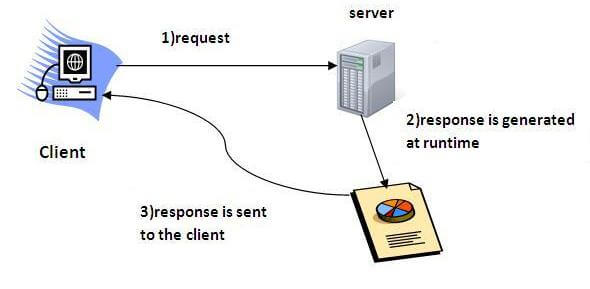
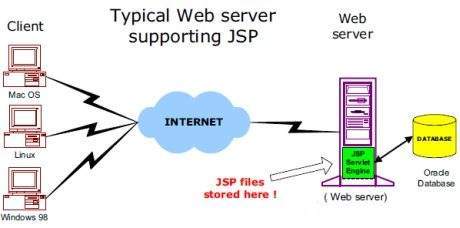
Servlet technology is used to create web application (resides at server side and generates dynamic web page).

Servlet technology is robust and scalable because of java language. Before Servlet, CGI (Common Gateway Interface) scripting language was popular as a server-side programming language. But there was many disadvantages of this technology. We have discussed these disadvantages below.

There are many interfaces and classes in the servlet API such as Servlet, GenericServlet, HttpServlet, ServletRequest, ServletResponse etc.

What is a Servlet?

Servlet can be described in many ways, depending on the context.

  • Servlet is a technology i.e. used to create web application.
  • Servlet is an API that provides many interfaces and classes including documentations.
  • Servlet is an interface that must be implemented for creating any servlet.
  • Servlet is a class that extend the capabilities of the servers and respond to the incoming request. It can respond to any type of requests.
  • Servlet is a web component that is deployed on the server to create dynamic web page.

servlet

What is web application?

A web application is an application accessible from the web. A web application is composed of web components like Servlet, JSP, Filter etc. and other components such as HTML. The web components typically execute in Web Server and respond to HTTP request.

CGI(Commmon Gateway Interface)

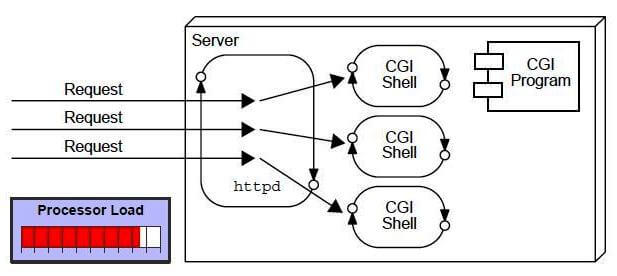
CGI technology enables the web server to call an external program and pass HTTP request information to the external program to process the request. For each request, it starts a new process.

problem in cgi and how servlet is better

Disadvantages of CGI

There are many problems in CGI technology:

  1. If number of clients increases, it takes more time for sending response.
  2. For each request, it starts a process and Web server is limited to start processes.
  3. It uses platform dependent language e.g. C, C++, perl.

Advantage of Servlet

advantage of servlet

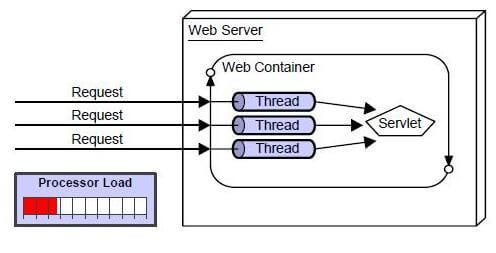
There are many advantages of servlet over CGI. The web container creates threads for handling the multiple requests to the servlet. Threads have a lot of benefits over the Processes such as they share a common memory area, lightweight, cost of communication between the threads are low. The basic benefits of servlet are as follows:

  1. better performance: because it creates a thread for each request not process.
  2. Portability: because it uses java language.
  3. Robust: Servlets are managed by JVM so we don’t need to worry about memory leak, garbage collection etc.
  4. Secure: because it uses java language.

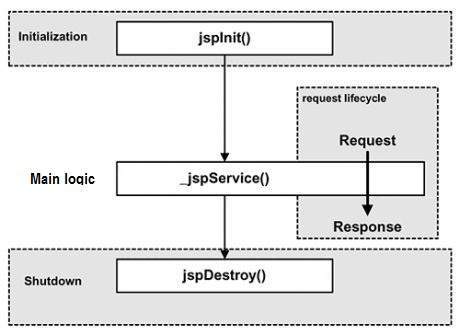
Life Cycle

A servlet life cycle can be defined as the entire process from its creation till the destruction. The following are the paths followed by a servlet.

  • The servlet is initialized by calling the init() method.
  • The servlet calls service() method to process a client’s request.
  • The servlet is terminated by calling the destroy() method.
  • Finally, servlet is garbage collected by the garbage collector of the JVM.

Now let us discuss the life cycle methods in detail.

The init() Method

The init method is called only once. It is called only when the servlet is created, and not called for any user requests afterwards. So, it is used for one-time initializations, just as with the init method of applets.

The servlet is normally created when a user first invokes a URL corresponding to the servlet, but you can also specify that the servlet be loaded when the server is first started.

When a user invokes a servlet, a single instance of each servlet gets created, with each user request resulting in a new thread that is handed off to doGet or doPost as appropriate. The init() method simply creates or loads some data that will be used throughout the life of the servlet.

The init method definition looks like this −

public void init() throws ServletException {
   // Initialization code...
}

The service() Method

The service() method is the main method to perform the actual task. The servlet container (i.e. web server) calls the service() method to handle requests coming from the client( browsers) and to write the formatted response back to the client.

Each time the server receives a request for a servlet, the server spawns a new thread and calls service. The service() method checks the HTTP request type (GET, POST, PUT, DELETE, etc.) and calls doGet, doPost, doPut, doDelete, etc. methods as appropriate.

Here is the signature of this method −

public void service(ServletRequest request, ServletResponse response) 
   throws ServletException, IOException {
}

The service () method is called by the container and service method invokes doGe, doPost, doPut, doDelete, etc. methods as appropriate. So you have nothing to do with service() method but you override either doGet() or doPost() depending on what type of request you receive from the client.

The doGet() and doPost() are most frequently used methods with in each service request. Here is the signature of these two methods.

The doGet() Method

A GET request results from a normal request for a URL or from an HTML form that has no METHOD specified and it should be handled by doGet() method.

public void doGet(HttpServletRequest request, HttpServletResponse response)
   throws ServletException, IOException {
   // Servlet code
}

The doPost() Method

A POST request results from an HTML form that specifically lists POST as the METHOD and it should be handled by doPost() method.

public void doPost(HttpServletRequest request, HttpServletResponse response)
   throws ServletException, IOException {
   // Servlet code
}

The destroy() Method

The destroy() method is called only once at the end of the life cycle of a servlet. This method gives your servlet a chance to close database connections, halt background threads, write cookie lists or hit counts to disk, and perform other such cleanup activities.

After the destroy() method is called, the servlet object is marked for garbage collection. The destroy method definition looks like this −

public void destroy() {
   // Finalization code...
}

Architecture Diagram

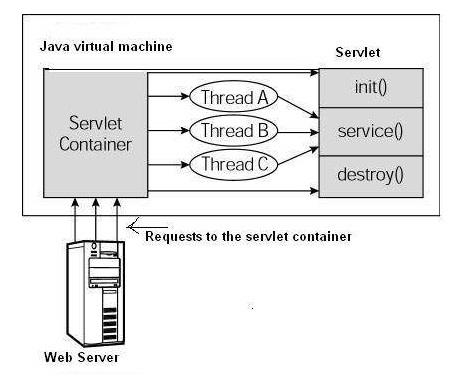
The following figure depicts a typical servlet life-cycle scenario.

  • First the HTTP requests coming to the server are delegated to the servlet container.
  • The servlet container loads the servlet before invoking the service() method.
  • Then the servlet container handles multiple requests by spawning multiple threads, each thread executing the service() method of a single instance of the servlet.

Servlet Life Cycle


Servlets Example:-

Servlets are Java classes which service HTTP requests and implement the javax.servlet.Servlet interface. Web application developers typically write servlets that extend javax.servlet.http.HttpServlet, an abstract class that implements the Servlet interface and is specially designed to handle HTTP requests.

Sample Code

Following is the sample source code structure of a servlet example to show Hello World −

// Import required java libraries
import java.io.*;
import javax.servlet.*;
import javax.servlet.http.*;

// Extend HttpServlet class
public class HelloWorld extends HttpServlet {
 
   private String message;

   public void init() throws ServletException {
      // Do required initialization
      message = "Hello World";
   }

   public void doGet(HttpServletRequest request, HttpServletResponse response)
      throws ServletException, IOException {
      
      // Set response content type
      response.setContentType("text/html");

      // Actual logic goes here.
      PrintWriter out = response.getWriter();
      out.println("<h1>" + message + "</h1>");
   }

   public void destroy() {
      // do nothing.
   }
}

Compiling a Servlet

Let us create a file with name HelloWorld.java with the code shown above. Place this file at C:\ServletDevel (in Windows) or at /usr/ServletDevel (in Unix). This path location must be added to CLASSPATH before proceeding further.

Assuming your environment is setup properly, go in ServletDevel directory and compile HelloWorld.java as follows −

$ javac HelloWorld.java

If the servlet depends on any other libraries, you have to include those JAR files on your CLASSPATH as well. I have included only servlet-api.jar JAR file because I’m not using any other library in Hello World program.

This command line uses the built-in javac compiler that comes with the Sun Microsystems Java Software Development Kit (JDK). For this command to work properly, you have to include the location of the Java SDK that you are using in the PATH environment variable.

If everything goes fine, above compilation would produce HelloWorld.classfile in the same directory. Next section would explain how a compiled servlet would be deployed in production.

Servlet Deployment

By default, a servlet application is located at the path <Tomcat-installationdirectory>/webapps/ROOT and the class file would reside in <Tomcat-installationdirectory>/webapps/ROOT/WEB-INF/classes.

If you have a fully qualified class name of com.myorg.MyServlet, then this servlet class must be located in WEB-INF/classes/com/myorg/MyServlet.class.

For now, let us copy HelloWorld.class into <Tomcat-installationdirectory>/webapps/ROOT/WEB-INF/classes and create following entries in web.xml file located in <Tomcat-installation-directory>/webapps/ROOT/WEB-INF/

<servlet>
   <servlet-name>HelloWorld</servlet-name>
   <servlet-class>HelloWorld</servlet-class>
</servlet>

<servlet-mapping>
   <servlet-name>HelloWorld</servlet-name>
   <url-pattern>/HelloWorld</url-pattern>
</servlet-mapping>

Above entries to be created inside <web-app>…</web-app> tags available in web.xml file. There could be various entries in this table already available, but never mind.

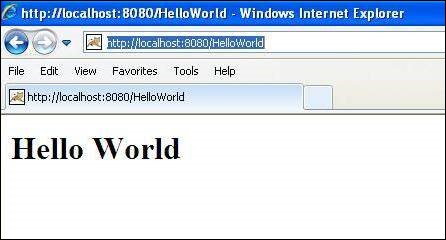
You are almost done, now let us start tomcat server using <Tomcat-installationdirectory>\bin\startup.bat (on Windows) or <Tomcat-installationdirectory>/bin/startup.sh (on Linux/Solaris etc.) and finally type http://localhost:8080/HelloWorld in the browser’s address box. If everything goes fine, you would get the following result

Servlet Example


Form Data:-

You must have come across many situations when you need to pass some information from your browser to web server and ultimately to your backend program. The browser uses two methods to pass this information to web server. These methods are GET Method and POST Method.

GET Method

The GET method sends the encoded user information appended to the page request. The page and the encoded information are separated by the ?(question mark) symbol as follows −

http://www.test.com/hello?key1 = value1&key2 = value2

The GET method is the default method to pass information from browser to web server and it produces a long string that appears in your browser’s Location:box. Never use the GET method if you have password or other sensitive information to pass to the server. The GET method has size limitation: only 1024 characters can be used in a request string.

This information is passed using QUERY_STRING header and will be accessible through QUERY_STRING environment variable and Servlet handles this type of requests using doGet() method.

POST Method

A generally more reliable method of passing information to a backend program is the POST method. This packages the information in exactly the same way as GET method, but instead of sending it as a text string after a ? (question mark) in the URL it sends it as a separate message. This message comes to the backend program in the form of the standard input which you can parse and use for your processing. Servlet handles this type of requests using doPost() method.

Reading Form Data using Servlet

Servlets handles form data parsing automatically using the following methods depending on the situation −

  • getParameter() − You call request.getParameter() method to get the value of a form parameter.
  • getParameterValues() − Call this method if the parameter appears more than once and returns multiple values, for example checkbox.
  • getParameterNames() − Call this method if you want a complete list of all parameters in the current request.

GET Method Example using URL

Here is a simple URL which will pass two values to HelloForm program using GET method.

http://localhost:8080/HelloForm?first_name = ZARA&last_name = ALI

Given below is the HelloForm.java servlet program to handle input given by web browser. We are going to use getParameter() method which makes it very easy to access passed information −

// Import required java libraries
import java.io.*;
import javax.servlet.*;
import javax.servlet.http.*;

// Extend HttpServlet class
public class HelloForm extends HttpServlet {
 
   public void doGet(HttpServletRequest request, HttpServletResponse response)
      throws ServletException, IOException {
      
      // Set response content type
      response.setContentType("text/html");

      PrintWriter out = response.getWriter();
      String title = "Using GET Method to Read Form Data";
      String docType =
         "<!doctype html public \"-//w3c//dtd html 4.0 " + "transitional//en\">\n";
         
      out.println(docType +
         "<html>\n" +
            "<head><title>" + title + "</title></head>\n" +
            "<body bgcolor = \"#f0f0f0\">\n" +
               "<h1 align = \"center\">" + title + "</h1>\n" +
               "<ul>\n" +
                  "  <li><b>First Name</b>: "
                  + request.getParameter("first_name") + "\n" +
                  "  <li><b>Last Name</b>: "
                  + request.getParameter("last_name") + "\n" +
               "</ul>\n" +
            "</body>
         </html>"
      );
   }
}

Assuming your environment is set up properly, compile HelloForm.java as follows −

$ javac HelloForm.java

If everything goes fine, above compilation would produce HelloForm.classfile. Next you would have to copy this class file in <Tomcat-installationdirectory>/webapps/ROOT/WEB-INF/classes and create following entries in web.xml file located in <Tomcat-installation-directory>/webapps/ROOT/WEB-INF/

<servlet>
   <servlet-name>HelloForm</servlet-name>
   <servlet-class>HelloForm</servlet-class>
</servlet>

<servlet-mapping>
   <servlet-name>HelloForm</servlet-name>
   <url-pattern>/HelloForm</url-pattern>
</servlet-mapping>

Now type http://localhost:8080/HelloForm?first_name=ZARA&last_name=ALIin your browser’s Location:box and make sure you already started tomcat server, before firing above command in the browser. This would generate following result −

Using GET Method to Read Form Data

  • First Name: ZARA
  • Last Name: ALI


GET Method Example Using Form

Here is a simple example which passes two values using HTML FORM and submit button. We are going to use same Servlet HelloForm to handle this imput.

<html>
   <body>
      <form action = "HelloForm" method = "GET">
         First Name: <input type = "text" name = "first_name">
         <br />
         Last Name: <input type = "text" name = "last_name" />
         <input type = "submit" value = "Submit" />
      </form>
   </body>
</html>

Keep this HTML in a file Hello.htm and put it in <Tomcat-installationdirectory>/webapps/ROOT directory. When you would access http://localhost:8080/Hello.htm, here is the actual output of the above form.

First Name:  Last Name:  Try to enter First Name and Last Name and then click submit button to see the result on your local machine where tomcat is running. Based on the input provided, it will generate similar result as mentioned in the above example.

POST Method Example Using Form

Let us do little modification in the above servlet, so that it can handle GET as well as POST methods. Below is HelloForm.java servlet program to handle input given by web browser using GET or POST methods.

// Import required java libraries
import java.io.*;
import javax.servlet.*;
import javax.servlet.http.*;

// Extend HttpServlet class
public class HelloForm extends HttpServlet {

   // Method to handle GET method request.
   public void doGet(HttpServletRequest request, HttpServletResponse response)
      throws ServletException, IOException {
      
      // Set response content type
      response.setContentType("text/html");

      PrintWriter out = response.getWriter();
      String title = "Using GET Method to Read Form Data";
      String docType =
         "<!doctype html public \"-//w3c//dtd html 4.0 " +
         "transitional//en\">\n";
         
      out.println(docType +
         "<html>\n" +
            "<head><title>" + title + "</title></head>\n" +
            "<body bgcolor = \"#f0f0f0\">\n" +
               "<h1 align = \"center\">" + title + "</h1>\n" +
               "<ul>\n" +
                  "  <li><b>First Name</b>: "
                  + request.getParameter("first_name") + "\n" +
                  "  <li><b>Last Name</b>: "
                  + request.getParameter("last_name") + "\n" +
               "</ul>\n" +
            "</body>
         </html>"
      );
   }

   // Method to handle POST method request.
   public void doPost(HttpServletRequest request, HttpServletResponse response)
      throws ServletException, IOException {

      doGet(request, response);
   }
}

Now compile and deploy the above Servlet and test it using Hello.htm with the POST method as follows −

<html>
   <body>
      <form action = "HelloForm" method = "POST">
         First Name: <input type = "text" name = "first_name">
         <br />
         Last Name: <input type = "text" name = "last_name" />
         <input type = "submit" value = "Submit" />
      </form>
   </body>
</html>

Here is the actual output of the above form, Try to enter First and Last Name and then click submit button to see the result on your local machine where tomcat is running.

First Name:  Last Name:  Based on the input provided, it would generate similar result as mentioned in the above examples.

Passing Checkbox Data to Servlet Program

Checkboxes are used when more than one option is required to be selected.

Here is example HTML code, CheckBox.htm, for a form with two checkboxes

<html>
   <body>
      <form action = "CheckBox" method = "POST" target = "_blank">
         <input type = "checkbox" name = "maths" checked = "checked" /> Maths
         <input type = "checkbox" name = "physics"  /> Physics
         <input type = "checkbox" name = "chemistry" checked = "checked" /> 
                                          Chemistry
         <input type = "submit" value = "Select Subject" />
      </form>
   </body>
</html>

The result of this code is the following form

Maths  Physics  Chemistry Given below is the CheckBox.java servlet program to handle input given by web browser for checkbox button.

// Import required java libraries
import java.io.*;
import javax.servlet.*;
import javax.servlet.http.*;

// Extend HttpServlet class
public class CheckBox extends HttpServlet {
 
   // Method to handle GET method request.
   public void doGet(HttpServletRequest request, HttpServletResponse response)
      throws ServletException, IOException {
      
      // Set response content type
      response.setContentType("text/html");

      PrintWriter out = response.getWriter();
      String title = "Reading Checkbox Data";
      String docType =
         "<!doctype html public \"-//w3c//dtd html 4.0 " + "transitional//en\">\n";

      out.println(docType +
         "<html>\n" +
            "<head><title>" + title + "</title></head>\n" +
            "<body bgcolor = \"#f0f0f0\">\n" +
               "<h1 align = \"center\">" + title + "</h1>\n" +
               "<ul>\n" +
                  "  <li><b>Maths Flag : </b>: "
                  + request.getParameter("maths") + "\n" +
                  "  <li><b>Physics Flag: </b>: "
                  + request.getParameter("physics") + "\n" +
                  "  <li><b>Chemistry Flag: </b>: "
                  + request.getParameter("chemistry") + "\n" +
               "</ul>\n" +
            "</body>
         </html>"
      );
   }

   // Method to handle POST method request.
   public void doPost(HttpServletRequest request, HttpServletResponse response)
      throws ServletException, IOException {
      
      doGet(request, response);
   }
}

For the above example, it would display following result −

Reading Checkbox Data

  • Maths Flag : : on
  • Physics Flag: : null
  • Chemistry Flag: : on


Reading All Form Parameters

Following is the generic example which uses getParameterNames() method of HttpServletRequest to read all the available form parameters. This method returns an Enumeration that contains the parameter names in an unspecified order Once we have an Enumeration, we can loop down the Enumeration in standard way by, using hasMoreElements() method to determine when to stop and using nextElement() method to get each parameter name.

// Import required java libraries
import java.io.*;
import javax.servlet.*;
import javax.servlet.http.*;
import java.util.*;

// Extend HttpServlet class
public class ReadParams extends HttpServlet {
 
   // Method to handle GET method request.
   public void doGet(HttpServletRequest request, HttpServletResponse response)
      throws ServletException, IOException {
      
      // Set response content type
      response.setContentType("text/html");

      PrintWriter out = response.getWriter();
      String title = "Reading All Form Parameters";
      String docType =
         "<!doctype html public \"-//w3c//dtd html 4.0 " + "transitional//en\">\n";

      out.println(docType +
         "<html>\n" +
         "<head><title>" + title + "</title></head>\n" +
         "<body bgcolor = \"#f0f0f0\">\n" +
         "<h1 align = \"center\">" + title + "</h1>\n" +
         "<table width = \"100%\" border = \"1\" align = \"center\">\n" +
         "<tr bgcolor = \"#949494\">\n" +
            "<th>Param Name</th>
            <th>Param Value(s)</th>\n"+
         "</tr>\n"
      );

      Enumeration paramNames = request.getParameterNames();

      while(paramNames.hasMoreElements()) {
         String paramName = (String)paramNames.nextElement();
         out.print("<tr><td>" + paramName + "</td>\n<td>");
         String[] paramValues = request.getParameterValues(paramName);

         // Read single valued data
         if (paramValues.length == 1) {
            String paramValue = paramValues[0];
            if (paramValue.length() == 0)
               out.println("<i>No Value</i>");
               else
               out.println(paramValue);
         } else {
            // Read multiple valued data
            out.println("<ul>");

            for(int i = 0; i < paramValues.length; i++) {
               out.println("<li>" + paramValues[i]);
            }
            out.println("</ul>");
         }
      }
      out.println("</tr>\n</table>\n</body></html>");
   }
   
   // Method to handle POST method request.
   public void doPost(HttpServletRequest request, HttpServletResponse response)
      throws ServletException, IOException {
      
      doGet(request, response);
   }
}

Now, try the above servlet with the following form −

<html>
   <body>
      <form action = "ReadParams" method = "POST" target = "_blank">
         <input type = "checkbox" name = "maths" checked = "checked" /> Maths
         <input type = "checkbox" name = "physics"  /> Physics
         <input type = "checkbox" name = "chemistry" checked = "checked" /> Chem
         <input type = "submit" value = "Select Subject" />
      </form>
   </body>
</html>

Now calling servlet using the above form would generate the following result −

Reading All Form Parameters

Param Name Param Value(s)
maths on
chemistry on


Writing Filters

Servlet Filters are Java classes that can be used in Servlet Programming for the following purposes −

  • To intercept requests from a client before they access a resource at back end.
  • To manipulate responses from server before they are sent back to the client.

There are various types of filters suggested by the specifications −

  • Authentication Filters.
  • Data compression Filters.
  • Encryption Filters.
  • Filters that trigger resource access events.
  • Image Conversion Filters.
  • Logging and Auditing Filters.
  • MIME-TYPE Chain Filters.
  • Tokenizing Filters .
  • XSL/T Filters That Transform XML Content.

Filters are deployed in the deployment descriptor file web.xml and then map to either servlet names or URL patterns in your application’s deployment descriptor.

When the web container starts up your web application, it creates an instance of each filter that you have declared in the deployment descriptor. The filters execute in the order that they are declared in the deployment descriptor.

Servlet Filter Methods

A filter is simply a Java class that implements the javax.servlet.Filter interface. The javax.servlet.Filter interface defines three methods −

Sr.No. Method & Description
1 public void doFilter (ServletRequest, ServletResponse, FilterChain)

This method is called by the container each time a request/response pair is passed through the chain due to a client request for a resource at the end of the chain.

2 public void init(FilterConfig filterConfig)

This method is called by the web container to indicate to a filter that it is being placed into service.

3 public void destroy()

This method is called by the web container to indicate to a filter that it is being taken out of service.

Servlet Filter − Example

Following is the Servlet Filter Example that would print the clients IP address and current date time. This example would give you basic understanding of Servlet Filter, but you can write more sophisticated filter applications using the same concept −

// Import required java libraries
import java.io.*;
import javax.servlet.*;
import javax.servlet.http.*;
import java.util.*;

// Implements Filter class
public class LogFilter implements Filter  {
   public void  init(FilterConfig config) throws ServletException {
      
      // Get init parameter 
      String testParam = config.getInitParameter("test-param"); 

      //Print the init parameter 
      System.out.println("Test Param: " + testParam); 
   }
   
   public void  doFilter(ServletRequest request, ServletResponse response,
      FilterChain chain) throws java.io.IOException, ServletException {

      // Get the IP address of client machine.
      String ipAddress = request.getRemoteAddr();

      // Log the IP address and current timestamp.
      System.out.println("IP "+ ipAddress + ", Time " + new Date().toString());

      // Pass request back down the filter chain
      chain.doFilter(request,response);
   }

   public void destroy( ) {
      /* Called before the Filter instance is removed from service by the web container*/
   }
}

Compile LogFilter.java in usual way and put your class file in <Tomcat-installationdirectory>/webapps/ROOT/WEB-INF/classes

Servlet Filter Mapping in Web.xml

Filters are defined and then mapped to a URL or Servlet, in much the same way as Servlet is defined and then mapped to a URL pattern. Create the following entry for filter tag in the deployment descriptor file web.xml

<filter>
   <filter-name>LogFilter</filter-name>
   <filter-class>LogFilter</filter-class>
   <init-param>
      <param-name>test-param</param-name>
      <param-value>Initialization Paramter</param-value>
   </init-param>
</filter>

<filter-mapping>
   <filter-name>LogFilter</filter-name>
   <url-pattern>/*</url-pattern>
</filter-mapping>

The above filter would apply to all the servlets because we specified /* in our configuration. You can specicy a particular servlet path if you want to apply filter on few servlets only.

Now try to call any servlet in usual way and you would see generated log in your web server log. You can use Log4J logger to log above log in a separate file.

Using Multiple Filters

Your web application may define several different filters with a specific purpose. Consider, you define two filters AuthenFilter and LogFilter. Rest of the process would remain as explained above except you need to create a different mapping as mentioned below −

<filter>
   <filter-name>LogFilter</filter-name>
   <filter-class>LogFilter</filter-class>
   <init-param>
      <param-name>test-param</param-name>
      <param-value>Initialization Paramter</param-value>
   </init-param>
</filter>

<filter>
   <filter-name>AuthenFilter</filter-name>
   <filter-class>AuthenFilter</filter-class>
   <init-param>
      <param-name>test-param</param-name>
      <param-value>Initialization Paramter</param-value>
   </init-param>
</filter>

<filter-mapping>
   <filter-name>LogFilter</filter-name>
   <url-pattern>/*</url-pattern>
</filter-mapping>

<filter-mapping>
   <filter-name>AuthenFilter</filter-name>
   <url-pattern>/*</url-pattern>
</filter-mapping>

Filters Application Order

The order of filter-mapping elements in web.xml determines the order in which the web container applies the filter to the servlet. To reverse the order of the filter, you just need to reverse the filter-mapping elements in the web.xml file.

For example, above example would apply LogFilter first and then it would apply AuthenFilter to any servlet but the following example would reverse the order −

<filter-mapping>
   <filter-name>AuthenFilter</filter-name>
   <url-pattern>/*</url-pattern>
</filter-mapping>

<filter-mapping>
   <filter-name>LogFilter</filter-name>
   <url-pattern>/*</url-pattern>
</filter-mapping>

AJAX

14aug- 19 aug

AJAX stands for Asynchronous JavaScript and XML. AJAX is a new technique for creating better, faster, and more interactive web applications with the help of XML, HTML, CSS, and Java Script.

  • Ajax uses XHTML for content, CSS for presentation, along with Document Object Model and JavaScript for dynamic content display.
  • Conventional web applications transmit information to and from the sever using synchronous requests. It means you fill out a form, hit submit, and get directed to a new page with new information from the server.
  • With AJAX, when you hit submit, JavaScript will make a request to the server, interpret the results, and update the current screen. In the purest sense, the user would never know that anything was even transmitted to the server.
  • XML is commonly used as the format for receiving server data, although any format, including plain text, can be used.
  • AJAX is a web browser technology independent of web server software.
  • A user can continue to use the application while the client program requests information from the server in the background.
  • Intuitive and natural user interaction. Clicking is not required, mouse movement is a sufficient event trigger.
  • Data-driven as opposed to page-driven.

AJAX cannot work independently. It is used in combination with other technologies to create interactive webpages.

JavaScript

  • Loosely typed scripting language.
  • JavaScript function is called when an event occurs in a page.
  • Glue for the whole AJAX operation.

DOM

  • API for accessing and manipulating structured documents.
  • Represents the structure of XML and HTML documents.

CSS

  • Allows for a clear separation of the presentation style from the content and may be changed programmatically by JavaScript

XMLHttpRequest

  • JavaScript object that performs asynchronous interaction with the server.

Understanding XMLHttpRequest

An object of XMLHttpRequest is used for asynchronous communication between client and server.

It performs following operations:

  1. Sends data from the client in the background
  2. Receives the data from the server
  3. Updates the webpage without reloading it

How AJAX works?

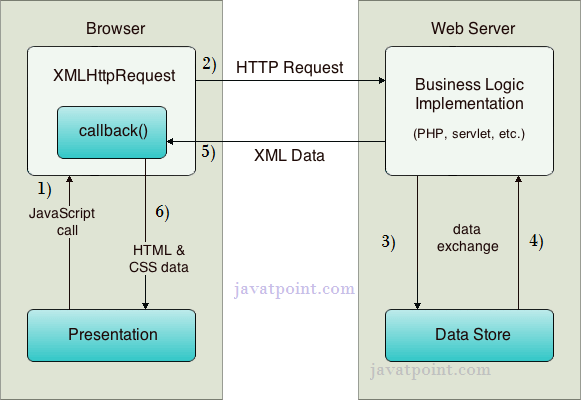
AJAX communicates with the server using XMLHttpRequest object. Let’s try to understand the flow of ajax or how ajax works by the image displayed below.

how ajax works, flow of ajax

As you can see in the above example, XMLHttpRequest object plays a important role.

  1. User sends a request from the UI and a javascript call goes to XMLHttpRequest object.
  2. HTTP Request is sent to the server by XMLHttpRequest object.
  3. Server interacts with the database using JSP, PHP, Servlet, ASP.net etc.
  4. Data is retrieved.
  5. Server sends XML data or JSON data to the XMLHttpRequest callback function.
  6. HTML and CSS data is displayed on the browser.

Ajax Java Example

To create ajax example, you need to use any server-side language e.g. servlet, jsp, php, asp.net etc. Here we are using JSP for generating the server-side code.

In this example, we are simply printing the table of the given number.

Steps to create ajax example with jsp

You need to follow following steps:

  1. load the org.json.jar file
  2. create input page to receive any text or number
  3. create server side page to process the request
  4. provide entry in web.xml file

create input page to receive any text or number

In this page, we have created a form that gets input from the user. When user clicks on the showTable button, sendInfo()function is called. We have written all the ajax code inside this function.

We have called the getInfo() function whenever ready state changes. It writes the returned data in the web page dynamically by the help of innerHTML property.

table1.html

<html>

<head>

<script>

var request;

function sendInfo()

{

var v=document.vinform.t1.value;

var url=“index.jsp?val=”+v;


if(window.XMLHttpRequest){

request=new XMLHttpRequest();

}

else if(window.ActiveXObject){

request=new ActiveXObject(“Microsoft.XMLHTTP”);

}


try

{

request.onreadystatechange=getInfo;

request.open(“GET”,url,true);

request.send();

}

catch(e)

{

alert(“Unable to connect to server”);

}

}


function getInfo(){

if(request.readyState==4){

var val=request.responseText;

document.getElementById(‘amit’).innerHTML=val;

}

}


</script>

</head>

<body>

<marquee><h1>This is an example of ajax</h1></marquee>

<form name=“vinform”>

<input type=“text” name=“t1”>

<input type=“button” value=“ShowTable” onClick=“sendInfo()”>

</form>


<span id=“amit”> </span>


</body>

</html>


create server side page to process the request

In this jsp page, we printing the table of given number.

index.jsp

<%

int n=Integer.parseInt(request.getParameter(“val”));


for(int i=1;i<=10;i++)

out.print(i*n+”<br>“);


%>

web.xml

<?xml version=“1.0” encoding=“UTF-8”?>

<web-app version=“2.5” xmlns=http://java.sun.com/xml/ns/javaee&#8221;

xmlns:xsi=http://www.w3.org/2001/XMLSchema-instance&#8221;

xsi:schemaLocation=”http://java.sun.com/xml/ns/javaee

http://java.sun.com/xml/ns/javaee/web-app_2_5.xsd&#8221;>


<session-config>

<session-timeout>

30

</session-timeout>

</session-config>

<welcome-file-list>

<welcome-file>table1.html</welcome-file>

</welcome-file-list>

</web-app>

Output:-

ajax example output

Ajax Java Example with Database

In this example, we are interacting with the database. You don’t have to make any extra effort. Only write the database logic in you server side page.

In this example, we have written the server side code inside the index.jsp file.

Steps to create ajax example with database through jsp

You need to follow following steps:

  1. load the org.json.jar file
  2. create input page to receive any text or number
  3. create server side page to process the request

create input page to receive any text or number

In this page, we have created a form that gets input from the user. When user press any key sendInfo() function is called. We have written all the ajax code inside this function.

We have called the getInfo() function whenever ready state changes. It writes the returned data in the web page dynamically by the help of innerHTML property.

table1.html

<html>

<head>

<script>

var request;

function sendInfo()

{

var v=document.vinform.t1.value;

var url=“index.jsp?val=”+v;


if(window.XMLHttpRequest){

request=new XMLHttpRequest();

}

else if(window.ActiveXObject){

request=new ActiveXObject(“Microsoft.XMLHTTP”);

}


try{

request.onreadystatechange=getInfo;

request.open(“GET”,url,true);

request.send();

}catch(e){alert(“Unable to connect to server”);}

}


function getInfo(){

if(request.readyState==4){

var val=request.responseText;

document.getElementById(‘amit’).innerHTML=val;

}

}


</script>

</head>

<body>

<marquee><h1>This is an example of ajax</h1></marquee>

<form name=“vinform”>

Enter id:<input type=“text” name=“t1” onkeyup=“sendInfo()”>

</form>


<span id=“amit”> </span>


</body>

</html>

create server side page to process the request

In this jsp page, we printing the id and name of the employee for the given id.

index.jsp

<%@ page import=“java.sql.*”%>


<%

String s=request.getParameter(“val”);

if(s==null || s.trim().equals(“”)){

out.print(“Please enter id”);

}else{

int id=Integer.parseInt(s);

out.print(id);

try{

Class.forName(“com.mysql.jdbc.Driver”);

Connection con=DriverManager.getConnection(“jdbc:mysql://localhost:3306/mdb”,”root”,”root”);

PreparedStatement ps=con.prepareStatement(“select * from emp where id=?”);

ps.setInt(1,id);

ResultSet rs=ps.executeQuery();

while(rs.next()){

out.print(rs.getInt(1)+” “+rs.getString(2));

}

con.close();

}catch(Exception e){e.printStackTrace();}

}

%>

Output:-

ajax example using database output ajax example using database output 2

Java AJAX Email Finder Example

We can create an AJAX example in Java which checks whether the given email id exists in the database or not.

Steps to create email finder example using AJAX in Java

You need to follow following steps:

  1. Create table in database
  2. load the org.json.jar file
  3. Create input form
  4. Create server side page to search employee using name

Create table in database

In this example, we are using oracle 10g database. Here, we have created a table “user100” which has following data.

Java AJAX Email Finder Example 1


Create input form

In this page, we have created a form that gets input from the user to find email. When you click on the check availability button, it tells whether email id is available or not.

index.html

<!DOCTYPE html>

<html>

<head>

<title>Email Finder Example</title>

<script>

var request;

function sendInfo(){

var email=document.vinform.email.value;

var url=“emailfinder.jsp?email=”+email;


if(window.XMLHttpRequest){

request=new XMLHttpRequest();

}

else if(window.ActiveXObject){

request=new ActiveXObject(“Microsoft.XMLHTTP”);

}

try{

request.onreadystatechange=getInfo;

request.open(“GET”,url,true);

request.send();

}catch(e){alert(“Unable to connect to server”);}

}


function getInfo(){

if(request.readyState==4){

var val=request.responseText;

document.getElementById(‘mylocation’).innerHTML=val;

}

}


</script>

</head>

<body>

<marquee><h1>AJAX Email Checker Example</h1></marquee>

<form name=“vinform”>

<input type=“email” name=“email” placeholder=“enter email”/>

<input type=“button” onclick=“sendInfo()” value=“Check Availability”/>

<span id=“mylocation”></span>

</form>


</body></html>

Create server side page to process the request

In this jsp page, we are writing the database code to search email id.

emailfinder.jsp

<%@ page import=“java.sql.*” %>

<%

String email=request.getParameter(“email”);

if(email.contains(“@”)&&email.contains(“.”)){

try{

Class.forName(“oracle.jdbc.driver.OracleDriver”);

Connection con=DriverManager.getConnection(“jdbc:oracle:thin:@localhost:1521:xe”,”system”,”oracle”);

PreparedStatement ps=con.prepareStatement(“select * from user100 where email=?”);

ps.setString(1,email);

ResultSet rs=ps.executeQuery();

if(rs.next()){

out.print(“Unavailable! <img src=‘unchecked.gif’/>“);

}else{

out.print(“Available! <img src=‘checked.gif’/>“);

}

}catch(Exception e){out.print(e);}

}else{

out.print(“Invalid email!”);

}

%>

Output:-

Java AJAX Email Finder Example 2


Java AJAX Email Finder Example 3


Development in JSP

7 aug – 12 aug

Registration Form in JSP

For creating registration form, you must have a table in the database. You can write the database logic in JSP file, but separating it from the JSP page is better approach. Here, we are going to use DAO, Factory Method, DTO and Singletion design patterns. There are many files:

  • index.jsp for getting the values from the user
  • User.java, a bean class that have properties and setter and getter methods.
  • process.jsp, a jsp file that processes the request and calls the methods
  • Provider.java, an interface that contains many constants like DRIVER_CLASS, CONNECTION_URL, USERNAME and PASSWORD
  • ConnectionProvider.java, a class that returns an object of Connection. It uses the Singleton and factory method design pattern.
  • RegisterDao.java, a DAO class that is responsible to get access to the database


Example of Registration Form in JSP

In this example, we are using the Oracle10g database to connect with the database. Let’s first create the table in the Oracle database:

CREATE TABLE  “USER432”

(    “NAME” VARCHAR2(4000),

“EMAIL” VARCHAR2(4000),

“PASS” VARCHAR2(4000)     )

/

index.jsp

We are having only three fields here, to make the concept clear and simplify the flow of the application. You can have other fields also like country, hobby etc. according to your requirement.

 <form action=“process.jsp”>
<input type=“text” name=“uname” value=“Name…” onclick=“this.value=””/><br/>
<input type=“text” name=“uemail”  value=“Email ID…” onclick=“this.value=””/><br/>
<input type=“password” name=“upass”  value=“Password…” onclick=“this.value=””/><br/>
<input type=“submit” value=“register”/>
</form>

process.jsp

This jsp file contains all the incoming values to an object of bean class which is passed as an argument in the register method of the RegisterDao class.

 <%@page import=“bean.RegisterDao”%>
<jsp:useBean id=“obj” class=“bean.User”/>
<jsp:setProperty property=“*” name=“obj”/>
<%
int status=RegisterDao.register(obj);
if(status>0)
out.print(“You are successfully registered”);
  %>

User.java

It is the bean class that have 3 properties uname, uemail and upass with its setter and getter methods.
package bean;
public class User {
private String uname,upass,uemail;
public String getUname() {
    return uname;
}
public void setUname(String uname) {
    this.uname = uname;
}
public String getUpass() {
    return upass;
}
  public void setUpass(String upass) {
    this.upass = upass;
}
public String getUemail() {
    return uemail;
}
public void setUemail(String uemail) {
    this.uemail = uemail;
}
}

Provider.java

This interface contains four constants that can vary from database to database.

package bean;
public interface Provider {
String DRIVER=“oracle.jdbc.driver.OracleDriver”;
String CONNECTION_URL=“jdbc:oracle:thin:@localhost:1521:xe”;
String USERNAME=“system”;
String PASSWORD=“oracle”;
}

ConnectionProvider.java

This class is responsible to return the object of Connection. Here, driver class is loaded only once and connection object gets memory only once.

package bean;
import java.sql.*;
import static bean.Provider.*;
public class ConnectionProvider {
private static Connection con=null;
static{
try{
Class.forName(DRIVER);
con=DriverManager.getConnection(CONNECTION_URL,USERNAME,PASSWORD);
}catch(Exception e){}
}
public static Connection getCon(){
    return con;
}
}

RegisterDao.java

This class inserts the values of the bean component into the database.

package bean;
import java.sql.*;
public class RegisterDao {
public static int register(User u){
int status=0;
try{
Connection con=ConnectionProvider.getCon();
PreparedStatement ps=con.prepareStatement(“insert into user432 values(?,?,?)”);
ps.setString(1,u.getUname());
ps.setString(2,u.getUemail());
ps.setString(3,u.getUpass());
status=ps.executeUpdate();
}catch(Exception e){}
return status;
}
}

Login and Logout example in JSP:-

In this example of creating login form, we have used the DAO (Data Access Object), Factory method and DTO (Data Transfer Object) design patterns. There are many files:

  • index.jsp it provides three links for login, logout and profile
  • login.jsp for getting the values from the user
  • loginprocess.jsp, a jsp file that processes the request and calls the methods.
  • LoginBean.java, a bean class that have properties and setter and getter methods.
  • Provider.java, an interface that contains many constants like DRIVER_CLASS, CONNECTION_URL, USERNAME and PASSWORD
  • ConnectionProvider.java, a class that is responsible to return the object of Connection. It uses the Singleton and factory method design pattern.
  • LoginDao.java, a DAO class that verifies the emailId and password from the database.
  • logout.jsp it invalidates the session.
  • profile.jsp it provides simple message if user is logged in, otherwise forwards the request to the login.jsp page.

In this example, we are using the Oracle10g database to match the emailId and password with the database. The table name is user432 which have many fields like name, email, pass etc. You may use this query to create the table:

CREATE TABLE  “USER432”

(    “NAME” VARCHAR2(4000),

“EMAIL” VARCHAR2(4000),

“PASS” VARCHAR2(4000)

)

/

index.jsp

It simply provides three links for login, logout and profile.

<a href=“login.jsp”>login</a>|

<a href=“logout.jsp”>logout</a>|

<a href=“profile.jsp”>profile</a>

login.jsp

This file creates a login form for two input fields name and password. It is the simple login form, you can change it for better look and feel. We are focusing on the concept only.

<%@ include file=“index.jsp” %>

<hr/>


<h3>Login Form</h3>

<%

String profile_msg=(String)request.getAttribute(“profile_msg”);

if(profile_msg!=null){

out.print(profile_msg);

}

String login_msg=(String)request.getAttribute(“login_msg”);

if(login_msg!=null){

out.print(login_msg);

}

%>

<br/>

<form action=“loginprocess.jsp” method=“post”>

Email:<input type=“text” name=“email”/><br/><br/>

Password:<input type=“password” name=“password”/><br/><br/>

<input type=“submit” value=“login”/>”

</form>

loginprocess.jsp

This jsp file contains all the incoming values to an object of bean class which is passed as an argument in the validate method of the LoginDao class. If emailid and password is correct, it displays a message you are successfully logged in! and maintains the session so that we may recognize the user.

<%@page import=“bean.LoginDao”%>

<jsp:useBean id=“obj” class=“bean.LoginBean”/>


<jsp:setProperty property=“*” name=“obj”/>


<%

boolean status=LoginDao.validate(obj);

if(status){

out.println(“You r successfully logged in”);

session.setAttribute(“session”,“TRUE”);

}

else

{

out.print(“Sorry, email or password error”);

%>

<jsp:include page=“index.jsp”></jsp:include>

<%

}

%>

LoginBean.java

It is the bean class that have 2 properties email and pass with its setter and getter methods.

package bean;


public class LoginBean {

private String email,pass;


public String getEmail() {

return email;

}


public void setEmail(String email) {

this.email = email;

}


public String getPass() {

return pass;

}


public void setPass(String pass) {

this.pass = pass;

}


}

Provider.java

This interface contains four constants that may differ from database to database.
ConnectionProvider.java

package bean;


public interface Provider {

String DRIVER=“oracle.jdbc.driver.OracleDriver”;

String CONNECTION_URL=“jdbc:oracle:thin:@localhost:1521:xe”;

String USERNAME=“system”;

String PASSWORD=“oracle”;


}

This class provides a factory method that returns the object of Connection. Here, driver class is loaded only once and connection object gets memory only once because it is static.

package bean;

import java.sql.*;

import static bean.Provider.*;


public class ConnectionProvider {

private static Connection con=null;

static{

try{

Class.forName(DRIVER);

con=DriverManager.getConnection(CONNECTION_URL,USERNAME,PASSWORD);

}catch(Exception e){}

}


public static Connection getCon(){

return con;

}


}


LoginDao.java

This class varifies the emailid and password.

package bean;

import java.sql.*;

public class LoginDao {

public static boolean validate(LoginBean bean){

boolean status=false;

try{

Connection con=ConnectionProvider.getCon();

PreparedStatement ps=con.prepareStatement(

“select * from user432 where email=? and pass=?”);

ps.setString(1,bean.getEmail());

ps.setString(2, bean.getPass());

ResultSet rs=ps.executeQuery();

status=rs.next();

}catch(Exception e){}

return status;

}

}

Uploading file to the server using JSP

There are many ways to upload the file to the server. One of the way is by the MultipartRequest class. For using this class you need to have the cos.jar file. In this example, we are providing the cos.jar file alongwith the code.

MultipartRequest class

It is a utility class to handle the multipart/form-data request. There are many constructors defined in the MultipartRequest class.

Commonly used Constructors of MultipartRequest class

  • MultipartRequest(HttpServletRequest request, String saveDirectory) uploads the file upto 1MB.
  • MultipartRequest(HttpServletRequest request, String saveDirectory, int maxPostSize) uploads the file upto specified post size.
  • MultipartRequest(HttpServletRequest request, String saveDirectory, int maxPostSize, String encoding)uploads the file upto specified post size with given encoding.

Example of File Upload in JSP

In this example, we are creating two files only, index.jsp and fileupload.jsp.

index.jsp

To upload the file to the server, there are two requirements:

  1. You must use the post request.
  2. encodeType should be multipart/form-data that gives information to the server that you are going to upload the file.

<form action=“upload.jsp” method=“post” enctype=“multipart/form-data”>

Select File:<input type=“file” name=“fname”/><br/>

<input type=“image” src=“MainUpload.png”/>

</form>


upload.jsp

We are uploading the incoming file to the location d:/new, you can specify your location here.

<%@ page import=“com.oreilly.servlet.MultipartRequest” %>

<%

MultipartRequest m = new MultipartRequest(request, “d:/new”);

out.print(“successfully uploaded”);

%>

Example of Downloading file from the server using JSP

In this example, we are going to download the jsp file. But you may download any file. For downloading the file from the server, you should specify the content type named APPLICATION/OCTET-STREAM.

index.jsp

This file provides a link to download the jsp file.

<a href=“download.jsp”>download the jsp file</a>

download.jsp

In this example, we are downloading the file home.jsp which is located in the e: drive. You may change this location accordingly.

<%

String filename = “home.jsp”;

String filepath = “e:\\”;

response.setContentType(“APPLICATION/OCTET-STREAM”);

response.setHeader(“Content-Disposition”,“attachment; filename=\”” + filename + “\””);


java.io.FileInputStream fileInputStream=new java.io.FileInputStream(filepath + filename);


int i;

while ((i=fileInputStream.read()) != –1) {

out.write(i);

}

fileInputStream.close();

%>

Database Access

31 july- 5 aug

Create the Employee table in the TEST database as follows − −

mysql> use TEST;
mysql> create table Employees
   (
      id int not null,
      age int not null,
      first varchar (255),
      last varchar (255)
   );
Query OK, 0 rows affected (0.08 sec)
mysql>

Create Data Records

Let us now create a few records in the Employee table as follows − −

mysql> INSERT INTO Employees VALUES (100, 18, 'Zara', 'Ali');
Query OK, 1 row affected (0.05 sec)
 
mysql> INSERT INTO Employees VALUES (101, 25, 'Mahnaz', 'Fatma');
Query OK, 1 row affected (0.00 sec)
 
mysql> INSERT INTO Employees VALUES (102, 30, 'Zaid', 'Khan');
Query OK, 1 row affected (0.00 sec)
 
mysql> INSERT INTO Employees VALUES (103, 28, 'Sumit', 'Mittal');
Query OK, 1 row affected (0.00 sec)
 
mysql>

SELECT Operation

Following example shows how we can execute the SQL SELECT statement using JTSL in JSP programming −

<%@ page import = "java.io.*,java.util.*,java.sql.*"%>
<%@ page import = "javax.servlet.http.*,javax.servlet.*" %>
<%@ taglib uri="http://java.sun.com/jsp/jstl/core" prefix = "c"%>
<%@ taglib uri="http://java.sun.com/jsp/jstl/sql" prefix = "sql"%>
 
<html>
   <head>
      <title>SELECT Operation</title>
   </head>

   <body>
      <sql:setDataSource var = "snapshot" driver = "com.mysql.jdbc.Driver"
         url = "jdbc:mysql://localhost/TEST"
         user = "root"  password = "pass123"/>
 
      <sql:query dataSource = "${snapshot}" var = "result">
         SELECT * from Employees;
      </sql:query>
 
      <table border = "1" width = "100%">
         <tr>
            <th>Emp ID</th>
            <th>First Name</th>
            <th>Last Name</th>
            <th>Age</th>
         </tr>
         
         <c:forEach var = "row" items = "${result.rows}">
            <tr>
               <td><c:out value = "${row.id}"/></td>
               <td><c:out value = "${row.first}"/></td>
               <td><c:out value = "${row.last}"/></td>
               <td><c:out value = "${row.age}"/></td>
            </tr>
         </c:forEach>
      </table>
 
   </body>
</html>

Access the above JSP, the following result will be displayed −

Emp ID First Name Last Name Age
100 Zara Ali 18
101 Mahnaz Fatma 25
102 Zaid Khan 30
103 Sumit Mittal 28


INSERT Operation

Following example shows how we can execute the SQL INSERT statement using JTSL in JSP programming −

<%@ page import = "java.io.*,java.util.*,java.sql.*"%>
<%@ page import = "javax.servlet.http.*,javax.servlet.*" %>
<%@ taglib uri="http://java.sun.com/jsp/jstl/core" prefix = "c"%>
<%@ taglib uri="http://java.sun.com/jsp/jstl/sql" prefix = "sql"%>
 
<html>
   <head>
      <title>JINSERT Operation</title>
   </head>
   
   <body>
      <sql:setDataSource var = "snapshot" driver = "com.mysql.jdbc.Driver"
         url = "jdbc:mysql://localhost/TEST"
         user = "root"  password = "pass123"/>
         <sql:update dataSource = "${snapshot}" var = "result">
         INSERT INTO Employees VALUES (104, 2, 'Nuha', 'Ali');
      </sql:update>
 
      <sql:query dataSource = "${snapshot}" var = "result">
         SELECT * from Employees;
      </sql:query>
 
      <table border = "1" width = "100%">
         <tr>
            <th>Emp ID</th>
            <th>First Name</th>
            <th>Last Name</th>
            <th>Age</th>
         </tr>
         
         <c:forEach var = "row" items = "${result.rows}">
            <tr>
               <td><c:out value = "${row.id}"/></td>
               <td><c:out value = "${row.first}"/></td>
               <td><c:out value = "${row.last}"/></td>
               <td><c:out value = "${row.age}"/></td>
            </tr>
         </c:forEach>
      </table>
 
   </body>
</html>

Access the above JSP, the following result will be displayed −

Emp ID First Name Last Name Age
100 Zara Ali 18
101 Mahnaz Fatma 25
102 Zaid Khan 30
103 Sumit Mittal 28
104 Nuha Ali 2


DELETE Operation

Following example shows how we can execute the SQL DELETE statement using JTSL in JSP programming −

<%@ page import = "java.io.*,java.util.*,java.sql.*"%>
<%@ page import = "javax.servlet.http.*,javax.servlet.*" %>
<%@ taglib uri="http://java.sun.com/jsp/jstl/core" prefix = "c"%>
<%@ taglib uri="http://java.sun.com/jsp/jstl/sql" prefix = "sql"%>
 
<html>
   <head>
      <title>DELETE Operation</title>
   </head>
   
   <body>
      <sql:setDataSource var = "snapshot" driver = "com.mysql.jdbc.Driver"
         url = "jdbc:mysql://localhost/TEST"
         user = "root" password = "pass123"/>
 
      <c:set var = "empId" value = "103"/>
 
      <sql:update dataSource = "${snapshot}" var = "count">
         DELETE FROM Employees WHERE Id = ?
         <sql:param value = "${empId}" />
      </sql:update>
 
      <sql:query dataSource = "${snapshot}" var = "result">
         SELECT * from Employees;
      </sql:query>
 
      <table border = "1" width = "100%">
         <tr>
            <th>Emp ID</th>
            <th>First Name</th>
            <th>Last Name</th>
            <th>Age</th>
         </tr>
            
         <c:forEach var = "row" items = "${result.rows}">
            <tr>
               <td><c:out value = "${row.id}"/></td>
               <td><c:out value = "${row.first}"/></td>
               <td><c:out value = "${row.last}"/></td>
               <td><c:out value = "${row.age}"/></td>
            </tr>
         </c:forEach>
      </table>
 
   </body>
</html>

Access the above JSP, the following result will be displayed −

Emp ID First Name Last Name Age
100 Zara Ali 18
101 Mahnaz Fatma 25
102 Zaid Khan 30


UPDATE Operation

Following example shows how we can execute the SQL UPDATE statement using JTSL in JSP programming −

<%@ page import = "java.io.*,java.util.*,java.sql.*"%>
<%@ page import = "javax.servlet.http.*,javax.servlet.*" %>
<%@ taglib uri = "http://java.sun.com/jsp/jstl/core" prefix = "c"%>
<%@ taglib uri = "http://java.sun.com/jsp/jstl/sql" prefix = "sql"%>
 
<html>
   <head>
      <title>DELETE Operation</title>
   </head>
   
   <body>
      <sql:setDataSource var = "snapshot" driver = "com.mysql.jdbc.Driver"
         url = "jdbc:mysql://localhost/TEST"
         user = "root" password = "pass123"/>
 
      <c:set var = "empId" value = "102"/>
 
      <sql:update dataSource = "${snapshot}" var = "count">
         UPDATE Employees SET last = 'Ali'
         <sql:param value = "${empId}" />
      </sql:update>
 
      <sql:query dataSource = "${snapshot}" var = "result">
         SELECT * from Employees;
      </sql:query>
 
      <table border = "1" width = "100%">
         <tr>
            <th>Emp ID</th>
            <th>First Name</th>
            <th>Last Name</th>
            <th>Age</th>
         </tr>
            
         <c:forEach var = "row" items = "${result.rows}">
            <tr>
               <td><c:out value = "${row.id}"/></td>
               <td><c:out value = "${row.first}"/></td>
               <td><c:out value = "${row.last}"/></td>
               <td><c:out value = "${row.age}"/></td>
            </tr>
         </c:forEach>
      </table>
 
   </body>
</html>

Access the above JSP, the following result will be displayed −

Emp ID First Name Last Name Age
100 Zara Ali 18
101 Mahnaz Fatma 25
102 Zaid Ali 30


JSP CRUD Example:-

index.jsp

 <!DOCTYPE html>
<html>
<head>
<meta http-equiv=“Content-Type” content=“text/html; charset=ISO-8859-1”>
<title>JSP CRUD Example</title>
</head>
<body>
<h1>JSP CRUD Example</h1>
<a href=“adduserform.jsp”>Add User</a>
<a href=“viewusers.jsp”>View Users</a>
</body>
</html>

adduserform.jsp

 <!DOCTYPE html>
<html>
<head>
<meta http-equiv=“Content-Type” content=“text/html; charset=ISO-8859-1”>
<title>Add User Form</title>
</head>
<body>
<jsp:include page=“userform.html”></jsp:include>
</body>
</html>

userform.html

 <a href=“viewusers.jsp”>View All Records</a><br/>
<h1>Add New User</h1>
<form action=“adduser.jsp” method=“post”>
<table>
<tr><td>Name:</td><td><input type=“text” name=“name”/></td></tr>
<tr><td>Password:</td><td>
<input type=“password” name=“password”/></td></tr>
<tr><td>Email:</td><td><input type=“email” name=“email”/></td></tr>
<tr><td>Sex:</td><td>
<input type=“radio” name=“sex” value=“male”/>Male
<input type=“radio” name=“sex” value=“female”/>Female </td></tr>
<tr><td>Country:</td><td>
<select name=“country” style=“width:155px”>
<option>India</option>
<option>Pakistan</option>
<option>Afghanistan</option>  <option>Berma</option>
<option>Other</option>
</select>
</td></tr>
<tr><td colspan=“2”><input type=“submit” value=“Add User”/></td></tr>
</table>
</form>

adduser.jsp

 <%@page import=“com.javatpoint.dao.UserDao”%>
<jsp:useBean id=“u” class=“com.javatpoint.bean.User”></jsp:useBean>
<jsp:setProperty property=“*” name=“u”/>
<%
int i=UserDao.save(u);
if(i>0){
response.sendRedirect(“adduser-success.jsp”);
}else{
response.sendRedirect(“adduser-error.jsp”);
}
%>

User.java

 package com.javatpoint.bean;
public class User {
private int id;
private String name,password,email,sex,country;
//generate getters and setters
}

UserDao.java

package com.javatpoint.dao;
import java.sql.*;
import java.util.ArrayList;
import java.util.List;
import com.javatpoint.bean.User;
public class UserDao {
  public static Connection getConnection(){
    Connection con=null;
    try{
        Class.forName(“com.mysql.jdbc.Driver”);
        con=DriverManager.getConnection(“jdbc:mysql://localhost:3306/test”,“”,“”);
    }catch(Exception e){System.out.println(e);}
    return con;
}
public static int save(User u){
    int status=0;
    try{
        Connection con=getConnection();
        PreparedStatement ps=con.prepareStatement(
“insert into register(name,password,email,sex,country) values(?,?,?,?,?)”);
        ps.setString(1,u.getName());
        ps.setString(2,u.getPassword());
        ps.setString(3,u.getEmail());
        ps.setString(4,u.getSex());
        ps.setString(5,u.getCountry());
        status=ps.executeUpdate();
    }catch(Exception e){System.out.println(e);}
    return status;
}
public static int update(User u){
    int status=0;
    try{
        Connection con=getConnection();
        PreparedStatement ps=con.prepareStatement(
“update register set name=?,password=?,email=?,sex=?,country=? where id=?”);
        ps.setString(1,u.getName());
        ps.setString(2,u.getPassword());
        ps.setString(3,u.getEmail());
        ps.setString(4,u.getSex());
        ps.setString(5,u.getCountry());
        ps.setInt(6,u.getId());
        status=ps.executeUpdate();
    }catch(Exception e){System.out.println(e);}
    return status;
}
public static int delete(User u){
    int status=0;
    try{
        Connection con=getConnection();
        PreparedStatement ps=con.prepareStatement(“delete from register where id=?”);
        ps.setInt(1,u.getId());
        status=ps.executeUpdate();
    }catch(Exception e){System.out.println(e);}
    return status;
}
public static List<User> getAllRecords(){
    List<User> list=new ArrayList<User>();
    try{          Connection con=getConnection();
     PreparedStatement ps=con.prepareStatement(“select * from register”);
        ResultSet rs=ps.executeQuery();
        while(rs.next()){
            User u=new User();
            u.setId(rs.getInt(“id”));
            u.setName(rs.getString(“name”));
            u.setPassword(rs.getString(“password”));
            u.setEmail(rs.getString(“email”));
            u.setSex(rs.getString(“sex”));
            u.setCountry(rs.getString(“country”));
            list.add(u);
        }
    }catch(Exception e){System.out.println(e);}
    return list;
}
public static User getRecordById(int id){
    User u=null;
    try{
        Connection con=getConnection();
        PreparedStatement ps=con.prepareStatement(“select * from register where id=?”);
        ps.setInt(1,id);
        ResultSet rs=ps.executeQuery();
        while(rs.next()){
            u=new User();
            u.setId(rs.getInt(“id”));
            u.setName(rs.getString(“name”));
            u.setPassword(rs.getString(“password”));
            u.setEmail(rs.getString(“email”));
            u.setSex(rs.getString(“sex”));
            u.setCountry(rs.getString(“country”));
        }
    }catch(Exception e){System.out.println(e);}
    return u;
}
}

adduser-success.jsp

<!DOCTYPE html>
<html>
<head>
<meta http-equiv=“Content-Type” content=“text/html; charset=ISO-8859-1”>
<title>Add User Success</title>
</head>
<body>
  <p>Record successfully saved!</p>
<jsp:include page=“userform.html”></jsp:include>
</body>
</html>

adduser-error.jsp

<!DOCTYPE html>
<html>  <head>
<meta http-equiv=“Content-Type” content=“text/html; charset=ISO-8859-1”>
<title>Add User Error</title>
</head>
<body>
<p>Sorry, an error occurred!</p>
<jsp:include page=“userform.html”></jsp:include>
  </body>
</html>

viewusers.jsp

 <!DOCTYPE html>
<html>
<head>
<meta http-equiv=“Content-Type” content=“text/html; charset=ISO-8859-1”>
<title>View Users</title>
</head>
<body>
<%@page import=“com.javatpoint.dao.UserDao,com.javatpoint.bean.*,java.util.*”%>
<%@ taglib uri=http://java.sun.com/jsp/jstl/core&#8221; prefix=“c”%>
<h1>Users List</h1>
<%
List<User> list=UserDao.getAllRecords();
request.setAttribute(“list”,list);
%>
<table border=“1” width=“90%”>
<tr><th>Id</th><th>Name</th><th>Password</th><th>Email</th>
<th>Sex</th><th>Country</th><th>Edit</th><th>Delete</th></tr>
<c:forEach items=“${list}” var=“u”>
<tr><td>${u.getId()}</td><td>${u.getName()}</td><td>${u.getPassword()}</td>
<td>${u.getEmail()}</td><td>${u.getSex()}</td><td>${u.getCountry()}</td>
<td><a href=“editform.jsp?id=${u.getId()}”>Edit</a></td>
<td><a href=“deleteuser.jsp?id=${u.getId()}”>Delete</a></td></tr>
</c:forEach>
</table>
<br/><a href=“adduserform.jsp”>Add New User</a>
</body>
</html>

editform.jsp

 <!DOCTYPE html>
<html>
<head>
<meta http-equiv=“Content-Type” content=“text/html; charset=ISO-8859-1”>
<title>Edit Form</title>
</head>
<body>
<%@page import=“com.javatpoint.dao.UserDao,com.javatpoint.bean.User”%>
<%
String id=request.getParameter(“id”);
User u=UserDao.getRecordById(Integer.parseInt(id));
%>
<h1>Edit Form</h1>
<form action=“edituser.jsp” method=“post”>
<input type=“hidden” name=“id” value=“<%=u.getId() %>”/>
<table>
<tr><td>Name:</td><td>
<input type=“text” name=“name” value=“<%= u.getName()%>”/></td></tr>
<tr><td>Password:</td><td>
<input type=“password” name=“password” value=“<%= u.getPassword()%>”/></td></tr>
<tr><td>Email:</td><td>
<input type=“email” name=“email” value=“<%= u.getEmail()%>”/></td></tr>
<tr><td>Sex:</td><td>
<input type=“radio” name=“sex” value=“male”/>Male   <input type=“radio” name=“sex” value=“female”/>Female </td></tr>
<tr><td>Country:</td><td>
<select name=“country”>
<option>India</option>
<option>Pakistan</option>
<option>Afghanistan</option>
<option>Berma</option>
<option>Other</option>
</select>  </td></tr>
<tr><td colspan=“2”><input type=“submit” value=“Edit User”/></td></tr>
</table>
</form>
  1. </body>
  2. </html>

edituser.jsp

 <%@page import=“com.javatpoint.dao.UserDao”%>
<jsp:useBean id=“u” class=“com.javatpoint.bean.User”></jsp:useBean>
<jsp:setProperty property=“*” name=“u”/>
<%
int i=UserDao.update(u);
response.sendRedirect(“viewusers.jsp”);
%>

deleteuser.jsp

 <%@page import=“com.javatpoint.dao.UserDao”%>
<jsp:useBean id=“u” class=“com.javatpoint.bean.User”></jsp:useBean>
<jsp:setProperty property=“*” name=“u”/>
<%
UserDao.delete(u);
response.sendRedirect(“viewusers.jsp”);
%>

Download Project

download CRUD project in JSP


Output

JSP CRUD Example 1 JSP CRUD Example 2 JSP CRUD Example 3 JSP CRUD Example 4 JSP CRUD Example 5 JSP CRUD Example 6 JSP CRUD Example 7


JSP

24 july -29 july

It stands for JavaServer Pages.

JSP technology is used to create web application just like Servlet technology. It can be thought of as an extension to servlet because it provides more functionality than servlet such as expression language, jstl etc.

A JSP page consists of HTML tags and JSP tags. The jsp pages are easier to maintain than servlet because we can separate designing and development. It provides some additional features such as Expression Language, Custom Tag etc.

Advantages of JSP

Following table lists out the other advantages of using JSP over other technologies −

vs. Active Server Pages (ASP)

The advantages of JSP are twofold. First, the dynamic part is written in Java, not Visual Basic or other MS specific language, so it is more powerful and easier to use. Second, it is portable to other operating systems and non-Microsoft Web servers.

vs. Pure Servlets

It is more convenient to write (and to modify!) regular HTML than to have plenty of println statements that generate the HTML.

vs. Server-Side Includes (SSI)

SSI is really only intended for simple inclusions, not for “real” programs that use form data, make database connections, and the like.

vs. JavaScript

JavaScript can generate HTML dynamically on the client but can hardly interact with the web server to perform complex tasks like database access and image processing etc.

vs. Static HTML

Regular HTML, of course, cannot contain dynamic information.

JSP Architecture:-

The web server needs a JSP engine, i.e, a container to process JSP pages. The JSP container is responsible for intercepting requests for JSP pages. This tutorial makes use of Apache which has built-in JSP container to support JSP pages development.

A JSP container works with the Web server to provide the runtime environment and other services a JSP needs. It knows how to understand the special elements that are part of JSPs.

Following diagram shows the position of JSP container and JSP files in a Web application.

JSP Architecture


JSP-Lifecycle:-

A JSP life cycle is defined as the process from its creation till the destruction. This is similar to a servlet life cycle with an additional step which is required to compile a JSP into servlet.

Paths Followed By JSP

The following are the paths followed by a JSP −

  • Compilation
  • Initialization
  • Execution
  • Cleanup

The four major phases of a JSP life cycle are very similar to the Servlet Life Cycle. The four phases have been described below −

JSP Life Cycle

JSP Compilation

When a browser asks for a JSP, the JSP engine first checks to see whether it needs to compile the page. If the page has never been compiled, or if the JSP has been modified since it was last compiled, the JSP engine compiles the page.

The compilation process involves three steps −

  • Parsing the JSP.
  • Turning the JSP into a servlet.
  • Compiling the servlet.

JSP Initialization

When a container loads a JSP it invokes the jspInit() method before servicing any requests. If you need to perform JSP-specific initialization, override the jspInit() method −

public void jspInit(){
   // Initialization code...
}

Typically, initialization is performed only once and as with the servlet init method, you generally initialize database connections, open files, and create lookup tables in the jspInit method.

JSP Execution

This phase of the JSP life cycle represents all interactions with requests until the JSP is destroyed.

Whenever a browser requests a JSP and the page has been loaded and initialized, the JSP engine invokes the _jspService() method in the JSP.

The _jspService() method takes an HttpServletRequest and an HttpServletResponse as its parameters as follows −

void _jspService(HttpServletRequest request, HttpServletResponse response) {
   // Service handling code...
}

The _jspService() method of a JSP is invoked on request basis. This is responsible for generating the response for that request and this method is also responsible for generating responses to all seven of the HTTP methods, i.e, GET, POST, DELETE, etc.

JSP Cleanup

The destruction phase of the JSP life cycle represents when a JSP is being removed from use by a container.

The jspDestroy() method is the JSP equivalent of the destroy method for servlets. Override jspDestroy when you need to perform any cleanup, such as releasing database connections or closing open files.

The jspDestroy() method has the following form −

public void jspDestroy() {
   // Your cleanup code goes here.
}

Elements of JSP

The elements of JSP have been described below −

The Scriptlet

A scriptlet can contain any number of JAVA language statements, variable or method declarations, or expressions that are valid in the page scripting language.

Following is the syntax of Scriptlet −

<% code fragment %>

You can write the XML equivalent of the above syntax as follows −

<jsp:scriptlet>
   code fragment
</jsp:scriptlet>

Any text, HTML tags, or JSP elements you write must be outside the scriptlet. Following is the simple and first example for JSP −

<html>
   <head><title>Hello World</title></head>
   
   <body>
      Hello World!<br/>
      <%
         out.println("Your IP address is " + request.getRemoteAddr());
      %>
   </body>
</html>

NOTE − Assuming that Apache Tomcat is installed in C:\apache-tomcat-7.0.2 and your environment is setup as per environment setup tutorial.

Let us keep the above code in JSP file hello.jsp and put this file in C:\apache-tomcat7.0.2\webapps\ROOT directory. Browse through the same using URL http://localhost:8080/hello.jsp. The above code will generate the following result −

Hello World

JSP Declarations

A declaration declares one or more variables or methods that you can use in Java code later in the JSP file. You must declare the variable or method before you use it in the JSP file.

Following is the syntax for JSP Declarations −

<%! declaration; [ declaration; ]+ ... %>

You can write the XML equivalent of the above syntax as follows −

<jsp:declaration>
   code fragment
</jsp:declaration>

Following is an example for JSP Declarations −

<%! int i = 0; %> 
<%! int a, b, c; %> 
<%! Circle a = new Circle(2.0); %> 

JSP Expression

A JSP expression element contains a scripting language expression that is evaluated, converted to a String, and inserted where the expression appears in the JSP file.

Because the value of an expression is converted to a String, you can use an expression within a line of text, whether or not it is tagged with HTML, in a JSP file.

The expression element can contain any expression that is valid according to the Java Language Specification but you cannot use a semicolon to end an expression.

Following is the syntax of JSP Expression −

<%= expression %>

You can write the XML equivalent of the above syntax as follows −

<jsp:expression>
   expression
</jsp:expression>

Following example shows a JSP Expression −

<html> 
   <head><title>A Comment Test</title></head> 
   
   <body>
      <p>Today's date: <%= (new java.util.Date()).toLocaleString()%></p>
   </body> 
</html>

The above code will generate the following result −

Today’s date: 11-Sep-2010 21:24:25


JSP Comments

JSP comment marks text or statements that the JSP container should ignore. A JSP comment is useful when you want to hide or “comment out”, a part of your JSP page. Following is the syntax of the JSP comments −

<%-- This is JSP comment --%>

Following example shows the JSP Comments −

<html> 
   <head><title>A Comment Test</title></head> 
   
   <body> 
      <h2>A Test of Comments</h2> 
      <%-- This comment will not be visible in the page source --%> 
   </body> 
</html>

The above code will generate the following result −

A Test of Comments


There are a small number of special constructs you can use in various cases to insert comments or characters that would otherwise be treated specially. Here’s a summary −

S.No. Syntax & Purpose
1 <%– comment –%>

A JSP comment. Ignored by the JSP engine.

2 <!– comment –>

An HTML comment. Ignored by the browser.

3 <\%

Represents static <% literal.

4 %\>

Represents static %> literal.

5 \’

A single quote in an attribute that uses single quotes.

6 \”

A double quote in an attribute that uses double quotes.

JSP Directives

A JSP directive affects the overall structure of the servlet class. It usually has the following form −

<%@ directive attribute="value" %>

There are three types of directive tag −

S.No. Directive & Description
1 <%@ page … %>

Defines page-dependent attributes, such as scripting language, error page, and buffering requirements.

2 <%@ include … %>

Includes a file during the translation phase.

3 <%@ taglib … %>

Declares a tag library, containing custom actions, used in the page

We would explain the JSP directive in a separate chapter JSP – Directives

JSP Actions

JSP actions use constructs in XML syntax to control the behavior of the servlet engine. You can dynamically insert a file, reuse JavaBeans components, forward the user to another page, or generate HTML for the Java plugin.

There is only one syntax for the Action element, as it conforms to the XML standard −

<jsp:action_name attribute="value" />

Action elements are basically predefined functions. Following table lists out the available JSP Actions −

S.No. Syntax & Purpose
1 jsp:include

Includes a file at the time the page is requested.

2 jsp:useBean

Finds or instantiates a JavaBean.

3 jsp:setProperty

Sets the property of a JavaBean.

4 jsp:getProperty

Inserts the property of a JavaBean into the output.

5 jsp:forward

Forwards the requester to a new page.

6 jsp:plugin

Generates browser-specific code that makes an OBJECT or EMBED tag for the Java plugin.

7 jsp:element

Defines XML elements dynamically.

8 jsp:attribute

Defines dynamically-defined XML element’s attribute.

9 jsp:body

Defines dynamically-defined XML element’s body.

10 jsp:text

Used to write template text in JSP pages and documents.

We would explain JSP actions in a separate chapter JSP – Actions

JSP Implicit Objects

JSP supports nine automatically defined variables, which are also called implicit objects. These variables are −

S.No. Object & Description
1 request

This is the HttpServletRequest object associated with the request.

2 response

This is the HttpServletResponse object associated with the response to the client.

3 out

This is the PrintWriter object used to send output to the client.

4 session

This is the HttpSession object associated with the request.

5 application

This is the ServletContext object associated with the application context.

6 config

This is the ServletConfig object associated with the page.

7 pageContext

This encapsulates use of server-specific features like higher performance JspWriters.

8 page

This is simply a synonym for this, and is used to call the methods defined by the translated servlet class.

9 Exception

The Exception object allows the exception data to be accessed by designated JSP.

We would explain JSP Implicit Objects in a separate chapter JSP – Implicit Objects.

Control-Flow Statements

You can use all the APIs and building blocks of Java in your JSP programming including decision-making statements, loops, etc.

Decision-Making Statements

The if…else block starts out like an ordinary Scriptlet, but the Scriptlet is closed at each line with HTML text included between the Scriptlet tags.

<%! int day = 3; %> 
<html> 
   <head><title>IF...ELSE Example</title></head> 
   
   <body>
      <% if (day == 1 | day == 7) { %>
         <p> Today is weekend</p>
      <% } else { %>
         <p> Today is not weekend</p>
      <% } %>
   </body> 
</html>

The above code will generate the following result −

Today is not weekend

Now look at the following switch…case block which has been written a bit differentlty using out.println() and inside Scriptletas −

<%! int day = 3; %> 
<html> 
   <head><title>SWITCH...CASE Example</title></head> 
   
   <body>
      <% 
         switch(day) {
            case 0:
               out.println("It\'s Sunday.");
               break;
            case 1:
               out.println("It\'s Monday.");
               break;
            case 2:
               out.println("It\'s Tuesday.");
               break;
            case 3:
               out.println("It\'s Wednesday.");
               break;
            case 4:
               out.println("It\'s Thursday.");
               break;
            case 5:
               out.println("It\'s Friday.");
               break;
            default:
               out.println("It's Saturday.");
         }
      %>
   </body> 
</html>

The above code will generate the following result −

It’s Wednesday.


Loop Statements

You can also use three basic types of looping blocks in Java: for, while, and do…while blocks in your JSP programming. Let us look at the following for loop example −

<%! int fontSize; %> 
<html> 
   <head><title>FOR LOOP Example</title></head> 
   
   <body>
      <%for ( fontSize = 1; fontSize <= 3; fontSize++){ %>
         <font color = "green" size = "<%= fontSize %>">
            JSP Tutorial
      </font><br />
      <%}%>
   </body> 
</html>

The above code will generate the following result −


   JSP Tutorial


   JSP Tutorial


   JSP Tutorial

Above example can be written using the while loop as follows −

<%! int fontSize; %> 
<html> 
   <head><title>WHILE LOOP Example</title></head> 
   
   <body>
      <%while ( fontSize <= 3){ %>
         <font color = "green" size = "<%= fontSize %>">
            JSP Tutorial
         </font><br />
         <%fontSize++;%>
      <%}%>
   </body> 
</html>

The above code will generate the following result −


   JSP Tutorial


   JSP Tutorial


   JSP Tutorial

JSP Operators

JSP supports all the logical and arithmetic operators supported by Java. Following table lists out all the operators with the highest precedence appear at the top of the table, those with the lowest appear at the bottom.

Within an expression, higher precedence operators will be evaluated first.

Category Operator Associativity
Postfix () [] . (dot operator) Left to right
Unary ++ – – ! ~ Right to left
Multiplicative * / % Left to right
Additive + – Left to right
Shift >> >>> << Left to right
Relational > >= < <= Left to right
Equality == != Left to right
Bitwise AND & Left to right
Bitwise XOR ^ Left to right
Bitwise OR | Left to right
Logical AND && Left to right
Logical OR || Left to right
Conditional ?: Right to left
Assignment = += -= *= /= %= >>= <<= &= ^= |= Right to left
Comma , Left to right

JSP Literals

The JSP expression language defines the following literals −

  • Boolean − true and false
  • Integer − as in Java
  • Floating point − as in Java
  • String − with single and double quotes; ” is escaped as \”, ‘ is escaped as \’, and \ is escaped as \\.
  • Null − null

The Methods in Form Processing

Let us now discuss the methods in Form Processing.

GET method

The GET method sends the encoded user information appended to the page request. The page and the encoded information are separated by the ? character as follows −

http://www.test.com/hello?key1=value1&key2=value2

The GET method is the default method to pass information from the browser to the web server and it produces a long string that appears in your browser’s Location:box. It is recommended that the GET method is better not used. if you have password or other sensitive information to pass to the server.

The GET method has size limitation: only 1024 characters can be in a request string.

This information is passed using QUERY_STRING header and will be accessible through QUERY_STRING environment variable which can be handled using getQueryString() and getParameter() methods of request object.

POST method

A generally more reliable method of passing information to a backend program is the POST method.

This method packages the information in exactly the same way as the GET method, but instead of sending it as a text string after a ? in the URL it sends it as a separate message. This message comes to the backend program in the form of the standard input which you can parse and use for your processing.

JSP handles this type of requests using getParameter() method to read simple parameters and getInputStream() method to read binary data stream coming from the client.

Reading Form Data using JSP

JSP handles form data parsing automatically using the following methods depending on the situation −

  • getParameter() − You call request.getParameter() method to get the value of a form parameter.
  • getParameterValues() − Call this method if the parameter appears more than once and returns multiple values, for example checkbox.
  • getParameterNames() − Call this method if you want a complete list of all parameters in the current request.
  • getInputStream() − Call this method to read binary data stream coming from the client.

GET Method Example Using URL

The following URL will pass two values to HelloForm program using the GET method.

http://localhost:8080/main.jsp?first_name=ZARA&last_name=ALI

Below is the main.jsp JSP program to handle input given by web browser. We are going to use the getParameter() method which makes it very easy to access the passed information −

<html>
   <head>
      <title>Using GET Method to Read Form Data</title>
   </head>
   
   <body>
      <h1>Using GET Method to Read Form Data</h1>
      <ul>
         <li><p><b>First Name:</b>
            <%= request.getParameter("first_name")%>
         </p></li>
         <li><p><b>Last  Name:</b>
            <%= request.getParameter("last_name")%>
         </p></li>
      </ul>
   
   </body>
</html>

Now type http://localhost:8080/main.jsp?first_name=ZARA&last_name=ALI in your browser’s Location:box. This will generate the following result −

Using GET Method to Read Form Data

  • First Name: ZARA
  • Last Name: ALI

GET Method Example Using Form

Following is an example that passes two values using the HTML FORM and the submit button. We are going to use the same JSP main.jsp to handle this input.

<html>
   <body>
      
      <form action = "main.jsp" method = "GET">
         First Name: <input type = "text" name = "first_name">
         <br />
         Last Name: <input type = "text" name = "last_name" />
         <input type = "submit" value = "Submit" />
      </form>
      
   </body>
</html>

Keep this HTML in a file Hello.htm and put it in <Tomcat-installation-directory>/webapps/ROOT directory. When you would access http://localhost:8080/Hello.htm, you will receive the following output.

First Name:
Last Name:  < p>Try to enter the First Name and the Last Name and then click the submit button to see the result on your local machine where tomcat is running. Based on the input provided, it will generate similar result as mentioned in the above example.


POST Method Example Using Form

Let us do a little modification in the above JSP to handle both the GET and the POST method. Below is the main.jsp JSP program to handle the input given by web browser using the GET or the POST methods.

Infact there is no change in the above JSP because the only way of passing parameters is changed and no binary data is being passed to the JSP program. File handling related concepts will be explained in separate chapter where we need to read the binary data stream.

<html>
   <head>
      <title>Using GET and POST Method to Read Form Data</title>
   </head>
   
   <body>
      <center>
      <h1>Using GET Method to Read Form Data</h1>
      
      <ul>
         <li><p><b>First Name:</b>
            <%= request.getParameter("first_name")%>
         </p></li>
         <li><p><b>Last  Name:</b>
            <%= request.getParameter("last_name")%>
         </p></li>
      </ul>
   
   </body>
</html>

Following is the content of the Hello.htm file −

<html>
   <body>
      
      <form action = "main.jsp" method = "POST">
         First Name: <input type = "text" name = "first_name">
         <br />
         Last Name: <input type = "text" name = "last_name" />
         <input type = "submit" value = "Submit" />
      </form>
      
   </body>
</html>

Let us now keep main.jsp and hello.htm in <Tomcat-installationdirectory>/webapps/ROOT directory. When you access http://localhost:8080/Hello.htm, you will receive the following output.

First Name:
Last Name:  Try to enter the First and the Last Name and then click the submit button to see the result on your local machine where tomcat is running.

Based on the input provided, you will receive similar results as in the above examples.


Passing Checkbox Data to JSP Program

Checkboxes are used when more than one option is required to be selected.

Following is an example HTML code, CheckBox.htm, for a form with two checkboxes.

<html>
   <body>
      
      <form action = "main.jsp" method = "POST" target = "_blank">
         <input type = "checkbox" name = "maths" checked = "checked" /> Maths
         <input type = "checkbox" name = "physics"  /> Physics
         <input type = "checkbox" name = "chemistry" checked = "checked" /> Chemistry
         <input type = "submit" value = "Select Subject" />
      </form>
      
   </body>
</html>

The above code will generate the following result −

Maths  Physics  Chemistry


JDBC

17 july – 22 july

What is JDBC?

JDBC stands for Java Database Connectivity, which is a standard Java API for database-independent connectivity between the Java programming language and a wide range of databases.

The JDBC library includes APIs for each of the tasks mentioned below that are commonly associated with database usage.

  • Making a connection to a database.
  • Creating SQL or MySQL statements.
  • Executing SQL or MySQL queries in the database.
  • Viewing & Modifying the resulting records.

Fundamentally, JDBC is a specification that provides a complete set of interfaces that allows for portable access to an underlying database. Java can be used to write different types of executables, such as −

  • Java Applications
  • Java Applets
  • Java Servlets
  • Java ServerPages (JSPs)
  • Enterprise JavaBeans (EJBs).

All of these different executables are able to use a JDBC driver to access a database, and take advantage of the stored data.

JDBC provides the same capabilities as ODBC, allowing Java programs to contain database-independent code.

Pre-Requisite

Before moving further, you need to have a good understanding of the following two subjects −

  • Core Java Programming
  • SQL or MySQL Database

JDBC Architecture

The JDBC API supports both two-tier and three-tier processing models for database access but in general, JDBC Architecture consists of two layers −

  • JDBC API: This provides the application-to-JDBC Manager connection.
  • JDBC Driver API: This supports the JDBC Manager-to-Driver Connection.

The JDBC API uses a driver manager and database-specific drivers to provide transparent connectivity to heterogeneous databases.

The JDBC driver manager ensures that the correct driver is used to access each data source. The driver manager is capable of supporting multiple concurrent drivers connected to multiple heterogeneous databases.

Following is the architectural diagram, which shows the location of the driver manager with respect to the JDBC drivers and the Java application −

JDBC Architecture

Common JDBC Components

The JDBC API provides the following interfaces and classes −

  • DriverManager: This class manages a list of database drivers. Matches connection requests from the java application with the proper database driver using communication sub protocol. The first driver that recognizes a certain subprotocol under JDBC will be used to establish a database Connection.
  • Driver: This interface handles the communications with the database server. You will interact directly with Driver objects very rarely. Instead, you use DriverManager objects, which manages objects of this type. It also abstracts the details associated with working with Driver objects.
  • Connection: This interface with all methods for contacting a database. The connection object represents communication context, i.e., all communication with database is through connection object only.
  • Statement: You use objects created from this interface to submit the SQL statements to the database. Some derived interfaces accept parameters in addition to executing stored procedures.
  • ResultSet: These objects hold data retrieved from a database after you execute an SQL query using Statement objects. It acts as an iterator to allow you to move through its data.
  • SQLException: This class handles any errors that occur in a database application.

Example to connect to the mysql database in java

For connecting java application with the mysql database, you need to follow 5 steps to perform database connectivity.

In this example we are using MySql as the database. So we need to know following informations for the mysql database:

  1. Driver class: The driver class for the mysql database is com.mysql.jdbc.Driver.
  2. Connection URL: The connection URL for the mysql database is jdbc:mysql://localhost:3306/sonoo where jdbc is the API, mysql is the database, localhost is the server name on which mysql is running, we may also use IP address, 3306 is the port number and sonoo is the database name. We may use any database, in such case, you need to replace the sonoo with your database name.
  3. Username: The default username for the mysql database is root.
  4. Password: Password is given by the user at the time of installing the mysql database. In this example, we are going to use root as the password.

Let’s first create a table in the mysql database, but before creating table, we need to create database first.

create database sonoo;

use sonoo;

create table emp(id int(10),name varchar(40),age int(3));

Example to Connect Java Application with mysql database

In this example, sonoo is the database name, root is the username and password.

 import java.sql.*;
class MysqlCon{
public static void main(String args[]){
try{
Class.forName(“com.mysql.jdbc.Driver”);
Connection con=DriverManager.getConnection(
“jdbc:mysql://localhost:3306/sonoo”,“root”,“root”);
//here sonoo is database name, root is username and password
Statement stmt=con.createStatement();
ResultSet rs=stmt.executeQuery(“select * from emp”);
while(rs.next())
System.out.println(rs.getInt(1)+”  “+rs.getString(2)+”  “+rs.getString(3));
con.close();
}catch(Exception e){ System.out.println(e);}
}
}

The above example will fetch all the records of emp table.

SESSION:-

Session is used to maintain same state between several webpages and also used to make the variable global.

  • It works on server side.
  • If a user login in the website then he will remain into session till than he logout from the session.

In this way each user creates their unique id into session.

  • It is must to start session on each wegpages.

Example:-

session1.jsp

<body>

<form action=”session2.jsp”>

Username<input type=”text” name=”username” value=”username” size=”20″/>

<input type=”submit” value=”submit”/>

</form>

</body>

session2.jsp

<h2><%

String s1=(string)request.getParameter(“username”);

Session.SetAttribute(“User”,s1);

out.println(“welcome”+s1);

%>

<a href=”session3.jsp” target=”blank”>visit next page</a>

</h2>

session3.jsp

<%

String s1=(string)session.getAttribute(“username”);

out.println(“welcome”+s1);

%>

<a href=”session4.jsp” target=”blank”>visit next page</a>

session4.jsp

<%

String s1=(string)session.getAttribute(“username”);

out.println(“welcome”+s1);

%>

<a href=”session5.jsp” target=”blank”>logout</a>

session5

<%

session.removeAtrribute(“user”);

response.sendRedirect(“session1.jsp”);

%>


CSS

10 july-15 july

What is CSS?

  • CSS stands for Cascading Style Sheets
  • CSS describes how HTML elements are to be displayed on screen, paper, or in other media
  • CSS saves a lot of work. It can control the layout of multiple web pages all at once
  • External stylesheets are stored in CSS files

Why Use CSS?

CSS is used to define styles for your web pages, including the design, layout and variations in display for different devices and screen sizes.

CSS Syntax

A CSS rule-set consists of a selector and a declaration block:

CSS selector

The selector points to the HTML element you want to style.

The declaration block contains one or more declarations separated by semicolons.

Each declaration includes a CSS property name and a value, separated by a colon.

A CSS declaration always ends with a semicolon, and declaration blocks are surrounded by curly braces.

In the following example all <p> elements will be center-aligned, with a red text color:

<!DOCTYPE html>
<html>
<head>
<style>
p {
color: red;
text-align: center;
}
</style>
</head>
<body>

<p>Hello World!</p>
<p>These paragraphs are styled with CSS.</p>

</body>
</html>

Output:-

Capture7


Three Ways to Insert CSS

There are three ways of inserting a style sheet:

  • External style sheet
  • Internal style sheet
  • Inline style

External Style Sheet

With an external style sheet, you can change the look of an entire website by changing just one file!

Each page must include a reference to the external style sheet file inside the <link> element. The <link> element goes inside the <head> section:

<!DOCTYPE html>
<html>
<head>
<link rel=”stylesheet” type=”text/css” href=”mystyle.css”>
</head>
<body>

<h1>This is a heading</h1>
<p>This is a paragraph.</p>

</body>
</html>

Output:-

Capture8

An external style sheet can be written in any text editor. The file should not contain any html tags. The style sheet file must be saved with a .css extension.

Here is how the “mystyle.css” looks:

body {
background-color: lightblue;
}h1 {
color: navy;
margin-left: 20px;
}

Note: Do not add a space between the property value and the unit (such as margin-left: 20 px;). The correct way is: margin-left: 20px;

Internal Style Sheet

An internal style sheet may be used if one single page has a unique style.

Internal styles are defined within the <style> element, inside the <head> section of an HTML page:

<!DOCTYPE html>
<html>
<head>
<style>
body {
background-color: linen;
}
h1 {
color: maroon;
margin-left: 40px;
}
</style>
</head>
<body>

<h1>This is a heading</h1>
<p>This is a paragraph.</p>

</body>
</html>

Output:-

Capture9.PNG


Inline Styles

  • An inline style may be used to apply a unique style for a single element.
  • To use inline styles, add the style attribute to the relevant element. The style attribute can contain any CSS property.

The example below shows how to change the color and the left margin of a <h1> element:

<!DOCTYPE html>
<html>
<body>

<h1 style=”color:blue;margin-left:30px;”>This is a heading</h1>
<p>This is a paragraph.</p>

</body>
</html>

Output:-

Capture10.PNG

CSS Padding

The CSS padding properties are used to generate space around an element’s content, inside of any defined borders.

With CSS, you have full control over the padding. There are properties for setting the padding for each side of an element (top, right, bottom, and left).

Padding – Individual Sides

CSS has properties for specifying the padding for each side of an element:

  • padding-top
  • padding-right
  • padding-bottom
  • padding-left

All the padding properties can have the following values:

  • length – specifies a padding in px, pt, cm, etc.
  • % – specifies a padding in % of the width of the containing element
  • inherit – specifies that the padding should be inherited from the parent element

Note: Negative values are not allowed.

The following example sets different padding for all four sides of a

element:

div {
border: 1px solid black;
background-color: lightblue;
padding-top: 50px;
padding-right: 30px;
padding-bottom: 50px;
padding-left: 80px;
}

Using individual padding properties

hello

</body>
</html>

Output:-

Capture11


Padding – Shorthand Property

To shorten the code, it is possible to specify all the padding properties in one property.

The padding property is a shorthand property for the following individual padding properties:

  • padding-top
  • padding-right
  • padding-bottom
  • padding-left

So, here is how it works:

If the padding property has four values:

  • padding: 25px 50px 75px 100px;
    • top padding is 25px
    • right padding is 50px
    • bottom padding is 75px
    • left padding is 100px

<!DOCTYPE html>
<html>
<head>
<style>
div {
border: 1px solid black;
padding: 25px 50px 75px 100px;
background-color: lightblue;
}
</style>
</head>
<body>

<h2>The padding shorthand property – 4 values</h2>

This div element has a top padding of 25px, a right padding of 50px, a bottom padding of 75px, and a left padding of 100px.

</body>
</html>

Output:-

Capture12.PNG


CSS Forms

<!DOCTYPE html>
<html>
<style>
input[type=text], select {
width: 100%;
padding: 12px 20px;
margin: 8px 0;
display: inline-block;
border: 1px solid #ccc;
border-radius: 4px;
box-sizing: border-box;
}

input[type=submit] {
width: 100%;
background-color: #4CAF50;
color: white;
padding: 14px 20px;
margin: 8px 0;
border: none;
border-radius: 4px;
cursor: pointer;
}

input[type=submit]:hover {
background-color: #45a049;
}

div {
border-radius: 5px;
background-color: #f2f2f2;
padding: 20px;
}
</style>
<body>

<h3>Using CSS to style an HTML Form</h3>

First Name

Last Name

Country

Australia
Canada
USA

</body>
</html>

Output:-

Capture13.PNG


Styling Input Fields

Use the width property to determine the width of the input field:

First Name

<!DOCTYPE html>
<html>
<head>
<style>
input {
width: 100%;
}
</style>
</head>
<body>

<p>A full-width input field:</p>

<form>
<label for=”fname”>First Name</label>
<input type=”text” id=”fname” name=”fname”>
</form>

</body>
</html>

Output:-

A full-width input field:

First Name

The example above applies to all <input> elements. If you only want to style a specific input type, you can use attribute selectors:

  • input[type=text] – will only select text fields
  • input[type=password] – will only select password fields
  • input[type=number] – will only select number fields
  • etc..

Bordered Inputs

Use the border property to change the border size and color, and use the border-radius property to add rounded corners:

<!DOCTYPE html>
<html>
<head>
<style>
input[type=text] {
width: 100%;
padding: 12px 20px;
margin: 8px 0;
box-sizing: border-box;
border: 2px solid red;
border-radius: 4px;
}
</style>
</head>
<body>

<p>Text fields with borders:</p>

<form>
<label for=”fname”>First Name</label>
<input type=”text” id=”fname” name=”fname”>
<label for=”lname”>Last Name</label>
<input type=”text” id=”lname” name=”lname”>
</form>

</body>
</html>

Output:-

Capture14


Styling Input Buttons

<!DOCTYPE html>
<html>
<head>
<style>
input[type=button], input[type=submit], input[type=reset] {
background-color: #4CAF50;
border: none;
color: white;
padding: 16px 32px;
text-decoration: none;
margin: 4px 2px;
cursor: pointer;
}
</style>
</head>
<body>

<p>Styled input buttons.</p>

<input type=”button” value=”Button”>
<input type=”reset” value=”Reset”>
<input type=”submit” value=”Submit”>

</body>
</html>

Output:-

Styled input buttons.


HTML

HTML stands for Hypertext Markup Language, and it is the most widely used language to write Web Pages.

  • Hypertext refers to the way in which Web pages (HTML documents) are linked together. Thus, the link available on a webpage is called Hypertext.
  • As its name suggests, HTML is a Markup Language which means you use HTML to simply “mark-up” a text document with tags that tell a Web browser how to structure it to display.

  • It is static language i.e. it does not change at run time.

  • It is used for web designing i.i. how to design front page of website

    We use predefined tags

    Tag:- A tag is specified and bounded area which is used to perform any specific task and already encode into any browser library know as tag.

First example of html:-

Html

<!DOCTYPE html>
<html>
<head>
<title>html</title>
</head>
<body>

<h1>This is a Heading</h1>
<p>This is a paragraph.</p>

</body>
</html>


OUTPUT:-

This is a Heading

This is a paragraph.

Example Explained

  • The  declaration defines this document to be HTML5
  • The  element is the root element of an HTML page
  • The  element contains meta information about the document
  • The  element specifies a title for the document
  • The  element contains the visible page content
  • The 

    element defines a large heading

  • The element defines a paragraph

HTML Tables:-

Example:-


<!DOCTYPE html>
<html>
<head>
<style>
table, th, td {
border: 1px solid black;
}
</style>
</head>
<body>

<table style=”width:100%”>
<tr>
<th>Firstname</th>
<th>Lastname</th>
<th>Age</th>
</tr>
<tr>
<td>Jill</td>
<td>Smith</td>
<td>50</td>
</tr>
<tr>
<td>Eve</td>
<td>Jackson</td>
<td>94</td>
</tr>
<tr>
<td>John</td>
<td>Doe</td>
<td>80</td>
</tr>
</table>

</body>
</html>

OUTPUT:-

Firstname Lastname Age
Jill Smith 50
Eve Jackson 94
John Doe 80

HTML Forms:-

Example:-


First name:

<!DOCTYPE html>
<html>
<body>

<form action=”/action_page.php”>
First name:<br>
<input type=”text” name=”firstname” value=”Mickey”>
<br>
Last name:<br>
<input type=”text” name=”lastname” value=”Mouse”>
<br><br>
<input type=”submit” value=”Submit”>
</form>


</body>
</html>


 OUTPUT:-

First name:

Last name:

HTML5 (total 90 tags):-

2 types:-

  1. Paired tag:-<html></html>
  2. Unpaired tag:-<br>,<hr>,<input>,<link>

We call html as markup language because we use markup tags i.e. inbuild tag.

Example:-

This example adds a new element called  to an HTML page, and defines a style for it:

<!DOCTYPE html>
<html>
<head>
document.createElement(“myHero”)
<style>
myHero {
display: block;
background-color: #dddddd;
padding: 50px;
font-size: 30px;
}
</style>
</head>
<body>

<h1>A Heading</h1>
<myHero>My Hero Element</myHero>

</body>
</html>

OUTPUT:-

A Heading

My Hero Element

New Semantic Elements in HTML5

Many web sites contain HTML code like:

HTML5 offers new semantic elements to define different parts of a web page:


HTML5 Semantic Elements


Difference between GET and POST:-

GET:-

  • When we use get method than everyone can see the parameter value on the addressbar.
  • It is not secure.
  • It takes small files.
  • Only 2kb data it takes.

POST:-

  • When we use post method than no one can see the parameter value on the addressbar.
  • It is secure than GET.
  • It takes the small file as well as large files.
  •  It breaks the large files into small packets.

Div:-

  • The
    tag defines a division or a section in an HTML document.
  • The
    tag is used to group block-elements to format them with CSS

Example:

This is some text.

This is a heading in a div element

This is some text in a div element.

<p>This is some text.</p>

</body>
</html>


OUTPUT:-

This is some text.

This is a heading in a div element

This is some text in a div element.

This is some text.


Example:-

slidebar1
slidebar2
footer

Ouptut:-

Capture2

Example:-

<form action=”b.html” methos=post>
user<input type=”text” name=”t1″ size=50 maxlength=6 placeholder=”enter” value=”click” required><br>
<br>

password<input type=”password”>
<br>
<br>gender<input type=”radio”name=”gender” value=”max”>male
<input type=”radio”name=”gender” value=”max”>female
<br><br>
<input type=”checkbox”name=”c1″ value=”check”>Check terms and conditions
<br><br>
email<input type=email><br>
<br>numbers<input type=number><br>
<br>range<input type=range><br>
<br>date<input type=date><br>
<br>color<input type=color><br>
<br><input type=”submit”value=”submit”><br>
<br><input type=reset><br>
</form>
<br><br>
<table>
<tr><th>user</th>
<th><input type=”text”></th>
</tr>

<br><select
<option>java</option>
<option>php</option>
<option>c</option>
<option>c++</option>
</select>


OUTPUT:-

Capture1


What is SVG?

  • SVG stands for Scalable Vector Graphics
  • SVG is used to define graphics for the Web

The HTML <svg> Element

  • The HTML <svg> element is a container for SVG graphics.
  • SVG has several methods for drawing paths, boxes, circles, text, and graphic images.

Example:-

<!DOCTYPE html>
<html>
<body>

<svg width=”100″ height=”100″>
<circle cx=”50″ cy=”50″ r=”40″
stroke=”green” stroke-width=”4″ fill=”yellow” />
Sorry, your browser does not support inline SVG.
</svg>

</body>
</html>


Output:-

Capture3

<!DOCTYPE html>
<html>
<body>

<svg width=”400″ height=”180″>
<rect x=”50″ y=”20″ rx=”20″ ry=”20″ width=”150″ height=”150″
style=”fill:red;stroke:black;stroke-width:5;opacity:0.5″ />
Sorry, your browser does not support inline SVG.
</svg>

</body>
</html>

Output:-

Capture4


<!DOCTYPE html>
<html>
<body>

<svg width=”300″ height=”200″>
<polygon points=”100,10 40,198 190,78 10,78 160,198″
style=”fill:lime;stroke:purple;stroke-width:5;fill-rule:evenodd;” />
Sorry, your browser does not support inline SVG.
</svg>

</body>
</html>

Output:-

Capture5

MARK:-

  • The <mark> tag defines marked text.
  • Use the <mark> tag if you want to highlight parts of your text.

Example:-

<pre>welcome</pre>

<pre>w

e

l

c

o

m

e

</pre>

Output:-

Capture6

<!DOCTYPE html>
<html>
<head>
<style>
mark {
background-color: yellow;
color: black;
}
</style>
</head>
<body>

<p>A mark element is displayed like this:</p>

<mark>Highlighted text!!</mark>

<p>Change the default CSS settings to see the effect.</p>

<p><strong>Note:</strong> The mark tag is not supported in Internet Explorer 8 and earlier versions.</p>

</body>
</html>

Output:-

A mark element is displayed like this:

Highlighted text!!

Change the default CSS settings to see the effect.

Note: The mark tag is not supported in Internet Explorer 8 and earlier versions.